WordPress Hardening: How to harden your WordPress sites without installing another plugin
Learn the WordPress hardening steps that stop the most common attacks, and how to apply them across every client site (manually or automatically with WP Umbrella).

Most WordPress security attacks don’t happen because someone found a brilliant new way to exploit a site. They happen because of little things like outdated plugins, weak passwords, old user accounts, or exposed login pages.
These little things aren’t complex, don’t require sophisticated tools to fix, and often don’t cost anything to solve. In fact, WordPress already gives you several ways to make your sites harder to attack. You just need to know what they are and how to use them.
In this guide, we’ll walk through practical WordPress hardening steps you can use to protect your sites without adding another plugin to your tech stack.
TL;DR
- Most WordPress hacks come from small, avoidable gaps like outdated plugins, weak passwords, and exposed logins, not from clever new “hacks”.
- WordPress hardening is the security practice of changing your site’s settings to remove weak points before attackers can use them.
- Key steps include hiding your WordPress version, blocking user enumeration, masking login errors, limiting login attempts, requiring 2FA, and disabling risky endpoints like XML-RPC.
- You can apply every rule yourself manually, or switch them on as toggles inside WP Umbrella and repeat that across your whole portfolio in just a few clicks.
- Hardening isn’t enough on its own. A strong setup also needs more prevention (updates, vulnerability patching), detection (monitoring, malware scanning) and recovery (reliable backups, recovery plan).
- WP Umbrella brings the full WordPress security cycle (prevention, detection, and recovery) in one place, so security becomes part of your regular maintenance routine.
What is WordPress hardening?
WordPress hardening is part of the prevention layer of WordPress security, that covers adjusting your site’s settings to remove any weak points before an attacker can use them.
If your site were a house, WordPress hardening would be making sure the windows are shut, the back door is locked, and there’s no sign in the window telling people which lock you use.
Unlike malware removal, WordPress hardening isn’t about reacting to a break-in that has already happened, but about making your site harder to break into in the first place.
Good hardening doesn’t change how your site looks or works for visitors.
It just quietly closes some of the common paths attackers rely on. Such paths are guessing usernames, repeatedly trying to log in, or finding out sensitive information about your site.
Why WordPress hardening matters for agencies
If you manage your own site, WordPress hardening is a smart thing to do. If you manage sites for clients, it becomes part of your professional responsibility.
A WordPress care plan (or website maintenance plan) is often a promise that this kind of work is being handled in the background. Your clients are usually not WordPress security experts, but when they trust you with their site, they expect you to keep things maintained, close common security gaps, and lock the doors attackers are most likely to try first.
Every site you look after is a potential target, and most sites share the same common weak points.
Attackers rarely pick sites one by one. They scan the web for easy openings at scale and go after the ones they can get into first. A site that follows the basic hardening rules gives them fewer easy ways in, so their bots quickly move on to an easier target.
The full picture of what protecting client sites really involves is explained in The Complete WordPress Security Guide available below.
The WordPress hardening steps that matter most
Next, we’ll cover a handful of WordPress hardening rules, what each one does and why it helps.
- Hide your WordPress version. By default, WordPress prints its version number right in your page code. That’s like leaving a note on your door saying which lock you use. Attackers read it, then go find the exploit that fits. Hide it, and they lose the shortcut.
- Block user enumeration. Before bots guess passwords, they need usernames. WordPress hands them out through author pages, the REST API, and your sitemap. Block it, and that list dries up. Author pages just send logged-out visitors back to your homepage.
- Mask login error messages. “Wrong password” quietly tells an attacker the username was right. But one plain error message for every failed login gives them nothing to work with.
- Disable the theme and plugin file editor. WordPress lets admins edit live code straight from the dashboard. Handy, until someone breaks into an admin account and uses it to plant malware in seconds. Turn it off. You won’t miss it.
- Add security headers. These are small instructions your site sends to the browser, telling it how to behave. They shut down common tricks like clickjacking and content sniffing. Invisible to your visitors, but annoying to attackers.
- Rate-limit login attempts. Brute-force attacks work by guessing fast: thousands of tries a minute. Slow those tries down and the whole attack falls apart. It’s just not worth the attacker’s time anymore, and that’s exactly what you want.
- Disable XML-RPC. This old feature is a favorite for amplifying brute-force attacks and pingback DDoS. Most sites simply don’t need it.
- Require two-factor authentication for admins. Passwords alone can be guessed, leaked, or stolen, and 2FA protects against this by adding a second step to login, usually a one-time code, on top of your password.
- Harden your .htaccess. This one blocks a lot at once. It adds a protective block to your .htaccess that stops PHP from running in writable folders like uploads, blocks access to sensitive files such as wp-config.php, debug logs and database dumps, and turns off directory listing.
None of these WordPress hardening rules changes a thing for your site’s visitors. They just significantly lower the chances of attackers breaking in.
Automate WordPress hardening with WP Umbrella
Now that you have the list, you can go ahead and handle all these WordPress hardening rules on your own.
But if you’re a WordPress agency managing multiple client sites, doing this manually on every site can get tedious. You have to repeat the same setup for every new site, remember which steps you’ve already completed, and keep track of which protections are enabled on each site. If you’re not super organized, it’s easy to miss a step along the way.
That’s why WP Umbrella makes things plainly simple. Hardening is built into the dashboard as a set of on/off toggles. Just open the Hardening section for a site, and switch on everything at once, or only the ones that fit that particular site.

This way a typical site is hardened in about a minute, without any extra code or another plugin.
A few things make this practical at scale:
- It works per site, so you can keep XML-RPC open on the one site that needs it while closing it everywhere else.
- Every rule is reversible and tested safely before it’s applied, so you can turn a control off if it ever gets in the way.
- And because it runs from WP Umbrella rather than a plugin sitting on each site, there’s no performance cost at all.
The hardening toggles, including two-factor authentication, are available on every site connected to WP Umbrella at no extra cost.
Is WordPress Hardening enough?
Hardening closes common doors, but no single security measure can make a site completely secure. A strong WordPress security setup covers the full cycle: prevention, detection, and recovery.
- Prevention is about reducing the chances of an attack in the first place. This includes measures like hardening your WordPress site, running safe plugin, themes and core updates, virtual patching for known vulnerabilities, and using strong passwords.
- Detection is about finding out when something goes wrong. Performance and uptime monitoring, malware scans, and activity logs can help you spot suspicious activity before it becomes a bigger problem.
- Recovery is about getting your site back when prevention and detection aren’t enough. Reliable backups give you a way to restore a clean version of your site after a successful attack or another serious problem. You should also have a pre-tested recovery plan for what you’ll do if your site is attacked and you find yourself in a high-stress situation. If you’re not sure what a recovery plan should actually look like, check out the free guide below.
A tool for the full security cycle
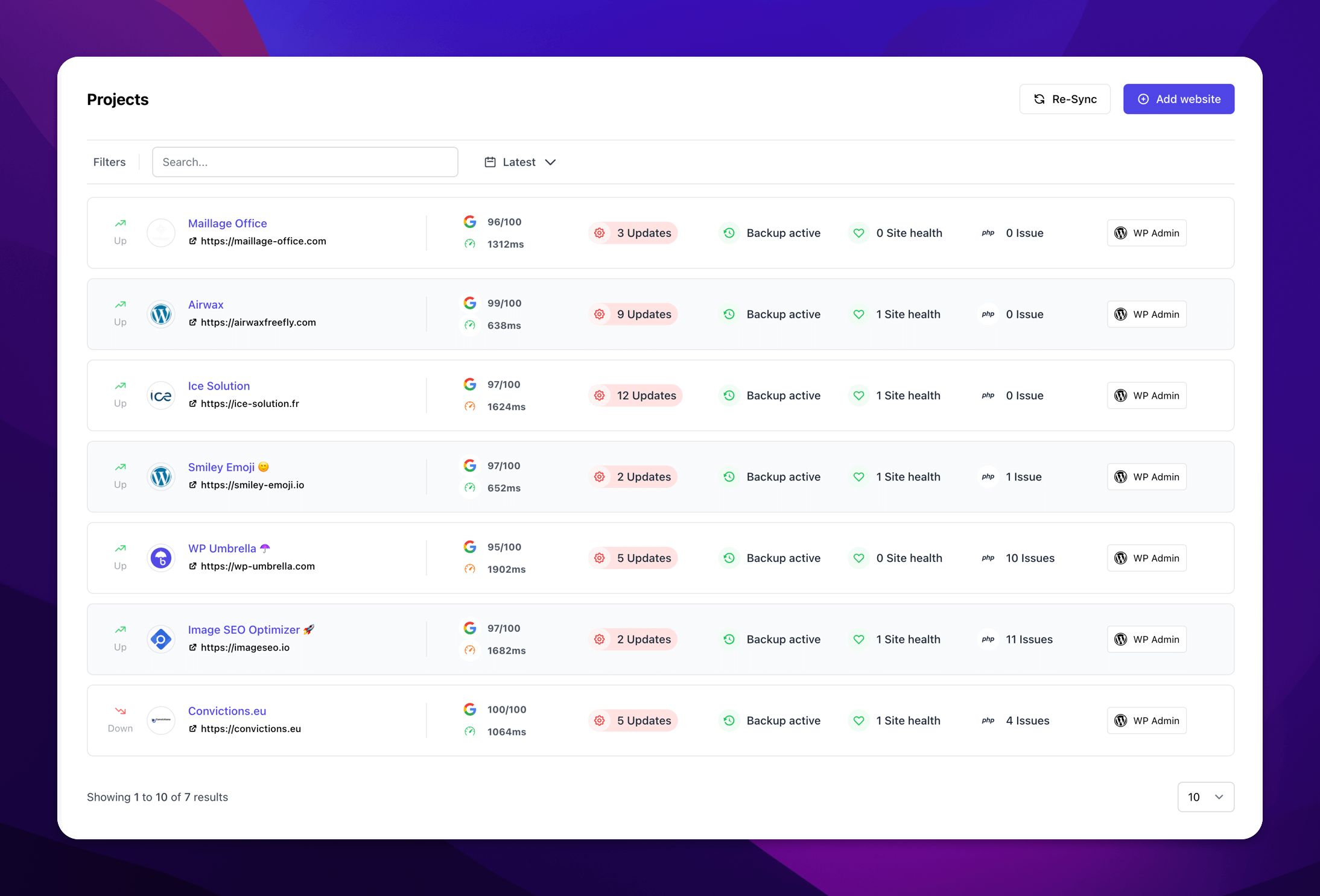
If you manage multiple WordPress sites, WP Umbrella brings prevention, detection, and recovery together in one place. You can harden sites, monitor their performance, uptime and security, scan for malware, run safe updates, manage reliable backups, and more. All from the same unified dashboard.
That means you can build security into your regular maintenance routine instead of treating it as a separate task. Harden new sites when you take them on, keep their software up to date, watch for anything unusual, and make sure you have a reliable way to recover if something goes wrong.

Conclusion
WordPress hardening is about closing the common security gaps attackers try first when trying to get to your site. In this guide, we covered practical steps like hiding your WordPress version, blocking user enumeration, and protecting your login.
These steps are simple to put in place and don’t require another plugin, writing code or paying expensive consultants. If you manage client sites, adding them to your regular maintenance routine can help prevent many common security attacks.
But hardening is only one part of WordPress security. You also need to put in place other security measures such as keeping your sites updated, monitor them for problems, scan for malware, and have reliable backups and a recovery plan in place.
WP Umbrella brings all of this together in one dashboard for your full portfolio. That way, security becomes part of your regular workflow instead of another thing you have to remember and do manually.
Frequently asked questions
WordPress hardening is the practice of changing your site’s settings to remove weak points before attackers can use them. It includes steps like hiding your WordPress version, blocking user enumeration, limiting login attempts, and disabling risky endpoints. It’s the prevention layer of WordPress security.
No. Hardening prevents the most common attacks, but strong security also needs proactive prevention, detection and recovery measures. Hardening is the first layer, but not the only one.
No. Good hardening doesn’t change how your site looks or works for visitors.
Yes. Every step in this guide can be applied manually, without installing another plugin, and most cost nothing. The trade-off is time: you have to set each one up by hand and repeat it on every site. WP Umbrella turns the same steps into on/off toggles you can apply from one dashboard in about a minute per site.
The most reliable approach is to make hardening part of your standard onboarding and maintenance routine, so every site gets the same protections. WP Umbrella helps by letting you apply hardening per site or across your whole portfolio from one dashboard, and by keeping every rule reversible if a site needs an exception.
Ready to boost your productivity, impress your clients and grow your WordPress agency?
Install WP Umbrella on your websites in a minute and discover a new way to manage multiple WordPress sites.
Get Started for free