
How to Automate WordPress Plugin Updates Without Breaking Client Sites

Agencies can automate WordPress plugin updates safely by grouping plugins by risk level, scheduling updates during low-traffic windows, and using tools like WP Umbrella for backups, rollback, and visual regression testing for critical plugins. This post walks through exactly how to do that, and how WP Umbrella’s Plugin Update Automations make it practical at scale.
At some point, every agency hits the same wall.
You’re managing 30, 50, maybe 80 client sites. Every week, update notifications pile up. You know they need to go out since outdated plugins are the source of more than half of WordPress security incidents. According to Patchstack, 91% of new vulnerabilities were found in plugins, and 9% were found in themes. But pushing updates manually across that many sites is hours of work. And doing it carelessly is how you end up having to explain to a client why their checkout page shows a 500 error.
So most agencies end up in an uncomfortable middle ground: they update when they can and skip what looks risky.
The problem isn’t that automation is dangerous. It’s that naive automation is. Enabling WordPress’s built-in auto-updates across everything and walking away gives you speed without control. But what agencies need is a way to automate updates on their own terms, with scheduling, rollback, and a clear record of what happened.
That’s what WP Umbrella’s Plugin Update Automations are designed to do.
Why automating WordPress plugin updates is risky (and why agencies avoid it)
The hesitation agencies have about automating updates is legitimate. A WooCommerce Payments plugin update carries completely different stakes than a social sharing widget update. Treating them the same way, either both manual or both automatic, doesn’t reflect how your sites work.
WordPress’s native auto-update feature doesn’t make this distinction. You turn it on, it runs on WordPress’s schedule, and you find out about problems after they happen. There’s no backup, rollback, visual check, and control over timing. For a single personal blog, that’s fine. For a client’s e-commerce site running a flash sale, it’s a liability.
The answer isn’t to avoid automation. It’s to apply the right level of care to each plugin, based on what it does and how much damage a failed update could cause.
Which WordPress plugins should be updated automatically?
Before configuring anything, it helps to sort your plugins into risk tiers. This framework makes the automation decisions straightforward.
Low-risk plugins: SEO tools, analytics connectors, or contact form plugins with no custom configuration can update quickly and quietly. If something minor happens, it’s fast to fix and unlikely to affect the client’s revenue.
Medium-risk plugins: page builders, caching tools, plugins that interact with custom theme code, multilingual plugins, warrant more caution. A backup before the update and an automatic rollback on failure give you a recovery path without requiring manual intervention.

See how Benjamin Gosset uses WP Umbrella’s Safe Updates and restoration feature to reduce WordPress update risk.
The safe update is really interesting. We are confident about updates because if there is a problem, the rollback system is here to prevent our website from breaking. It prevents being called by a client saying ‘my website is broken’. It’s a big feature, which helps us to be more confident, and clients too.
High-risk plugins: payment gateways, membership systems, booking engines, custom-built or heavily modified plugins, or anything in the critical path of the client’s business need the most rigorous treatment. A visual comparison of the site before and after the update, combined with automatic rollback if anything looks wrong, is the right standard here.
This tiered approach is what WP Umbrella’s three update modes are built around.
WP Umbrella: Quick Update vs. Classic Safe Update vs. Advanced Safe Update: which should you use?
| Update Mode | Best For | Protection Level | What It Does |
|---|---|---|---|
| Quick Update | Low-risk plugins you’ve tested and trust | Basic | Uses WordPress’s standard update process |
| Classic Safe Update | Most plugins in your standard stack | Moderate | Backs up plugin folder, auto-rollback on failure (e.g. 500 error), cache clearing included |
| Advanced Safe Update | Payment plugins, membership systems, mission-critical tools | Highest | Everything in Classic Safe, plus visual regression testing. It screenshots before and after, auto-rollback if layout or design issues are detected |
You don’t pick one mode for everything. That’s the point. Set Advanced Safe Update for payment plugins because the cost of a failure there is enormous. Classic Safe Update for your standard stack. Quick Update for tools you’ve tested a hundred times.
How to automate WordPress plugin updates safely with WP Umbrella
Step 1: Choose your plugins and scope
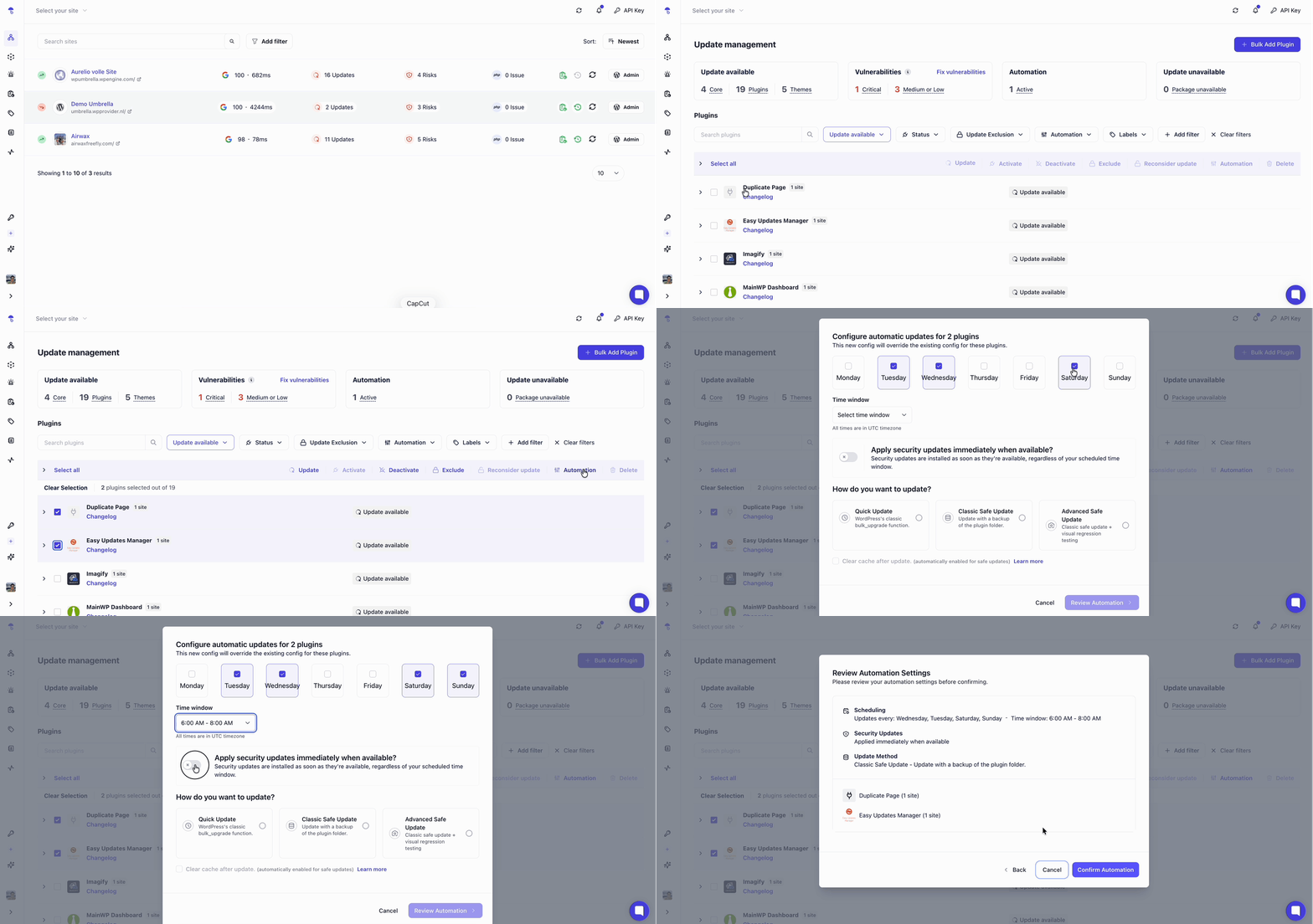
From the Update Management page in WP Umbrella, select the plugins you want to automate and click Automation. You can apply rules to a single site or roll them out across multiple projects at once.
Step 2: Set your schedule
Pick the days and times WP Umbrella should run updates. For most agencies, this means outside business hours when traffic is lower, and your team is available to respond if something needs attention.
Enable Apply security updates immediately when available to override the patch schedule and apply fixes for known vulnerabilities immediately. Your routine updates stick to their window. Security patches don’t wait.
Step 3: Assign the right update mode
Match each plugin to Quick, Classic Safe, and Advanced Safe Updates. You can run different update modes across different plugins and different sites from the same dashboard.
Step 4: Review and confirm
Click Review Automation, then Confirm Automation. Your rules go live.
Step 5: See or delete all automations
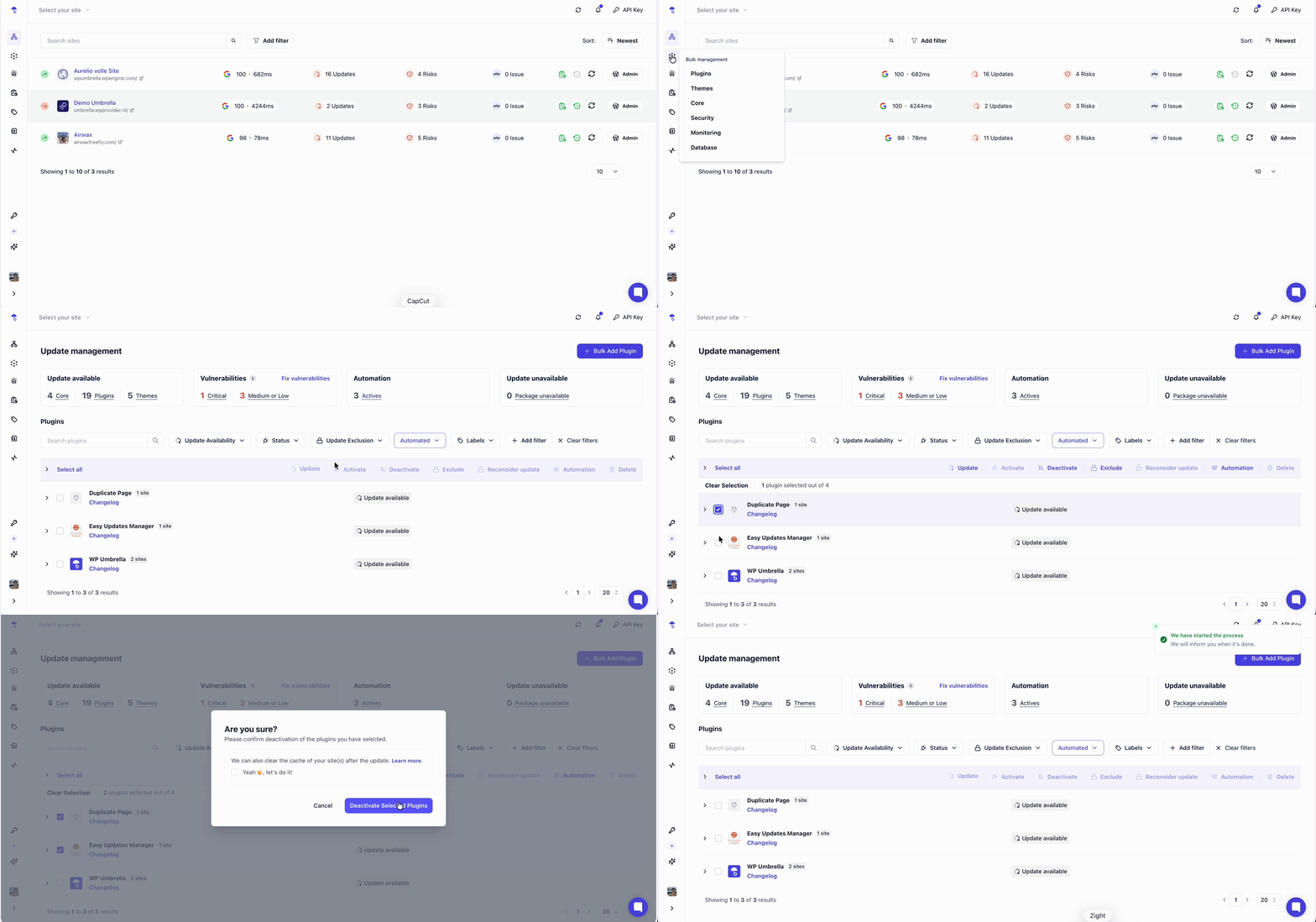
To see everything running at a glance, use the Automated tab on your update page. a dedicated filter showing active automation rules across all your projects. You can also deactivate the automation anytime by clicking the deactivate button.
How rollback and visual regression testing reduce plugin update risk
Automation without visibility is just a different kind of risk. WP Umbrella addresses this at two levels.
Automatic rollback triggers in Classic Safe Update if a server-level error, like a 500, is detected after an update runs. WP Umbrella reverts the plugin to its previous version and notifies you immediately. The failure is logged with enough context to investigate.
Visual regression testing in Advanced Safe Update goes further. The system captures a screenshot of the site before the update, another after, and compares them pixel by pixel for unintended layout or design changes. If anything looks wrong, the rollback fires automatically.
Every automated update is logged with timestamps, site names, plugin names, version numbers, outcomes, and, in the case of Advanced Safe Update, the before-and-after screenshots. This is your audit trail.
The Plugin History view adds another layer. Each plugin has a dedicated history showing every action taken: updates via WP Umbrella, updates made directly from the WordPress backend, rollbacks, activations, and deactivations.
Best practices for agencies managing plugin updates across client sites
A few principles that hold regardless of how many sites you’re managing:
- Never treat security updates the same as feature updates. Security patches for known vulnerabilities should go out immediately. Routine feature updates can wait for your scheduled window.
- Exclude what you can’t safely automate. Custom-built plugins, heavily modified third-party plugins, or anything with a non-standard update process should stay on manual review, at least until you’ve had time to test them.
- Use your logs proactively, not just reactively. Review update logs regularly, not just when something breaks. Patterns in failures often signal plugin conflicts or theme incompatibilities before they become client-visible problems.
- Document your automation rules per client. Which plugins are automated, on what schedule, and with which update mode? This becomes part of your maintenance documentation and is useful during client onboarding, offboarding, or team handoffs.
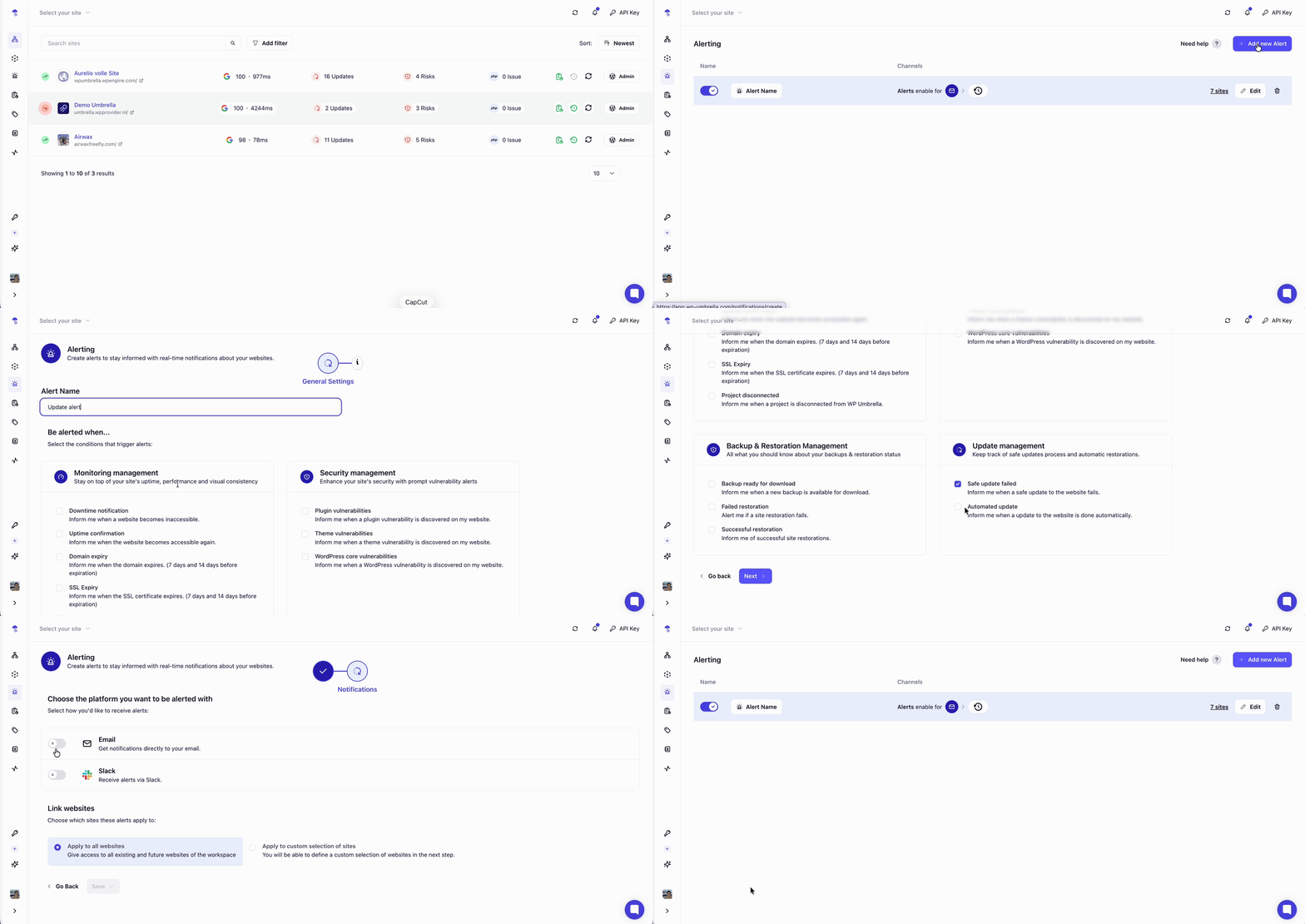
- Set up Slack or email notifications. Enable alerts from the Alerting Center in WP Umbrella to remove the need for manual check-ins after each update.
Automate WordPress plugin updates: final thoughts
Automating plugin updates is all about getting the repeatable, low-judgment work off your plate so you can focus on what requires your attention.
When a security patch comes out for a plugin running on 40 of your client sites, you want it applied immediately, not when someone on your team gets around to it. When a routine update runs on a Friday night, you want a record that it happened and confirmation that nothing broke.
Done this way, automation is a confidence layer. You’ve built a system that tells you when something goes wrong, fixes it automatically where it can, and keeps a complete record either way. That’s a maintenance operation your clients can rely on, and one your team can scale.
FAQs about how to automate WordPress plugin updates
Yes, if you match the update method to the risk level of each plugin. WP Umbrella makes automated plugin updates safe by giving you three update modes (Quick, Classic Safe, and Advanced Safe) so you match the protection level to the risk level of each plugin rather than applying a blanket approach.
Yes. You can create multiple automations with different rules in WP Umbrella. For example, weekly updates on standard plugins and immediate application of security patches. The only constraint is that you can’t create multiple rules for the same plugin on the same website.
WP Umbrella’s Plugin History view shows every action taken on each plugin: updates run through WP Umbrella, updates made directly from the WordPress backend, rollbacks, activations, and deactivations.
WP Umbrella lets you create multiple automations with different rules, schedules, and update modes across plugins and projects. The only constraint is you can’t create multiple rules for the same plugin on the same site.
The most scalable approach is a centralized management platform with automation rules, scheduling control, and per-plugin update modes. WP Umbrella lets you apply automation rules across multiple projects at once, so a standard plugin stack running across 40 client sites can be managed with a single automation setup rather than 40 individual ones.