
WordPress Security in WP Umbrella: Replace multiple security plugins with one solution
WordPress security often means a different tool for every job, on every client site. Here's how WP Umbrella handles it in three layers, from the essentials included on every site to expert help when a site gets hacked, all from your maintenance dashboard.

TL;DR
- WP Umbrella gives agencies one reliable solution for managing WordPress maintenance and security across all their sites, without adding extra plugins or slowing their sites down.
- 0. Maintenance Layer (included with every site): backups with one click restore, automatic safe updates, uptime and performance monitoring.
- 1. Essential Security Layer (included with every site): vulnerability monitoring, WordPress hardening, Site health assistant, and priority security updates.
- 2. Advanced Security Layer (The Security Add-on): a firewall with virtual patching powered by Patchstack, daily malware scanning, activity log and a shared IP blocklist.
- 3. Recovery Layer(on-demand expert help): a Security Audit with a detailed report; and Managed Cleanup Service.
How many different tools do you need to handle WordPress security effectively? A vulnerability scanner. A backup solution. Maybe Cloudflare for the firewall. Something to monitor activity. Something else to clean up malware when a site gets compromised.
Keeping one WordPress site secure can mean managing a handful of different tools, each with its own dashboard, alerts, settings, and monthly bill.
And when you’re a WordPress agency maintaining tens or hundreds of client sites, that gets messy fast. You need security that works and a manageable workflow you can actually scale.
In this article, I’ll take you through how we brought both together: reliable, end-to-end security and a flexible workflow that works across every site you manage.
The Problem With Keeping WordPress Security Separate from Maintenance
For years, WordPress security has been handled separately from the rest of your maintenance work.
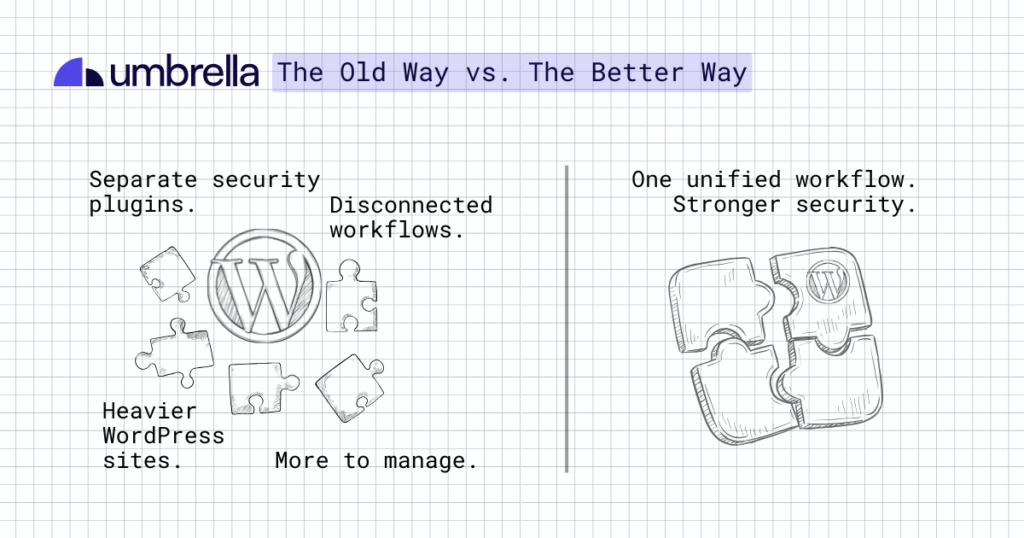
You install a security plugin to scan for vulnerabilities or monitor for malware. Then you switch back to your maintenance tools to run updates, manage backups, or monitor site performance.
But every additional plugin you install adds more weight to the WordPress site.
And when your security tools and maintenance tools are disconnected, your workflow becomes less efficient. You’re jumping between different dashboards, managing separate alerts, and moving from one tool to another just to take action on an issue.
Security has always been a central part of maintaining a WordPress site.
A vulnerability is often fixed with an update. Recovering from malware depends on having a clean backup. And keeping a site secure starts with keeping it up to date and healthy.
So why keep security in a separate tool?
Security should be part of the same workflow as the rest of your WordPress maintenance, allowing you to detect an issue and take action right away.
Different Clients, Different Security Needs
There’s another challenge WordPress agencies face when it comes to security. When you’re managing a large portfolio:
- not every client asks for the same level of protection, and
- not every client has the same budget for it.
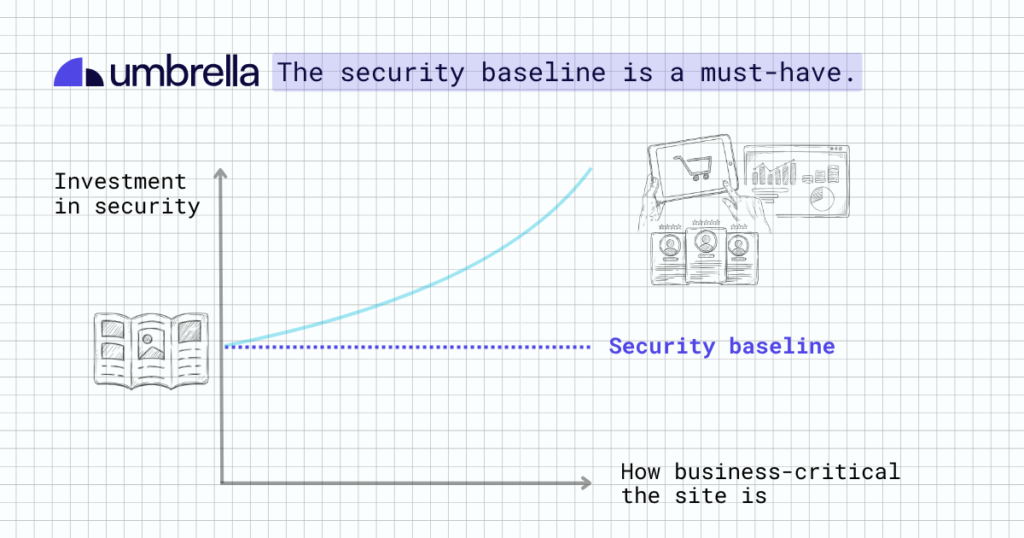
A five-page brochure site and a WooCommerce store processing orders around the clock don’t carry the same business risk. Some clients want every security measure you can offer. Others want to keep costs as low as possible.
What shouldn’t be up for discussion is the baseline. The security essentials shouldn’t depend on the client’s budget or how important their website is to their business.
And when you’re managing dozens of sites, you can’t afford to build a completely different security setup for every client.
You need enough flexibility to protect a high-value e-commerce site differently from a small brochure website, without creating another maintenance headache.
How WP Umbrella approaches security
These challenges shaped how WP Umbrella approached WordPress security.
Instead of adding multiple security plugins to your stack or build a watered-down collection of security features just to check a box, WP Umbrella built its security toolbox around three principles:
- Keep Security Where the Maintenance Happens.
You don’t need to install many different additional security plugins on your sites. You can manage all your WordPress maintenance tasks, including security, from your centralized WP Umbrella dashboard. - Give Every Site the Essentials. Add More When Needed.
WP Umbrella covers the essential protection for every site, from day one. Then lets you add more layers of security when a client’s site, risk, or budget calls for them. - Build Every Layer to the Highest Standard.
Every layer of WP Umbrella security is built to meet the standard you’d expect from a security-specific WordPress solution. Agencies get everything they need to replace their existing security plugin without lowering their security standards.
Now let’s look at the actual layers that shape up WP Umbrella’s security stack.
The three layers of WordPress security inside WP Umbrella
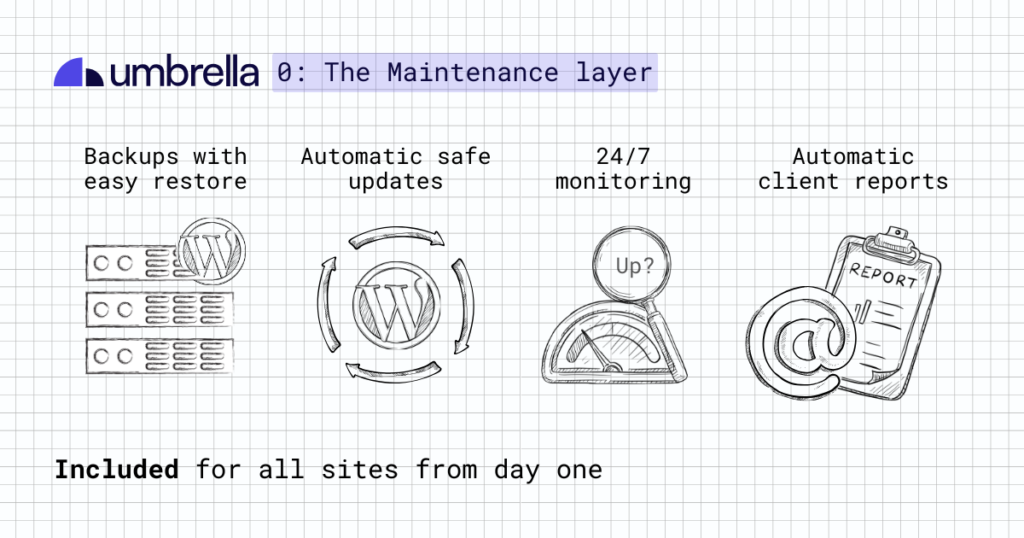
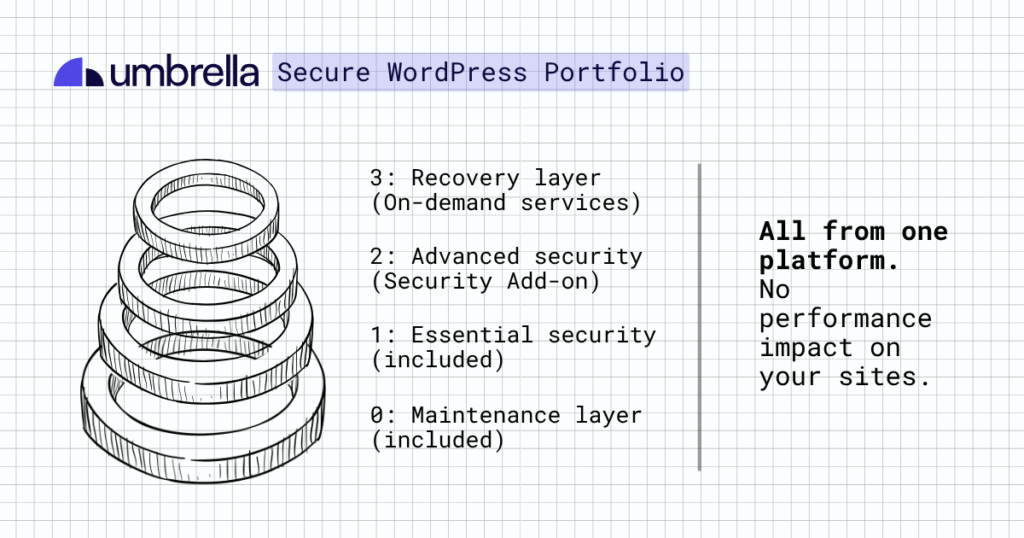
First of all, WP Umbrella’s security approach is tied in with the maintenance workflow agencies already have. Backups, updates, reports, uptime and performance monitoring all live in one centralized dashboard.
We can call it Layer 0 or The Maintenance Layer.
From there, WP Umbrella adds three layers of WordPress security.
Layer 1: Essential security
If a client site ever gets hacked, “security wasn’t in the plan” isn’t a conversation you want to have.
The reality is that clients expect a basic level of security from any maintenance plan, even if you never discussed it during onboarding.
For this reason, WP Umbrella includes the main security features with every site, at no extra cost, so you don’t need a separate security subscription to cover the essentials.
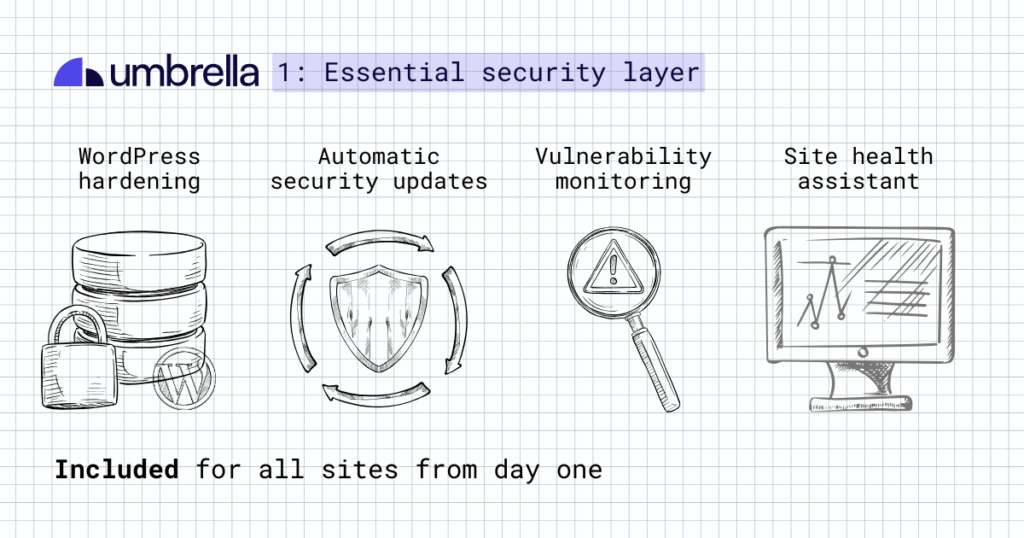
1.1: Vulnerability monitoring
A vulnerability is a security flaw in the code of WordPress core, a plugin or a theme that attackers can use to break into a site. Vulnerabilities are one of the most common ways WordPress sites get hacked, and new ones turn up all the time.
WP Umbrella monitors each site for known vulnerabilities in WordPress core, plugins and themes, every 6 hours. This check is powered by Patchstack. When it finds a vulnerability, you’re notified right away.
If the security fix is available, you can update the affected plugin, theme or core from the same dashboard with WP Umbrella’s Safe Updates.
If the fix is not released yet, you can block attacks on that vulnerability with a virtual patch by enabling the Security add-on (see Security Layer 2).
1.2: WordPress hardening
WordPress hardening is a set of security measures that close common weak spots in a WordPress site.
Instead of manually applying these measures one by one, you get a list of hardening controls in the WP Umbrella dashboard. Each with its own on/off toggle.
You can enable them all at once or choose only the controls that make sense for a particular site. For example, you can disable XML-RPC on most client sites but leave it enabled on a site that still needs it.
Hardening controls available in WP Umbrella are:
- Hide your WordPress version. Prevent your WordPress version from being exposed publicly.
- Block user enumeration. Stop attackers from easily discovering WordPress usernames.
- Mask login error messages. Show generic login errors so attackers get less information.
- Disable the theme and plugin editor. Prevent code from being edited directly from the WordPress dashboard.
- Add security headers. Add headers that protect against common browser-based attacks.
- Rate-limit login attempts. Slow down repeated login attempts to make brute-force attacks harder.
- Disable XML-RPC. Turn off XML-RPC when a site doesn’t need it.
- Require two-factor authentication. Add an extra login step for admin accounts.
- Harden .htaccess. Protect sensitive files, writable folders, and other common attack points.
So, in simple terms: these controls give agencies a quick way to close common WordPress security gaps across their sites, without having to configure each site manually. This makes hardening in WP Umbrella quick, simple, and easy to adapt to each site.
1.3: Site health assistant
WP Umbrella’s Security Dashboard works like an assistant for all your sites. It automatically checks the parts of a WordPress setup that are easy to overlook when you manage many sites.
It flags PHP versions that no longer get security fixes, confirms if HTTPS is set up correctly, checks if search engines can index the site, and more. It also looks for inactive plugins and themes, because attackers can still exploit a vulnerable plugin after it’s been deactivated, as long as its files stay on the server.
Then it organizes the findings in two sections: what needs your attention today, and what has already been checked and passed.
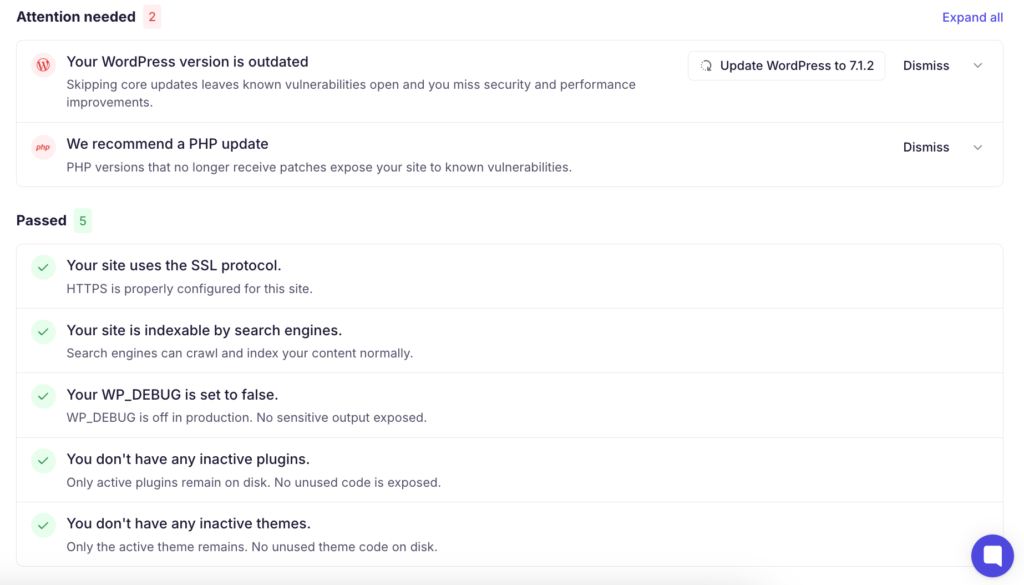
Each issue comes with a short note on why it matters.
When WP Umbrella can fix it for you, the update button sits right next to the warning.
If you’ve already planned the fix, or it doesn’t apply to that site, you can dismiss it and move on. Once you’ve dismissed an item, it’s cleared from the list, so the dashboard stays organized and easy to read at all times.
1.4: Priority security updates
Most agencies run updates on a regular schedule, for example once a week. But security attacks on a new vulnerability often start within hours of it going public.
Applying the security fix as soon as it becomes available can significantly shorten the time your site is exposed to these attacks.
When you turn on priority security updates, WP Umbrella installs security fixes as soon as they’re released, without waiting for your regular schedule. Your other updates still follow the normal plan, and only the fixes for known vulnerabilities skip the queue.
However, installing updates automatically is only useful if they don’t break client sites. To make sure that doesn’t happen WP Umbrella applies its Safe Updates technology.
Before installing the update, WP Umbrella:
- Checks that the new version is compatible with the site.
- Creates a backup so the update can be rolled back if needed.
- Takes a screenshot of the site.
Then it installs the security update and checks the site again.
After the update:
- It makes sure the site loads.
- Takes another screenshot to compare with the initial one. That visual check can catch problems that a simple uptime check would miss, like a broken layout or a section that disappeared.
- If the update causes an error, takes the site down, or creates a visual problem, WP Umbrella notifies you and automatically rolls it back using the backup it created beforehand.
- If everything looks good, the update is complete and WP Umbrella clears the cache so visitors see the updated site right away.
Layer 2: Advanced security
When used to its full potential, WP Umbrella’s first security layer already provides a strong level of protection.
But some sites have more at stake than others. For those high-value or higher-risk client sites, WP Umbrella offers the Security Add-on, which adds the advanced layer of protection.
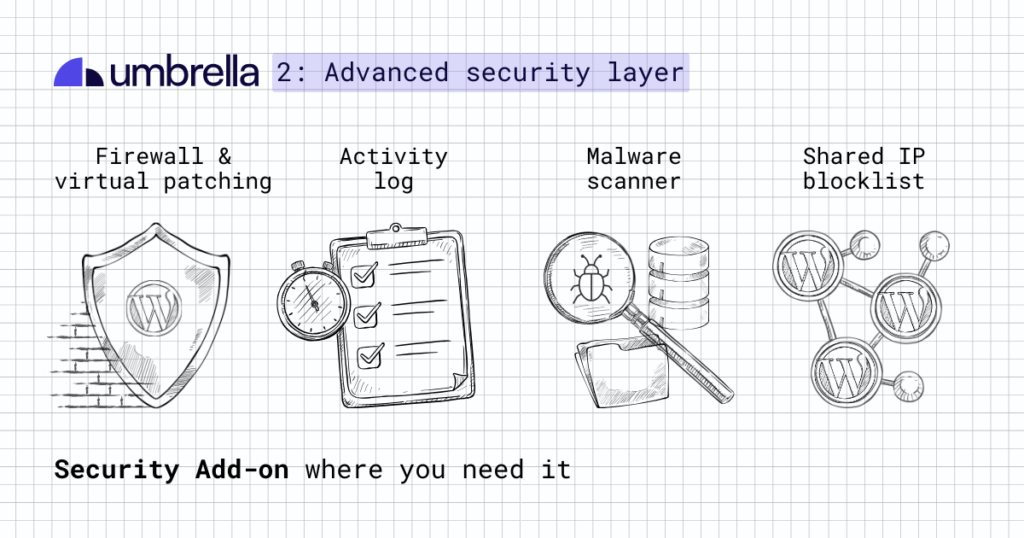
When is layer 2 needed?
WordPress security is changing fast. In 2026, new vulnerabilities are appearing constantly, and attackers don’t care whether a site is a small brochure site or a busy online store. They automate their attacks, and get inside any site that has an unpatched vulnerability.
Ask yourself one question about each site: what happens if this site gets hacked? If the answer is, “We’ll restore the backup and move on”, the protection in Layer 1 may be enough.
But what if a hacked site means lost orders, customer data at risk, leads disappearing, a business owner calling you at 8 AM asking why their website is showing a warning… that site should have the Security Add-on.
The Security Add-on also helps if you already pay for a separate security plugin on some sites. You get the firewall, malware scanning, and activity log in the same dashboard as your updates and backups, so you can drop the extra tool and stop switching between logins.
Let’s explore what exactly is included in WP Umbrella’s Security Add-on.
2.1: Firewall and virtual patching
Turn this on, and your site gets proactive protection from Patchstack, one of the leading sources of WordPress security intelligence.
How? When a vulnerability is discovered, there can be a gap between the vulnerability becoming public and the developer releasing a fix. Patchstack’s virtual patching technology protects your site during that gap by blocking attacks against the vulnerable code before an official update is available.
That makes virtual patching one of the few proactive security measures you can use to protect your sites during the most dangerous window: when a vulnerability is known, but there’s no official fix yet.
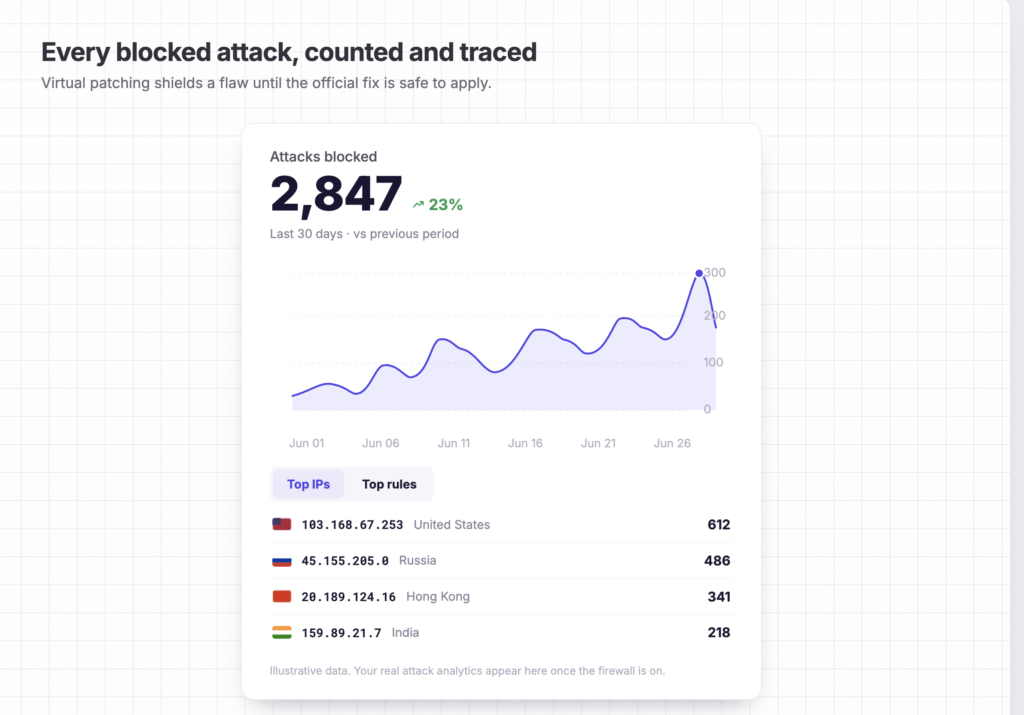
On top of this, for each site, you can also see the attacks blocked over the last 30 days, including the IP involved, where the attack came from, and which rule blocked it.
This way you’re not just protected in the background. You can also see and communicate to your client what’s being blocked and what a site is facing.
2.2: Daily malware scanning
The malware scanner runs on WP Umbrella’s servers instead of on your client’s site, so it doesn’t slow the site down.
This is especially important with malware scanning. Traditional scanners can use a significant amount of CPU while scanning files across a site. On busy or shared hosting, that can mean slower sites and fewer resources available for visitors.
WP Umbrella handles the scanning outside WordPress, so your sites get daily malware checks without any extra server load.
The scanner runs every day, but alerts you only when it’s confident something needs your attention, so you’re not distracted by alarms more often than necessary.

Each alert shows when the malware was found, which file it’s in and what to do to make the site safe again.
If the infection is serious, you can ask WP Umbrella’s team for a detailed Security Audit or a complete clean up service (see Layer 3).
2.3: Security Activity Log
When a client says their site “looks weird”, or a new admin account appears that nobody remembers creating, you need to know what happened and who did it. The Security Activity Log gives you that answer without digging through server or WordPress logs.
It spots common signs that a site has been compromised, such as brute-force login attempts, unusual logins, changes to user roles and changes to core files.
When it detects something, you see the affected account, the IP address the activity came from and a minute-by-minute timeline of what happened. Some alerts also suggest what to do next, so you can act even if you’re not a WordPress security expert.
2.4: Shared IP blocklist
As of October 2026, more than 90,000 sites are connected to WP Umbrella. When an IP is caught attacking one of them, it’s added to a shared blocklist.
Every site with the Security add-on then blocks that IP at the login page before it can try anything there.
This means an attacker caught on another agency’s site can be stopped before it reaches your client’s site too.
Layer 3: Recovery
The first two layers are there to prevent attacks and catch problems early. But WordPress security is never unbreakable. If a tool promises that, it’s probably just marketing fluff.
Even with the best protection in place, there will be times when you need a security expert to step in: a site that’s already been hacked, or a new client site that hasn’t been properly looked after in years.
When security is handled properly, these situations don’t happen very often. So paying a monthly subscription just to have an expert on hand doesn’t make much sense.
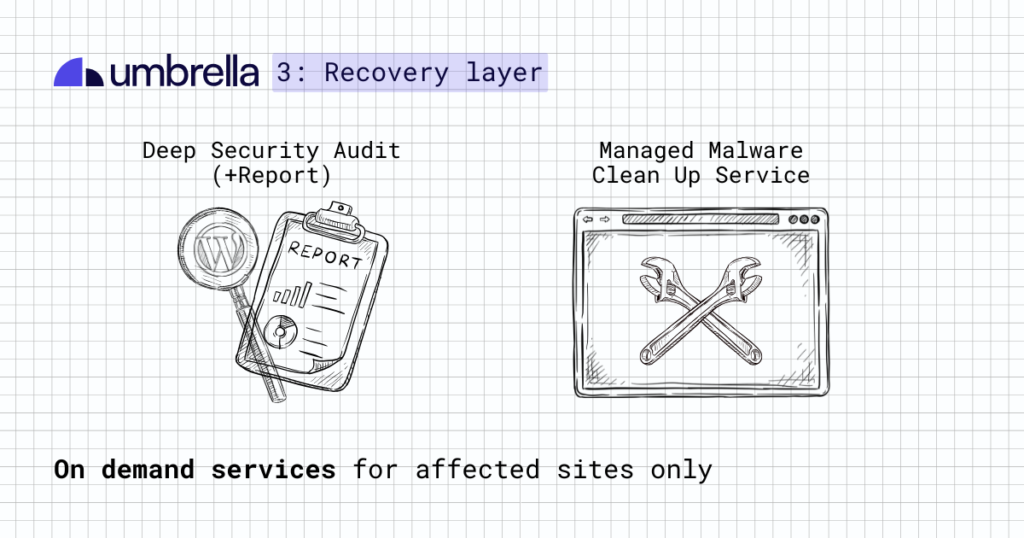
That’s why WP Umbrella offers two on-demand security services. You order them when you need them and only for the affected sites. You save your budget while still getting fast, reliable help when you need it.
3.1: WordPress Security Audit (+Report)
The Security Audit gives you a full picture of how secure a site is right now, and what needs fixing first. It’s most useful when malware is found.
Upon your request, the WP Umbrella team investigates your site in detail. They review the files, database, settings and access history to piece together exactly what happened and how the malware got in.
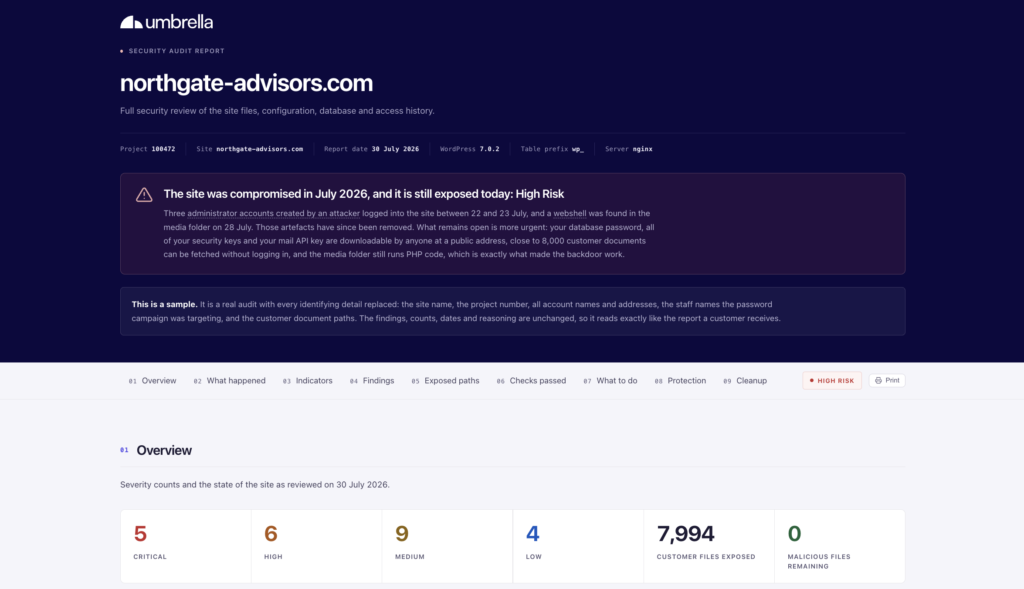
You then get one clear report (see sample report) showing what went wrong, where the vulnerabilities were and how serious each issue is. More importantly, the report gives you specific steps to fix the problems and lower the risk of the same attack happening again.
The report is easy to read and focused on action. It walks you through the incident piece by piece, almost like a detective story. It also lists what the team checked and ruled out, so you know which parts of the site are clean.
3.2: Managed Cleanup Service
If a site is infected and you don’t have the time or expertise to handle the cleanup, WP Umbrella’s team can clean it up for you.
The cleanup service is an on demand intervention, and the team works through these steps:
- Stop the infection from spreading, then change every password and access key the attacker could have seen.
- Close the way the attacker got in at the server level, where a plugin setting can’t undo the fix.
- Reinstall WordPress core and plugins from clean, official sources.
- Remove anything the attacker left behind, then scan the whole site again.
- Harden the site: turn off the file editor, force HTTPS and set up two-factor authentication.
When the work is done, you get a before-and-after report you can share with your client.
What does this mean for your WordPress maintenance business?
The real benefit of WP Umbrella’s layered approach to WordPress security is that it doesn’t have to be a one-size-fits-all service.
You can stack the layers as you see fit. Give every client the essential level of protection from day one. Then you offer more when the site needs it. And bring in specialist help only when something actually happens.
| Security layer | What’s included | Best for | Cost |
| Layer 1: Essential security | Vulnerability monitoring, WordPress hardening, site health checks, priority security updates. | Every site you manage | Included in the WP Umbrella plan. No extra cost. |
| Layer 2: Security add-on | Firewall and virtual patching, daily malware scanning, Security Activity Log, shared IP blocklist | Business-critical client sites | 2€ per site per month |
| Layer 3: Intervention and recovery | Security Audit, Managed Cleanup Service | A site with malware, or a suspicious site you’re taking on from another developer | On-demand: €30 per site (audit), €180 (cleanup). |
WP Umbrella’s security layers give you more control over your costs, your pricing, and the level of service you offer, without making security another thing your team has to study constantly or manage separately.
Summary
Keeping WordPress sites secure can mean relying on a lot of different tools: vulnerability scanning, firewalls, activity logs, malware cleanup, and more. WP Umbrella brings these security tasks into the same workflow you already use to manage updates, backups, and performance monitoring.
The layered approach means you don’t have to give every client the same security setup. Instead, every site gets the essentials, and then you can add stronger protection to the sites where a security incident would hurt the most. On top of that, you can bring in expert help when a site needs a security audit or a full malware cleanup.
The easiest way to see how this works is to connect a few client sites to WP Umbrella and open the Security Dashboard. You’ll see what needs attention, how you can harden each site, what’s already protected, and where you may want to add another layer of security.
Start your free WP Umbrella trial. No card required.
FAQ about WordPress security inside WP Umbrella
Yes, with the Security add-on. Layer 1 already covers vulnerability monitoring, hardening and site health checks on every site. The add-on brings the firewall with virtual patching, daily malware scanning and the activity log, so you can safely replace a plugin like Wordfence, Sucuri or Solid Security on that site.
Yes. If you’re not ready to switch, you can move sites over to WP Umbrella’s security one at a time.
Ask what the client would lose if the site got hacked tomorrow. If the answer is “not much, we’d restore a backup”, Layer 1 is usually enough. Business critical sites such as online stores, membership and booking sites, sites that bring in the client’s leads, and sites you just took over from another developer are good candidates for the Security add-on.
No. You turn it on per site, so you can keep it for the sites where a hack would cost the client the most, such as online stores or membership sites. Every other site still gets Layer 1 at no extra cost.
It’s a firewall rule that blocks attacks on a known vulnerability before the plugin or theme developer releases a fix. In WP Umbrella, it’s powered by Patchstack and included in the Security add-on.
Layer 1 is free (included in the standard WP Umbrella plan, which costs 1.99€ per site per month). The Security add-on is 2€ per site per month. The Security Audit is €30, and the Managed Malware Cleanup is €180, both one-time payments when needed.
Restore your last clean backup first, so visitors see a safe site again. Then update the plugin or theme that let the attacker in. A good scanner tells you both which backup to use and which flaw to fix. Finally, check the Security Activity Log to see what changed and when. Inspect if the attacker left a hidden back door and make sure you close it before they use it again. Alternatively, you can request a Security Audit from WP Umbrella’s team, or a complete malware cleanup service.