How to Detect Malware on WordPress? A Guide to Malware Scanners
Malware is built to hide, so you can't catch it by looking at your site from the outside. Here's how WordPress malware scanners actually detect it - and how to tell a great one from a basic one.
Manuela Manevska
•
Share on:
Most hacked websites don’t look hacked. The pages still load, the branding is intact, and everything appears normal to the person browsing the site. Meanwhile, malicious code can sit inside the WordPress installation for weeks (or even months) without anyone noticing.
That’s because malware is designed to stay hidden. You can’t really detect it by checking the front end of a website. You need to inspect what’s happening under the hood: the files, the database, and the changes made to them. That’s what WordPress malware scanners are meant to do.
In this guide, we’ll break down how WordPress malware gets onto a site, how scanners detect it, and what separates a basic scanner from a good one.
TL;DR
A hacked WordPress site can look completely normal. Malware can stay hidden for weeks or months before you notice anything is wrong.
Fixing the vulnerability isn’t always enough. If you don’t know how the attacker got in, the same problem can happen again.
A good malware scanner should give you clear answers. When something is wrong, you should know what was found, where it is, and what to do next.
WP Umbrella scans your sites every day without slowing them down. When malware is found, it sends you an alert and allows you to restore a clean backup, update your site, harden WordPress, and work through the problem from the same dashboard, instead of jumping form one tool to another.
What is WordPress malware?
Malware is just code that does not belong on your site. A hacker puts it there and hides it.
It can take many shapes. It might be a hidden back door that lets the hacker come back later. It might be a fake plugin. It might be a few extra lines slipped into a real file. It might even be a small entry buried deep in your site’s settings.
The important thing is that malware is made to look boring. It copies the names of real files. Its code is often scrambled, so no human can read it. And it stays quiet until the hacker needs it. That is why you almost never notice it on your own.
How malware gets onto your site
To find malware, it helps to know how it arrives. The story is almost always the same.
First, the “hacker” is rarely a person sitting somewhere manually attacking websites. In most cases, it’s an automated bot or script scanning millions of sites every day, looking for vulnerable ones to break into.
The attacker visits your site like any normal visitor. But it also takes notes: it reads which plugins you use, which theme you have, what’s the version number of each one. Then it compares that information against lists of known vulnerabilities.
Where do those lists come from?
Every week, security researchers discover new flaws in WordPress plugins and themes. These flaws are called vulnerabilities. Once a vulnerability is confirmed, researchers and security organizations often publish the details so plugin and theme developers can fix the issue and users can protect their sites. But that information isn’t available to the good guys alone. Attackers monitor the same disclosures and if one of your plugins or themes has a known vulnerability, the hacker uses it to walk right in. This can happen only hours after a flaw becomes public. Sometimes minutes.
Then comes the malware. Getting in once is not enough for the attacker. So it drops a small piece of its own code on your site, which lets it come back any time, even after you fix the initial security vulnerability.
Signs your site might be infected
Sometimes an infected site shows warning signs. But by the time they show up, the malware has often been there for weeks or months.
Here are the signs site owners tend to notice too late.
Google shows a warning next to your site in search results.
Your web address gets added to a blacklist.
Visitors get sent to strange scam pages.
Or your site starts sending spam email in your name.
Notice the problem? All of these are things other people see first. Your customers see them, Google sees them, but you are the last to know.
Unfortunately, you also cannot check by hand. A normal WordPress site has tens of thousands of files. No person can read them all and spot the one bad line that causes the problem. This is why you need an effective automated solution that checks everything by itself, and alerts you when your attention is needed.
What a malware scanner actually does
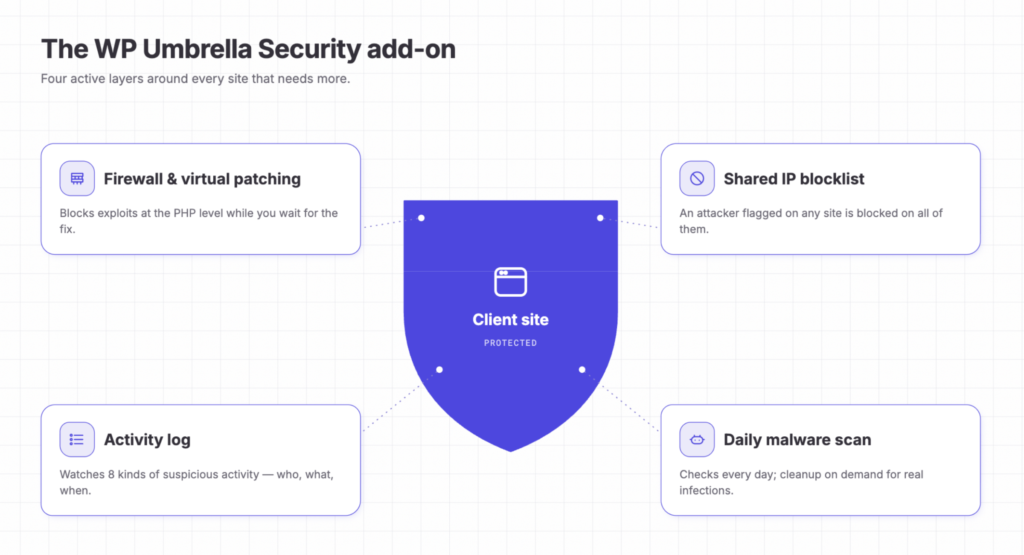
A malware scanner has one simple job: to look at every file and every setting on your site, and ask “does this belong here?”.
Image 2: What a malware scanner actually does?
But simple isn’t always easy.
Think about the size of that job. A typical site has tens of thousands of files and thousands of database entries too. The scanner works through them automatically.
The large majority of your files are normal and safe. So most of the answers are easy. But the scanner’s real skill is spotting the few items that are not. And the hard part is how it makes that call.
Let’s look at that next.
How malware scanners detect malware
The most common method malware scanners use to detect malware is signatures. The scanner keeps a big library of malware it has seen before. Then it goes through your site and compares each of your files to that library. If a file matches, the answer is certain, it found malware.
This works well because attackers reuse the same tools on thousands of sites. But it still has one clear weakness: it only knows what it has already seen. If an attacker changes even one character in its malware code, the match breaks, and the malicious file slips by.
Since fresh strains appear all the time, a scanner that only knows old malware will always be one step behind.
“In just a few months, we’ve run 2,498,865 malware scans and found at least one issue on 28,709 sites. This experience teaches us what it takes to build a malware scanner, security audit, and malware cleanup service that you can actually rely on.”
Thomas Deneulin – CTO @ WP Umbrella
What makes a WordPress malware scanner great
Now you can turn those problems into a simple checklist and use it to judge any scanner you look at. A great WordPress malware scanner should:
Detect all kinds of malware that may be hiding on your site.
Run frequently without slowing your site down.
Alert you when your attention is actually needed.
Give you enough information to decide what to do next to protect your site.
Play well with the rest of your WordPress management and security setup, so you can actually take action based on the information it gives you.
Sounds easy, but that is a high bar that few scanners clear. Let’s look at one that does.
WP Umbrella’s malware scanner
WP Umbrella has a sophisticated malware scanner built-in inside the Security Add-on. Here’s what makes it stand out from traditional solutions:
Image 3: WP Umbrella’s malware scanner view
First, it runs every day without affecting your site’s performance. The scans run on WP Umbrella’s servers, so they don’t use your live site’s resources.
Second, it’s designed to avoid unnecessary alerts. WP Umbrella’s scanner reaches a high level of confidence before sending you an alert. If you review an alert and decide it doesn’t need further action, you can simply dismiss it without crowding your workspace.
Third, it looks beyond known threats. It checks deep and finds hidden malware and code no database has seen yet.
Fourth, sends clear alerts. When something is flagged, you can see when it was found, where, and what you should consider doing next.
Finally, the scanner is part of a connected WordPress management platform.
This is one of the biggest differences. You don’t need to install additional malware scanner plugin that will work in isolation. WP Umbrella’s malware scanner lives inside your full WordPress management platform, so it can talk to everything around it:
It works with your backups, so when malware is found you can roll the site back to a version from before the infection, without leaving the dashboard.
It works with safe updates, so you can patch a plugin, theme, or WordPress core before an attacker uses a known vulnerability.
It works with monitoring, so you can watch your site’s uptime and speed in the same place.
It works with other security measures such as WordPress hardening rules.
And there is more beyond that. Because it is all connected, finding the malware and fixing it happen together, the way it should be.
What to do after finding malware
The instinctive first step after finding malware is to restore a clean backup and update your plugins and themes. And yes, that can fix what you can see.
But the exposed path the malware first came through may still be there. And if you do not know exactly how the attacker got in, the same thing can happen all over again next week. To be truly safe, you need to understand what happened, and make sure it cannot happen twice.
WordPress Security Audit Report
To help with this, WP Umbrella runs an on-demand WordPress Security Audit and generates a Security Report that covers everything you need to know and everything you need to do with that knowledge.
You request the audit, and the WP Umbrella team investigates your site in detail. They review the files, database, settings, and activity logs to piece together exactly what happened. You then get one clear report showing what went wrong, where the vulnerabilities were, and how serious each issue is. More importantly, the report gives you clear, specific action steps to fix the problems and reduce the risk of the same attack happening again.
It’s designed to be easy to read and very action-oriented, while giving you a complete picture of the incident, piece by piece, almost like a detective story. If you’d like to understand more, check out the video below. The Security Audit is a one-time cost of €20 per site.
Managed Malware Cleanup Service
And sometimes you would rather not touch any of this yourself. Security issues are never not overwhelming and stressful.
For that, WP Umbrella has the Managed Malware Cleanup service. Here, the team removes the malware for you.
Security experts lock down your logins, close the doors the hacker used, reinstall clean copies of WordPress and your plugins, and clear out anything the attacker left behind. They also add extra locks so it is harder to happen again.
After all that is covered, you get a before-and-after report, so you can see exactly what was done. It is a one-time €180 service.
“Before WP Umbrella had its own malware scanner, we’d often hear from people who’d been told they had malware and had no idea what to do next. It wasn’t technically ours to fix, but we’re a support team, so we helped however we could. Now, with the scanner built in, most people know what to do from the moment they get the alert. And when they need extra help, there’s a clear path forward with the Security Audit and Managed Cleanup.”
Boris Zarev – Head of Customer Experience @ WP Umbrella
Together, these options give you the ability to find the malware, understand it, and clean it up, all in one place inside your WP Umbrella dashboard.
Scanning many sites at once
Maybe you do not run one site. Maybe you run dozens, or hundreds, for clients. Then taking care of them all gets much harder.
WP Umbrella is built for exactly that.
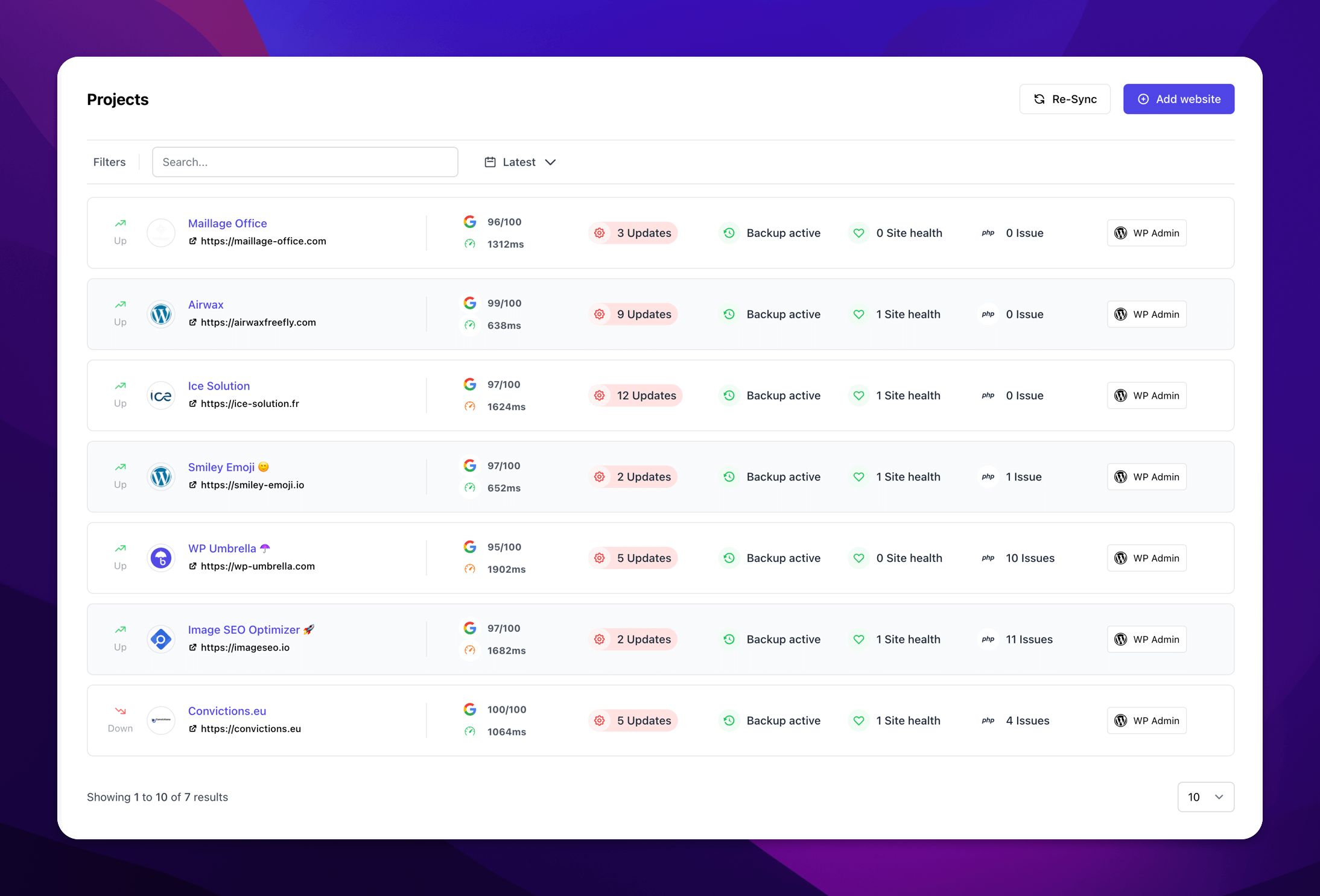
Image 7: Inside WP Umbrella’s centralized Security Dashboard where you can see your full portfolio at a glance
From one place, you can see your whole portfolio at a glance. And you stay in control of what runs where. The malware scanner comes with WP Umbrella’s Security add-on, and you switch that add-on on only for the sites you choose.
Once you activate the Security add-on on a site, you get more than the scanner. You also get:
A security activity log, so you can see exactly what happened on the site, and when.
A firewall with virtual patching, powered by Patchstack. It can block a known vulnerability for you even before an official update is available.
Protection from a list of bad IP addresses that WP Umbrella learns across its whole network. An attacker caught anywhere on the network ends up blocked on your sites too, so every site you add makes the others a little safer.
So for a busy agency, this is not just a lot of scans in one spot. It is a full layer of security you can switch on site by site, in a few clicks.
A malware scanner alone isn’t enough to keep your WordPress site secure. Think of it like a fire alarm. It helps when something has already gone wrong. Most security work should happen before that: block common entry points and make it harder for attackers to get in.
Cyrille Coquard – Lead of Engineering @ WP Umbrella
Summary
Bringing it together: malware hides on purpose, so you cannot find it by looking from the outside. A malware scanner finds it for you, by checking your full site, automatically.
The best scanners are the ones that stay quiet until something is actually wrong. They give you clear alerts that point to your next step. And they connect with the rest of your WordPress management setup, so you can restore a clean backup when you need it, update the plugins or themes at fault, and get back to safety as fast as possible.
WP Umbrella’s malware scanner is built to do that. You can try it by connecting your sites to WP Umbrella and activating the Security Add-on at €2 site/month.
Ready to boost your productivity, impress your clients and grow your WordPress agency?
Install WP Umbrella on your websites in a minute and discover a new way to manage multiple WordPress sites.
Can WordPress get malware even if it is fully updated?
Yes. Updates close known vulnerabilities. But if a hacker got in before you updated, they often leave a hidden back door. That back door stays after the update and can be used by the attacker again.
How often should I scan my WordPress site?
Every day is best. Robots attack around the clock. A daily scan means you learn about a problem in hours, not weeks. WP Umbrella scans every day by default.
Will a malware scanner slow down my site?
It can, if it runs on your site. WP Umbrella doesn’t do that because it runs on WP Umbrella’s own servers. Your live site’s performance is not impacted.
Is a free malware scanner good enough?
A free scanner is certainly better than none. But not all scanners are created equal, and free tools can have limitations in what they’re able to detect and how thoroughly they can check your site.
What should I do if a scan finds malware?
Restore your last clean backup first, so visitors see a safe site again. Then update the plugin or theme that let the attacker in. A good scanner tells you both which backup to use and which flaw to fix. Finally, inspect if the attacker left a hidden back door and make sure you close it before they use it again.