
6 Updates That Turned WP Umbrella Into an All-in-One WordPress Management Platform
WP Umbrella shipped 6 important updates this summer — self-healing backups, a full security stack, redesigned dashboard, cloning and migration feature, 2FA and many improvements in the overall user experience. With no price increase, WP Umbrella doubled the value it provides and became an all-in-one WordPress platform.


Six important updates – from self-healing backups to a full dashboard redesign – all shipped in four months, between late May and early September.
They took WP Umbrella from another ManageWP alternative to a full WordPress management platform that brings it all together: functionality, reliability, security, and a great user experience.
This is a recap of that summer sprint. I’ll walk through the six updates that made the biggest difference, and what each one means when you’re managing multiple WordPress sites for clients.
TL;DR
- WP Umbrella shipped six important updates between late May and early September 2026, while keeping the price unchanged for both existing and new users.
- Backups are now self-healing: every backup is checked against the live site and relaunched automatically if data is missing.
- Security became a full stack: WordPress hardening, site health assistant, firewall and virtual patching, malware scanning, activity log, and a network IP blocklist.
- A new dashboard shows every site in one row and lets you act on many sites at once.
- Migration, cloning, and two-factor authentication are now built in, replacing more standalone plugins.
- WP Umbrella is now available in dark mode, as well as in German and French.
1. Self-healing WordPress backups you can trust (and test)
A WordPress backup is only useful if you can trust that it’s complete and restorable when you need it.
That sounds obvious, but many backup tools report “backup completed” when some files or database tables never actually made it into the backup.
This is the worst kind of failure. Everything looks fine until the day you go to restore the site. That’s when you find out the backup is missing files, database tables, or other important data.
You did everything right, and your tool may have been free or cheap – but you still end up with a backup that can’t give you a full, working copy of your site.
WP Umbrella backups are now self-healing
Inside WP Umbrella every backup is now checked against the live site after it runs. If files or folders are missing, WP Umbrella relaunches the backup on its own to fetch the missing data, then checks it again.
A backup is only marked “completed” once that check passes.
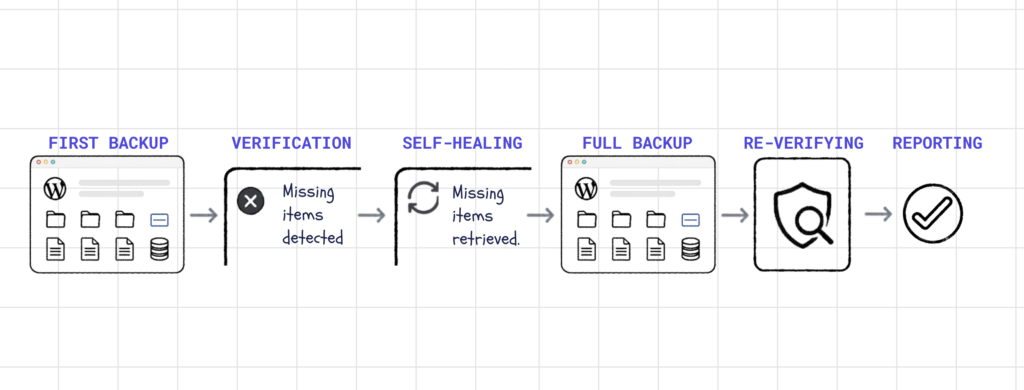
The result is built-in protection against incomplete backups, which makes WP Umbrella a reliable backup solution for WordPress sites of any type and size.
Manage all your backups from one place
We also rebuilt the Backup Management view around the details agencies care about most.
No matter how big your portfolio is, with just one glance, you can see backup success rates, schedules, sizes, and last and next backup times across all your sites.
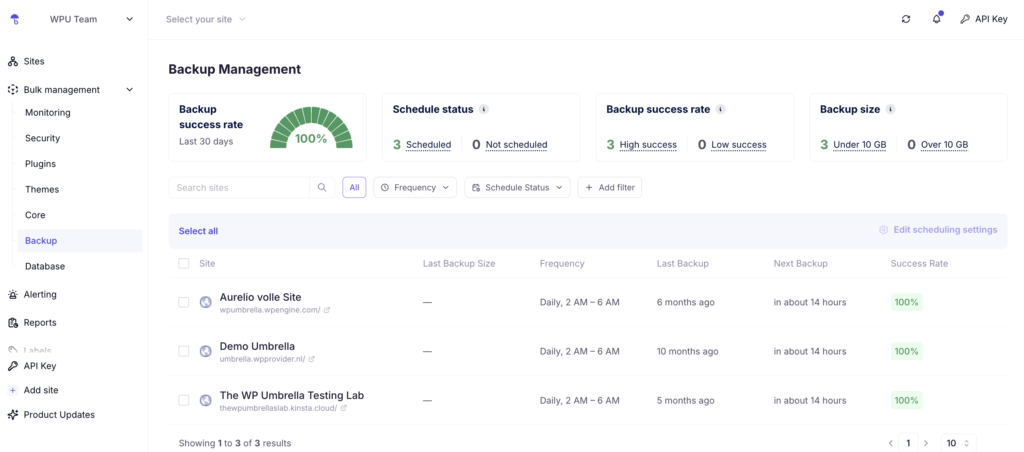
Everything sorts and filters, so it’s quick to spot sites with a low success rate, the wrong schedule, or other issues. You can also use the bulk action functionality to change backup frequency, retention, and schedules for many sites at once.
Restore or download only what you need
You don’t always need to restore a whole website, and that’s when selective restoration comes into play.
WP Umbrella lets you restore:
- the entire site,
- selected files, or
- selected databases.
The same options are there when you need to download a backup.
The goal behind all these backup improvements was simple: give you backups you can trust. Once your backups are automatically verified and you have full control over how they’re created, restored, downloaded, and deployed, you can drop your extra backup plugin and manage your backups directly in WP Umbrella – at no extra cost.
2. WordPress security stack inside WP Umbrella
Security was the biggest focus of the summer. The result is a complete WordPress security stack inside WP Umbrella that can replace several separate security tools on many sites.
The updates came in three layers:
- First, two security features became available on every site inside WP Umbrella at no extra cost:
- WordPress hardening rules
- Site Health Assistant
- Next, four major security features were added to the Security Add-on, without increasing its price:
- Updated firewall and virtual patching
- Malware scanner
- Security Activity Log
- Malicious IP blocklist
- Finally, two on-demand services were added for when you need extra help, without having to pay for them every month:
- WordPress Security Audit Report
- Managed Malware Cleanup Service.
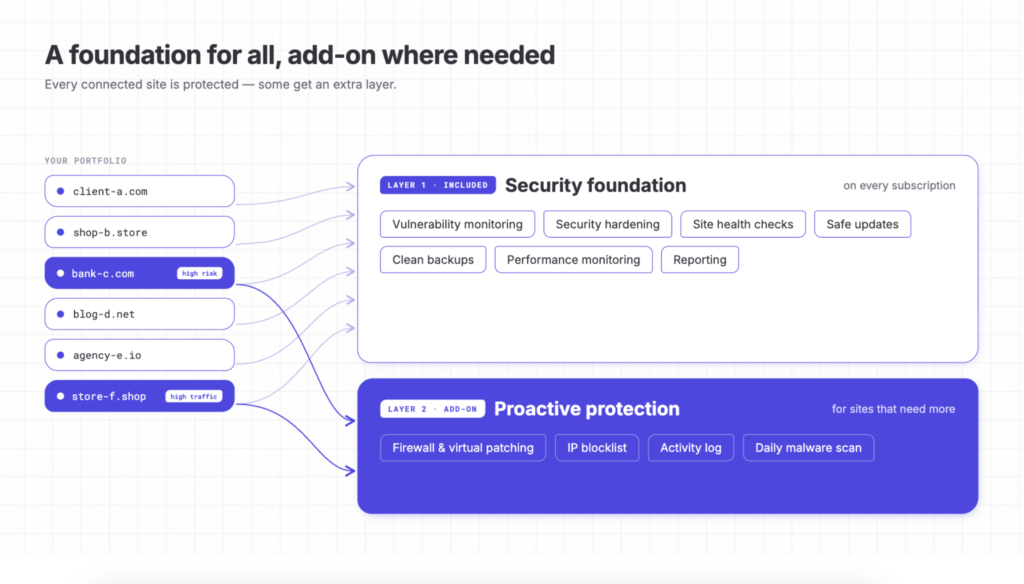
With these three layers, WP Umbrella now covers the full security cycle: prevention, detection, and recovery. Let’s explore each part in more detail.
WordPress hardening with simple on/off controls
WP Umbrella added hardening controls you apply to each site with simple on/off toggles. They protect some of the first entry points attackers go after. There’s no extra cost. Open the WordPress Hardening view in your dashboard and turn on every protection you want, or only the ones that fit that site.
Some of the available options include:
- Disable the theme and plugin editor
- Block user enumeration
- Hide the WordPress version
- Restrict XML-RPC
- Restrict the REST API to logged-in users
- Block access to sensitive files such as wp-config.php and debug.log
- And more.

Because the controls work per site, you choose what makes sense for each WordPress install.
Site Health Assistant: keep WordPress issues visible
The Site Health Assistant helps you stay on top of issues that can affect your sites. Vulnerabilities are grouped by the affected plugin or theme, with the fixing update one click away. You can re-scan on demand and track how many vulnerabilities you’ve resolved.
You can also dismiss Site Health warnings once you’ve reviewed them and know they don’t need action. The result is less noise and a faster way to see what actually needs your attention.

When you’re managing multiple client sites, the centralized Security Dashboard also comes handy. You see your full portfolio at once and you get to sort and filter across different issues or labels.
Firewall and virtual patching: see what was blocked
WP Umbrella’s virtual patching, powered by Patchstack, was already protecting sites in the background. Now you can see that protection at work.
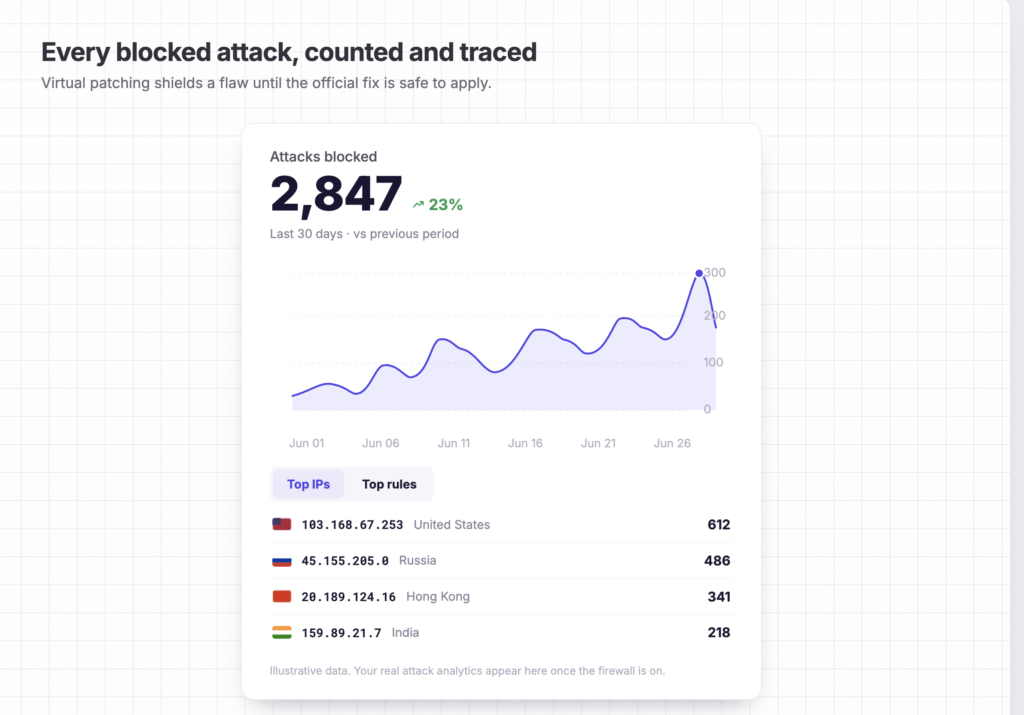
The Firewall view shows attacks blocked over the last 30 days, including the IPs involved, where the attacks came from, and which rules stopped them. It gives you a clearer picture of what your sites are facing and what’s already being handled for you.
Malware scanning: daily checks without another plugin
WP Umbrella can now scan your connected sites for malware every day without slowing them down. It finds hidden malware and alerts you as soon as it’s confident your attention is actually needed.

When you get an alert, you can see when the malware was found, where it was found, and what you should consider doing to get your site back to safety as quickly as possible.
Security Activity Log: know what happened
The Security Activity Log helps you understand suspicious activity without digging through server or WordPress logs. It can spot things like brute-force attacks, unusual logins, privilege changes, file integrity issues, and other common signs of compromise.
When something is detected, you can see the affected account, the source IP, and a minute-by-minute timeline of what happened.
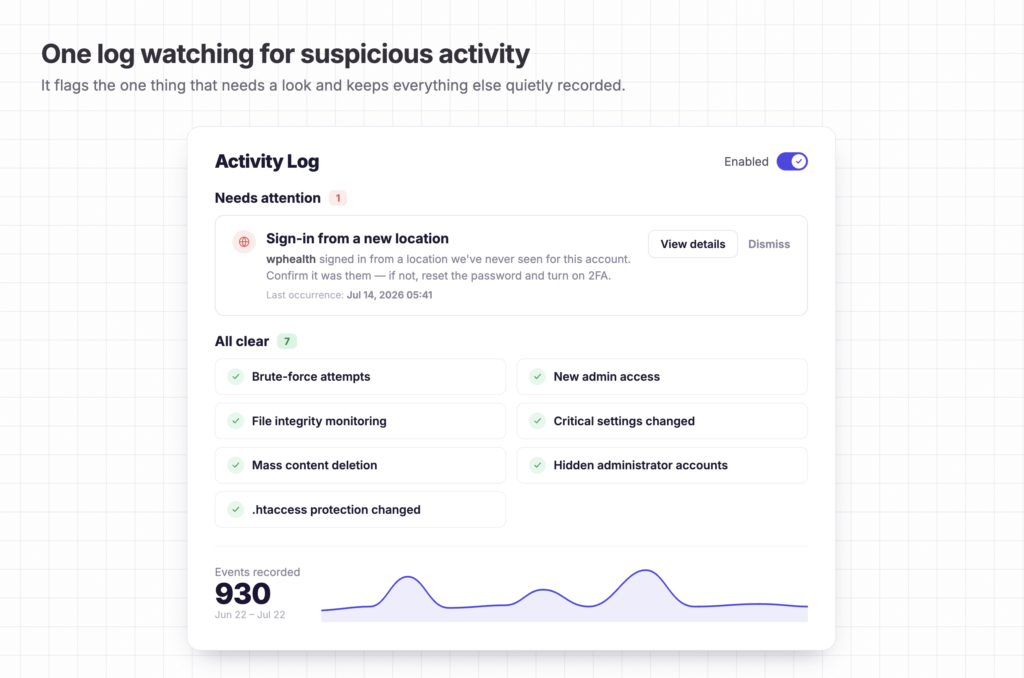
Some alerts also suggest what to do next, so you can act even if you’re not a WordPress security expert.
Network IP blocklist: stop attackers before they reach your login page
More than 80,000 sites rely on WP Umbrella. When an IP is caught attacking one site on the network, it’s added to a shared blocklist and blocked at other WP Umbrella login pages before it gets a chance to try them.
In other words, an attacker caught on one site can be stopped from reaching yours.

3. A new dashboard built for WordPress portfolios
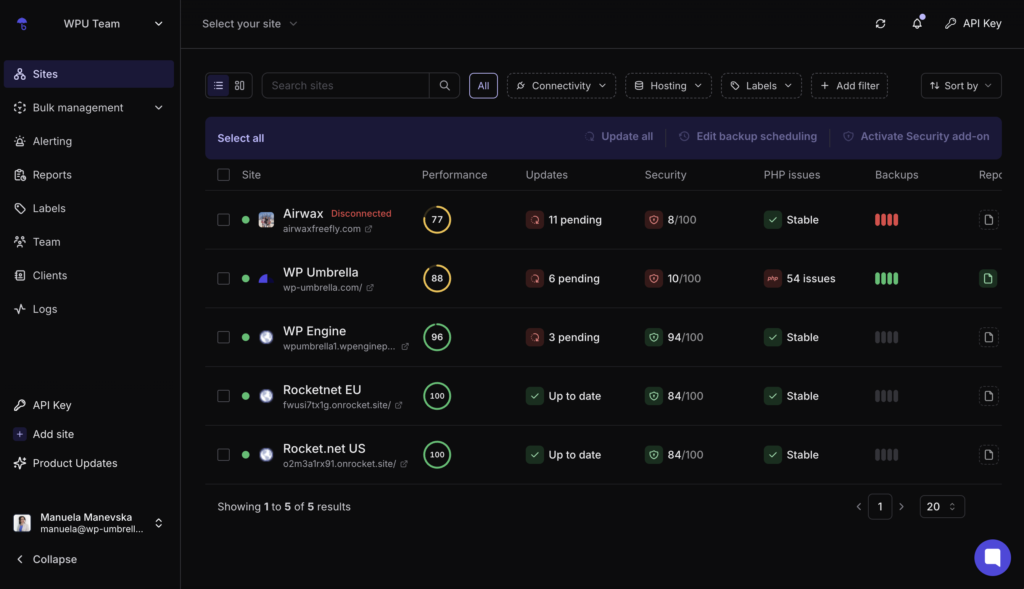
The new dashboard is built around this simple idea: you shouldn’t have to open every site separately to know what’s going on.
Every site now sits in one row with the details you primarily need to manage your portfolio:
- performance score,
- pending updates,
- security score,
- PHP issues,
- backup status, and
- Client reports.
You can filter your sites by hosting, labels, connectivity, and other criteria. And, again, you can take actions on many sites at once. That includes running pending updates, changing backup schedules, turning on the Security add-on for a group of sites, and more.
For an agency managing many websites, this changes the day-to-day operations and saves precious time and brain power.
4. Migrate and clone WordPress sites
Site migration and cloning are now built into WP Umbrella. You can deploy any backup you already have to another site. You just need to configure the destination over SFTP or FTP, plus the database.
WP Umbrella checks the connection before it writes anything. Credentials are encrypted and deleted after deployment, unless you intentionally save them as a reusable preset. The deployment also runs on WP Umbrella’s infrastructure, so the source site stays up and keeps serving visitors.
You can use it to move a site to a new host, create a staging site, rebuild a site on new infrastructure, clone a site, or deploy an existing backup somewhere else.
With migration and cloning built in, that’s one more plugin you no longer need to install and maintain.
5. Two-factor authentication available in WP Umbrella
You can secure a site every way possible, and one reused client password still undoes all of it. That is how most WordPress attacks actually start, not through anything exotic. Two-factor authentication is the answer everyone agrees on and nobody rolls out, because it usually means another plugin on every site and a real risk of breaking the way you get into those sites yourself.
That’s why two-factor authentication is now part of the WordPress hardening rules available for every site inside WP Umbrella – with or without the Security Add-on.
Turn on “Require two-factor authentication,” and the next login asks the user to set up an authenticator app. After that, future logins require a verification code.
The one-click access to WordPress admin from WP Umbrella’s dashboard still works, no separate 2FA plugin is needed on your sites, and no extra cost is added on your invoice.
6. Next level user experience inside WP Umbrella
And the sixth big update is actually a collection of many smaller ones. They may be small, but they make everyday work a little easier, so here are three of them:
- Dark mode. You can choose light mode, dark mode, or let WP Umbrella follow your system setting.
- Use WP Umbrella in English, French, or German. These are the first three languages, with more coming soon.
- The WordPress AI agent. The first AI agent built for WordPress agencies, powered by WP Umbrella infrastructure, so you can run your entire maintenance workflow by talking directly to your AI assistant.
What do these WP Umbrella updates mean for WordPress agencies?
Each update solves a different problem, but together they change how much of your WordPress work you can handle from one place. That matters because every plugin you add to a client site is another thing to update, troubleshoot, renew, and explain.
A typical stack might use one plugin for backups, another for firewall, another for malware scanning, another for 2FA, plus a separate dashboard to keep track of it all. Moving that work into one platform means fewer moving parts on client sites, and fewer moving parts means less maintenance for your team.
On top of this, these updates also help with making care plans easier to prove and manage. A WordPress care plan is a promise that important work is happening in the background, and WP Umbrella gives you the evidence to back it up. You can see backup success rates, review blocked attacks, track vulnerabilities, and check which security tests ran, all without opening every site.
That’s useful for your team, and it helps you show clients exactly what they’re paying you to manage.
Why use WP Umbrella instead of multiple WordPress plugins?
The real difference isn’t the number of features. It’s that the features work together.
Your backups, security, malware scanning, vulnerability management, hardening, migration, reporting, and portfolio management all live in the same platform, which makes for a simpler workflow.
A malware alert can lead straight to a backup restore. A vulnerability can lead to an update. A security issue can point you to the right hardening controls. And the dashboard shows you which sites need attention before you start opening them one by one.
This is the level of simplicity and effectiveness WP Umbrella strives to deliver.
Conclusion
In one summer, WP Umbrella shipped multiple important updates that let you handle much more of your WordPress maintenance from one place. Backups are more reliable, security is much more complete, the dashboard makes managing multiple sites easier, and migration, cloning, and 2FA are now built in as well.
And there’s one number that stands out: €0. That’s how much WP Umbrella’s price per site went up. All these updates came without increasing the cost for existing or new users.
If you manage WordPress sites for clients, the easiest way to see the difference is to try it. Connect a few sites and see how much of your workflow you can move into one place, from backups and updates to security, reporting, monitoring and more.
Start your 14 days free trial. No card needed.
Ready to boost your productivity, impress your clients and grow your WordPress agency?
Install WP Umbrella on your websites in a minute and discover a new way to manage multiple WordPress sites.
Get Started for free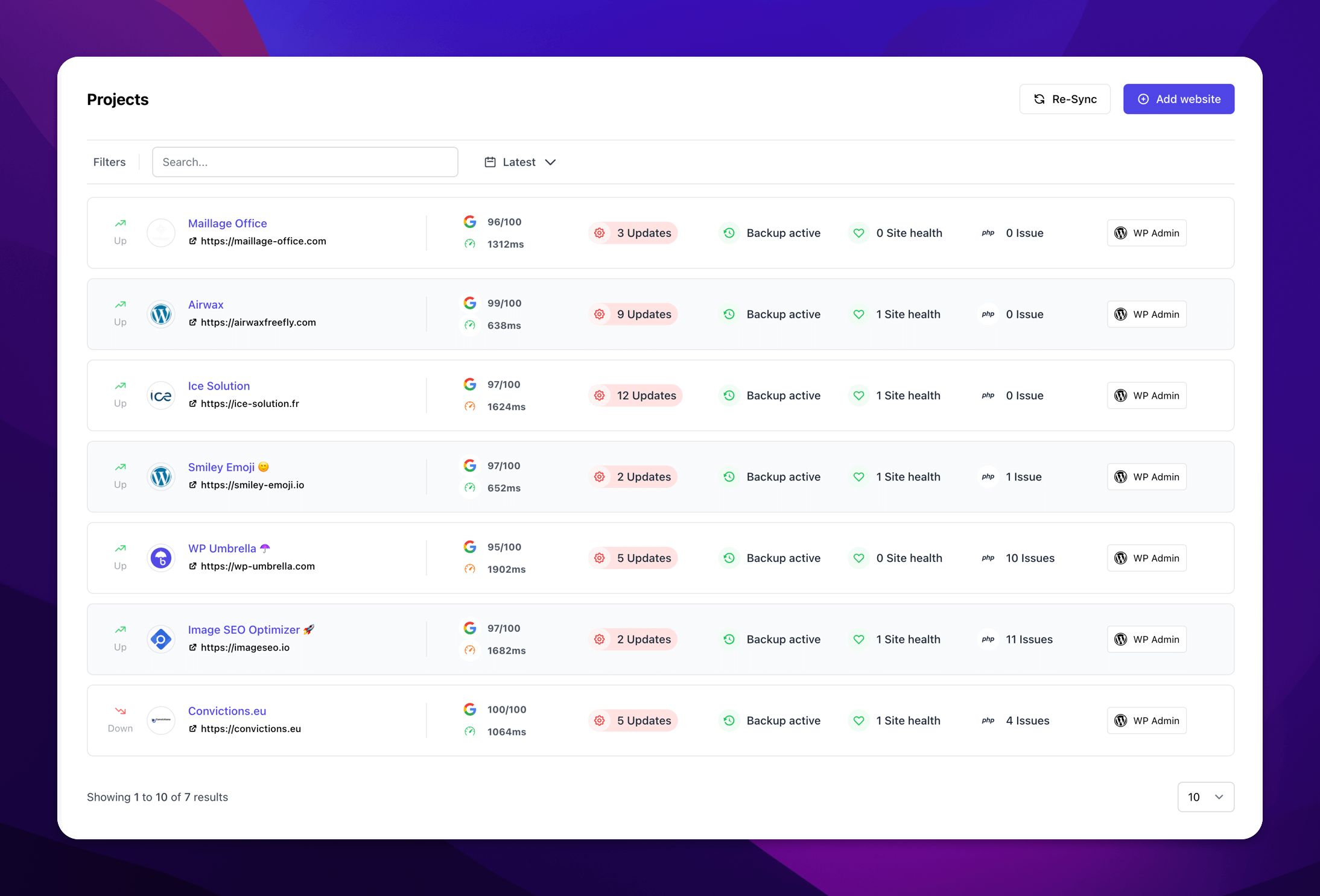
Frequently asked questions
Between late May and early September 2026, WP Umbrella shipped six major updates covering backups, security, dashboard re-design, site cloning and migration, two-factor authentication, and improvements in the platform’s everyday usability. The value WP Umbrella adds for its users doubled, while the price remained unchanged.
Yes. WP Umbrella provides automated backups with a one-click restore option. Monthly, weekly, and daily backups are included at no extra cost. Hourly backups are the only backup frequency that requires a paid add-on.
Yes. Two-factor authentication is part of the WordPress hardening options for every site connected to WP Umbrella. No extra cost, no Security Add-on is required.
Yes, for many sites. With its Security Add-on and on-demand services, WP Umbrella covers the full security cycle: prevention, detection, and recovery.
The Security add-on costs €2 per site per month. On top of Patchstack’s powered virtual patching, it includes firewall protection, malware scanning, security activity log, and network-level malicious IP blocking.