
WordPress Backup: The Complete Guide for Agencies (2026)
WordPress backup done right: 3-2-1 rule, RTO/RPO, restore drills, storage costs, and honest plugin trade-offs. Built for agencies managing 50+ sites.


Ask yourself a single question about your largest client site: can you restore it to the state it was in at 8am yesterday, inside one hour, without calling the host? If the answer is “probably”, you do not have a backup strategy. You have a backup plugin and a hope.
A WordPress backup is not a plugin you install.
It is infrastructure you operate. It has a frequency target, a recovery target, a storage topology, an encryption model, a retention policy, and a verification schedule. When any of those fail, your backup doesn’t exist, regardless of what your dashboard says.
This guide is written for agency owners and senior technicians running 20 to 500 client sites. It names incentives where they matter (host retention windows, plugin paywalls, Automattic-owned SaaS) without attacking vendors.
The goal is a framework you can defend to your team, your clients, and your future self at 3am during a restore. By the end, you will evaluate backups like an infrastructure engineer, not a plugin shopper.
What a WordPress backup actually is (and what it isn’t)
What a complete WordPress backup contains
A WordPress backup is a full, restorable copy of the files, database, and runtime configuration that, together, let you rebuild a production WordPress site on a fresh server from a known point in time. A WordPress site is more than /wp-content/ and a MySQL dump. A backup is complete only if a fresh server with zero state can be restored to the current production site from it alone.
That checklist:
- The full
/wp-content/directory, including uploads, themes, plugins, and anymu-plugins. - The complete database, including every non-
wp_table (WooCommerce orders, ACF relationships, custom plugin tables). wp-config.php, with the correct table prefix, salts, and database credentials..htaccessornginx.confrewrite rules, plus any.user.iniPHP overrides.- SSL certificates, DNS records (including MX, SPF, DKIM, DMARC), and third-party API keys (Stripe, Mailgun, CDN tokens).
Most plugin backups cover the first two. Real disaster recovery covers all five. The official WordPress backup documentation walks through the files-and-database layer; the rest is your job.
Backup vs migration vs staging vs version control
These four are not substitutes. Migration packages move hosts. Staging is for testing. Version control covers code, not the database, uploads, or runtime config. A backup answers one question: “Can I restore production to the state it was in at time T?” If any of the others is your answer, you do not have a backup strategy.
Why WordPress backups fail more often than you think
WordPress backups fail for four repeatable reasons: silent archive corruption goes undetected until restore, PHP-bound batch jobs run out of memory or time on large sites, the backup sits inside the same blast radius as the site, and host retention windows rarely match an agency SLA.
Each is covered below.
The silent failure problem
Silent backup failure is when a backup process reports success but the resulting archive is unrestorable. It is the category that kills most WordPress agencies.
The backup log says success. The ZIP file is present. The size is roughly right. Nobody tried to restore it. Months later, during a real incident, the restore fails because the archive was truncated at a PHP memory ceiling, or the database export stopped mid-table, or the uploaded ZIP was corrupted during transfer and no hash was verified.
The only cure is a scheduled restore drill (covered below). A backup that has never been restored is a hope, not a backup.
Before, we wrote this article, we tested most of the backup plugin available out there, and there are few plugins you can trust (WP Umbrella, ManageWP, Blogvault), and other that will let you down and that you should check urgently (ModularDS, Updraftplus, WP Vivid, BackWPup).
The server-side failure problem
Most WordPress backup plugins run on the site itself. They allocate PHP memory, compress files into a ZIP, and push that archive off-server. On a 500MB brochure site, this works. On a 12GB WooCommerce store on shared hosting with a 256MB PHP memory limit, it fails silently, often for months, before anyone notices. The architectural fix (streaming vs batching) gets its own section below. It is the single largest predictor of real-world backup reliability at scale.
The blast-radius problem
If your backup plugin stores archives in /wp-content/uploads/backups/, and an attacker, a bad plugin update, or a runaway cron has filesystem write access, your backup is gone the same second your site is. If your off-site target uses a single API key stored in wp-config.php, the same credential that lets the site write backups lets anything on the site delete them.
A backup inside the same failure domain as the site is not a backup. It is a second copy at the same risk.
The host retention mismatch
Managed hosts retain backups for a fixed window — typically 14 to 30 days depending on plan and provider. That window rarely matches an agency care-plan SLA that promises recovery of data from “the last 60 days”. It also vanishes entirely if the host suspends the account for a payment dispute, a ToS violation, or an acquisition-and-sunset event. Host backups are a fast-rollback convenience, not a strategy.

Check your FTP for backup archives
Most WordPress backup plugins leave their ZIP archives on the server between runs, typically inside /wp-content/uploads/ or a plugin-specific subdirectory. That costs you twice.
On performance: a 4GB site backed up can saturate your server storage which on shared hosting pushes clients into overage tiers or silent write failures that then break future backups and slow down the site.
On security: those archives are a full, often unencrypted copy of the site’s files and database, and if they end up in a web-addressable directory (which they often do), a single predictable filename or an open directory index is enough for anyone with a browser to download production data. Streaming backups sidestep both problems, nothing is written to the source server in the first place.
Why attackers care about your backups (and why that matters less than you think)
Modern ransomware playbooks target backups first — destroying the restore point is step one, encrypting production is step two. For WordPress agencies, this tells you one thing about where backups belong: outside the production failure domain, behind credentials the site itself does not hold. That is a design constraint, not a framing for the whole guide. Get the architecture right (off-site, separate credentials, immutable where possible) and the attack surface shrinks back to a bullet point.
The 3-2-1 rule, applied to WordPress
3 copies, 2 media, 1 off-site
The 3-2-1 backup rule is a storage strategy requiring three copies of your data, stored on two different media types, with at least one copy held off-site. It is endorsed by CISA and the US cybersecurity community, and it is the baseline every serious storage strategy starts from.
Translated to WordPress reality:
- Copy 1: the live production site itself. This is your primary, not a backup.
- Copy 2: a recent snapshot held by the host (Kinsta, WP Engine, Pressable, Cloudways). Fast to roll back, but on the same infrastructure as production.
- Copy 3: an independent, off-site encrypted storage target held by you or your management platform. Different provider, different credentials, different geography where possible.
“Two media” in cloud-native WordPress usually means two different storage backends (object storage plus a replicated secondary), not tape and disk. The point is independence of failure domain.
A concrete 3-2-1 stack for a 50-100 sites portfolio
At portfolio scale, the stack does not change shape. The operational overhead does. The 3-2-1 stack across 50-100 sites is:
- Host snapshots per site, relied on only for quick rollbacks.
- A single managed platform covering all sites, with daily or hourly backups depending on site type, centralised credentials, and per-site retention.
- At least twice a year restore drill per site
- One incident playbook that any team member can execute without consulting the lead engineer.
Without centralisation, 50 host dashboards times 50 plugin dashboards times 50 storage accounts becomes unmaintainable before year one.
RTO and RPO: the two numbers that decide your backup frequency
What RTO and RPO mean in plain English
RTO, Recovery Time Objective: how fast you need to be back online after an incident. If a site is down and the RTO is one hour, everyone (you, your team, your client) has agreed that the site comes back inside 60 minutes.
RPO, Recovery Point Objective: how much data you are willing to lose, measured in time. An RPO of 24 hours means you accept losing up to one day of changes. An RPO of one hour means you do not.
RTO dictates your restore tooling and uptime monitoring. RPO dictates your backup frequency. A one-hour RPO with nightly backups is mathematically impossible, no matter how good the plugin is.
Mapping RTO/RPO to WordPress site types
| Site type | RTO target | RPO target | Frequency | Retention |
|---|---|---|---|---|
| Static brochure | 6 hours | 24 hours | Daily | 50 days |
| Content blog | 4 hours | 24 hours | Daily | 50 days |
| Membership site | 1 hour | 6 hours | Every 6-12 hours | 50 days |
| WooCommerce, low volume | 1 hour | 1 hours | hourly | 50 days |
| WooCommerce, high volume | 30 minutes | 1 hour | Hourly | 50 days |
| SaaS / custom app | 15 minutes | 15 minutes | Continuous / block-level | 90 days + |
Every row corresponds to a business model, not a plugin setting. Write the row for each client before choosing any tool.
Methods for backing up WordPress (honest trade-offs for each)
Host-level backups
A host-level WordPress backup is a server-side snapshot taken by the managed host (Kinsta, WP Engine, Pressable, Cloudways, etc.) and stored on the same infrastructure as production. Retention typically runs 7 to 14 days, occasionally up to 60 on higher-tier plans.
Host backups are excellent for fast rollback after a bad deploy. They are not a backup strategy on their own. If the host suspends the account, the snapshots go with it. Data residency is whatever the host chose. Retention windows rarely match your care plan SLA, and storage is not independent of production failure.
It also requires you to maintain an updated and secured list of credentials so websites can be restore, which make the restoration process slower than with a WordPress management tools.
Plugin-based backups
The plugin category is crowded and incentivised. A short, honest tour:
- UpdraftPlus: the most-installed option. The version comparison page discloses that incremental backups, encryption, and many off-site destinations sit behind Premium. If you did not buy Premium, your off-site archive is a clear-text copy of your client’s production data.
- BlogVault: solid managed SaaS with per-site pricing and off-site storage.
- Solid Backups: previously BackupBuddy, rebranded after the iThemes / SolidWP / StellarWP consolidation. Worth knowing when evaluating historical reviews under the old name.
- Duplicator: widely used for migrations, often pressed into service as a backup tool. Its strength is portability, not scheduled resilience.
Plugin-based backups work until they don’t. When they don’t, the failure mode is usually memory limit or timeout, both covered below. If you want a deeper comparison, we have our detailed plugin comparison for the full breakdown.
Manual backups via phpMyAdmin + SFTP
A phpMyAdmin export plus an SFTP pull of /wp-content/ is the 2am last resort. It’s unworkable at scale, but useful as a ground-truth check on what your “automation” actually replaced.
We’ve written a full article about how to make a manual backup and restoration.
SSH / WP-CLI backups
Scripted wp db export plus rsync is a reliable primitive for custom pipelines. WP-CLI’s db check is essential for verifying consistency. The cost is ownership: you maintain the script, the cron, the storage, the encryption, the retention, the alerting, and the restore tooling.
For an agency, this is a full-time hobby, not a product.
Managed platform backups (SaaS)
This is the category that matters at portfolio scale. Managed platforms run the backup off-server, store it independently, and expose a single dashboard across all client sites. Representative names:
- WP Umbrella: streaming architecture, native AES encryption, GDPR-compliant EU storage, 50-day retention, backup integrity monitoring, flat per-site pricing.
- BlogVault: streaming architecture, strong managed SaaS offering.
- VaultPress / Jetpack Backup: owned by Automattic and bundled with Jetpack. The incentive to pull sites deeper into the Jetpack ecosystem is structural and worth disclosing.
Category-level trade-off: you trade direct control for operational leverage. For 50+ sites, the leverage wins every single time.
Incremental vs differential vs full: engineering reality
A full backup copies every file and every database row every time. A differential backup copies everything changed since the last full. An incremental backup copies only what changed since the last backup of any type.
Incrementals are lighter, cheaper, and faster, but they introduce chain fragility: if any link in the chain is corrupted, every backup downstream of it is unusable. This is why serious incremental systems like WP Umbrella periodically synthesise a new full backup and verify chain integrity on write.
A plugin that offers “incremental” as a checkbox without chain verification is selling you speed, not safety.
How often should you back up WordPress? A decision framework
How often you back up WordPress depends on your RPO: daily for brochure and content sites, every 12 hours for membership sites, every hours for WooCommerce sites. The table below maps site type to frequency, retention, and recommended method.
| Site type | Frequency | Retention | Recommended method |
|---|---|---|---|
| Static brochure | Daily | 50 days | Managed platform daily |
| Content blog | Daily | 50 days | Managed platform daily |
| Membership | Twice a day | 50 days | Managed platform, twice a day add-on |
| WooCommerce | Hourly | 50 days | Managed platform, hourly + host snapshots |
| SaaS / custom app | Continuous / block-level | 90+ days | Custom infra + managed platform for app layer |
Why nightly isn’t enough for WooCommerce
A nightly WooCommerce backup means that if the site is compromised at 11:30pm and the issue is detected at 9am, you lose every order placed during a full trading day, plus customer accounts, plus stock movements. Reconstructing that from Stripe logs, shipping provider exports, and email confirmations is realistically a week of agency time, even with Claude Code.
An hourly backup cuts the loss to one hour of orders. Reconcilable inside an afternoon.
If you want hourly backups across a 50-site portfolio without rebuilding your stack yourself, this is what we built WP Umbrella for. Start your 14-day free trial. No credit card required.
Backup technology: streaming vs batching (why most backups fail when you need them)
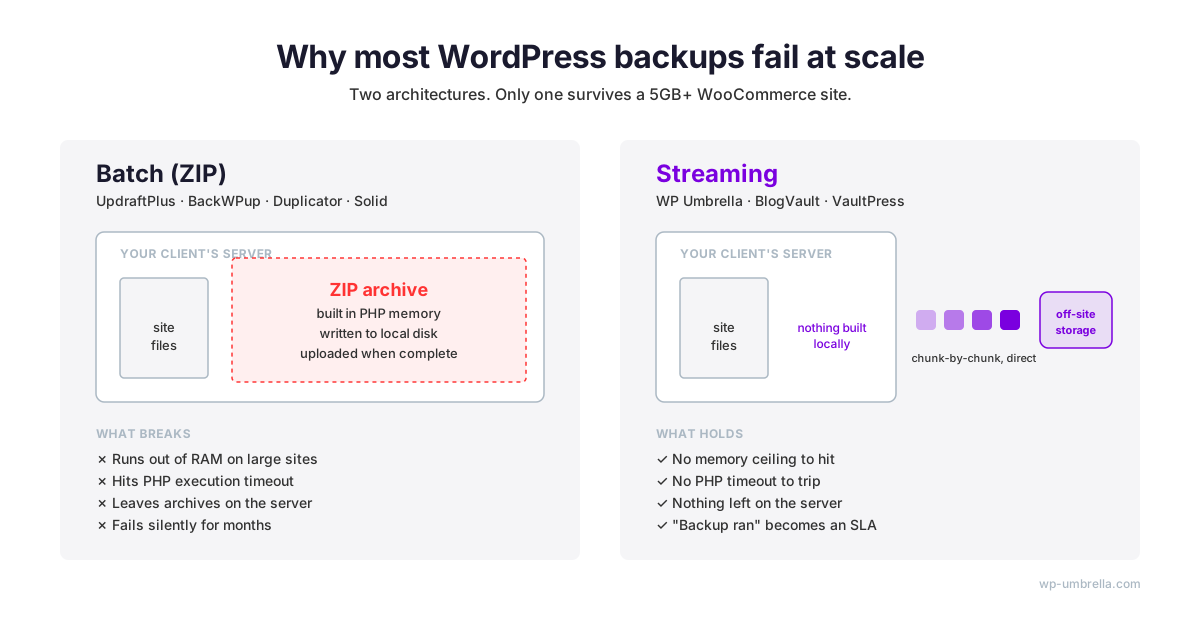
Streaming backups transmit file changes and database blocks off-server chunk by chunk, with no archive built on the source server. Batching backups compress the entire site into a ZIP on the source server, then upload the finished archive to off-site storage. Streaming removes the PHP memory and execution-time ceilings that break batching at scale.
This is the load-bearing section of this guide.
Batch (ZIP) architecture: what most plugins do
UpdraftPlus, BackWPup, Duplicator, ModularDS and Solid Backups all share the same fundamental model. These plugins compress the full site into a ZIP archive on your own server, then upload the finished archive to an off-site destination.
This requires enough RAM to hold compression buffers, enough disk space to hold the archive mid-build, and enough PHP execution time to finish before the process is killed. On shared hosting, on WooCommerce stores, or on media libraries above 5GB, one of those three runs out. PHP gets killed, the archive is corrupted or partial, and the backup log either reports success or reports a vague error that nobody reads.
Batch architecture also leaves ZIP artifacts on the server between runs. These accumulate, consume disk quota, and sometimes end up publicly addressable in /wp-content/uploads/, which is its own problem.
Streaming architecture: what managed platforms do
WP Umbrella, BlogVault, and ManageWP stream file changes and database blocks off-server, chunk by chunk. There is no archive being built on the source server. There is no single process that has to finish inside PHP’s execution window. There is no memory ceiling to hit. There are no leftover files.
Incrementals are computed at block level, so only the changed portion of a 4GB uploads directory is transmitted, not the whole thing. Verification can happen on the receiving end, independent of the source server’s health.
Why this decides reliability at scale
A backup method that routinely fails mid-run on a 5GB site is not a strategy, it is a hope. On one site, the difference is a footnote. Across a 50-site portfolio, the difference is how often you get woken up by an alert that “last night’s backup didn’t complete”. Across 500 sites, the batch model is operationally untenable.
This is why managed platforms can offer “backup ran” as an SLA rather than a probability. The architecture removes the failure classes that batch backups spend their lives fighting.
Off-site, encrypted, independent: the three properties that make a backup useful under stress
Immutability, versioning, and air-gapping
A backup that anything on your client’s site can reach and delete will not survive a real incident. Three practical properties keep the stored copy safe:
- Write-once storage (immutability): once a backup is written, it cannot be deleted or overwritten for a set retention window (say 50 days) even by the system that wrote it. If an attacker steals the credentials your site uses to upload backups, those credentials still cannot remove what is already there.
- Version history (versioning): every change to a stored file creates a new version. “Deleting” becomes “hide the current version”, not “destroy the data”. You can always roll back to last Tuesday, even if someone tried to wipe the storage this morning.
- Separate account (air-gapping): the backup storage lives behind credentials and a network your WordPress install does not have access to. Your site has a key that can write backups; only a human at a separate login can delete them. A full compromise of the site cannot reach the stored copies.
For DIY stacks, these are features you configure yourself on the storage provider. For managed platforms, the operator has already done it — you are consuming the guarantee, not building it. That is most of why “managed” is worth paying for at portfolio scale.
What “encrypted at rest” means and who actually delivers it
Your backup is a full copy of your client’s site. Every customer email, every order, every password, every uploaded file.
You need that copy locked down in two places: while it is being sent to storage, and while it is sitting there. If either side is unlocked and a copy falls into the wrong hands, whoever has it can read everything on your client’s site without ever touching the site itself.
This lock is called encryption. Two questions to ask of any backup tool:
- Is the backup locked while it is being uploaded? So anyone watching the connection sees nothing useful.
- Is the backup locked once it is in storage? So if the storage provider gets breached, or a drive walks out the door, the file is unreadable.
Both answers should be yes for any site that holds customer data. One catch worth knowing: almost no backup product gives you a copy that only you can unlock.
The backup provider always holds a key as well. That means they, or anyone who breaks in to them, could in theory read your data. It is the trade-off you accept for using a managed service instead of running your own storage, and for most agencies it is worth it because data is still more secured in a managed SaaS that invest time and money on security than on something self-hosted by someone with shallow security knowledge.
A neutral audit of the common options:
- UpdraftPlus: encryption of the database is a Premium feature, not included in the free plugin. If you are using free UpdraftPlus to push backups to Dropbox or Google Drive, those files are sitting there in plain text.
- VaultPress / Jetpack Backup: encryption at rest is documented as part of the service.
- BlogVault: encryption at rest and in transit.
- WP Umbrella: encryption at rest, encryption in transit, EU storage, no paid tier required to turn it on.
The practical consequence: if your plugin’s encryption is locked behind a paid tier and you never bought it, your off-site backup is a plain-text copy of your client’s site: customer emails, hashed passwords, order details, the lot.
If that copy ever leaks, under GDPR you are obliged to notify every affected data subject. That is an afternoon you do not want.
Verify your backups or don’t bother having them
You verify a WordPress backup by downloading them or restoring it to a clean staging environment, running integrity checks on the database and core files, and smoke-testing the critical paths. A backup that has never been restored is a hope, not a backup.
The restore drill
The WordPress restore drill is an 8-step verification procedure:
- Spin up a clean staging environment (empty database, default PHP config).
- Pull the most recent backup from the off-site target.
- Restore files and database to staging.
- Run
wp db checkfor table integrity. - Run
wp core verify-checksumsto confirm WordPress core files match the official distribution. - Smoke-test the critical paths: login, checkout, form submissions, search.
- Document the elapsed time from “need to restore” to “functional staging”.
- Log the result against the site’s RTO target.
Rotate the drill across the portfolio so every site is drilled inside a 30 to 60 day window. At 50 sites, that is roughly two drills per working day, automatable against any managed platform with a restore API.
What a “successful” backup log doesn’t prove
A green log entry proves the backup process exited without an unhandled exception. It does not prove the archive is readable. It does not prove the database dump is consistent. It does not prove the uploads directory is complete. It does not prove the destination storage still contains the object. The only thing that proves a backup works is restoring it.
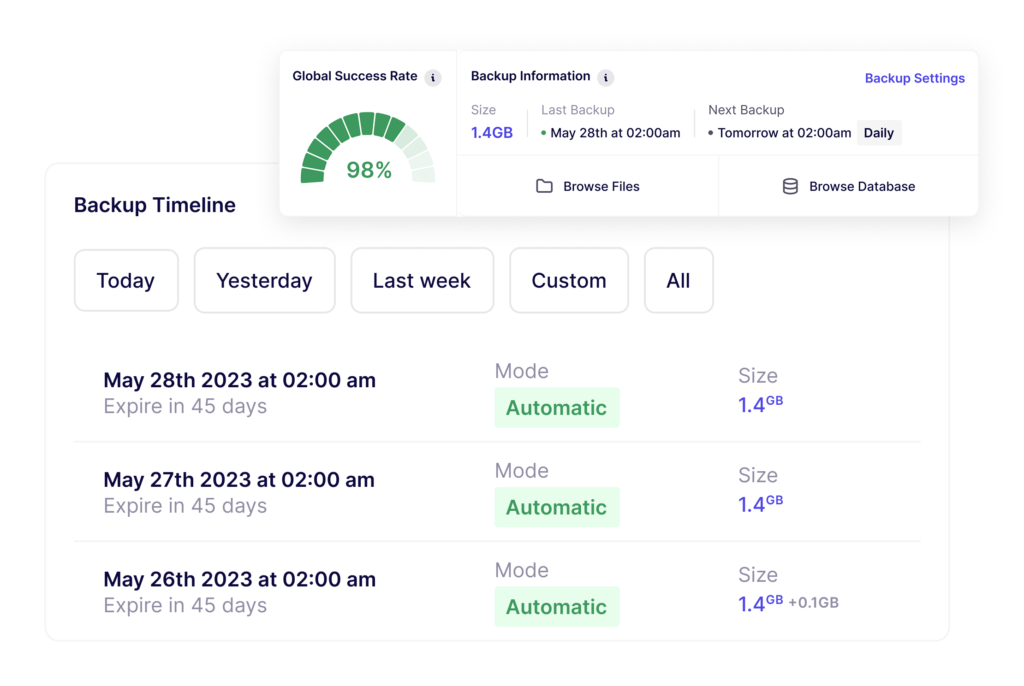
At WP Umbrella we run daily integrity checks on database and folders to lake sure your backup is reliable.
Realistic restore timelines
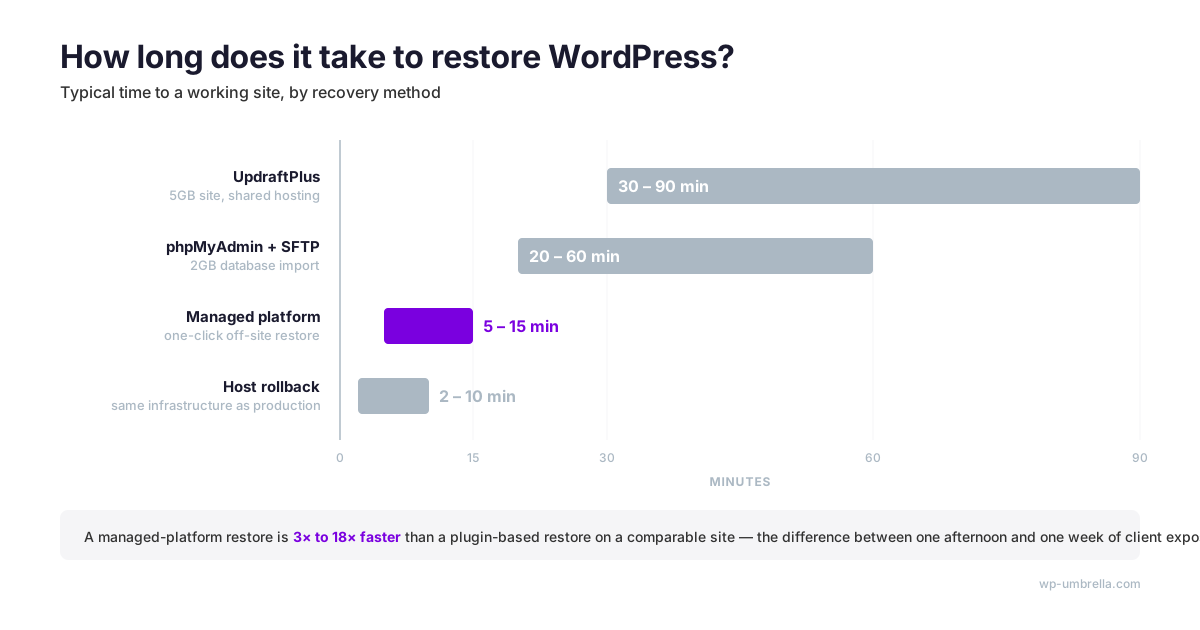
Numbers you should carry in your head:
- phpMyAdmin import of a 2GB database: 20 to 60 minutes, assuming the host’s
max_execution_timeandupload_max_filesizedo not kill the process first. - UpdraftPlus restore of a 5GB site: 30 to 90 minutes on a good day, with frequent failures on shared hosting.
- Managed platform one-click restore: 5 to 15 minutes, network and database size dependent.
- Host rollback to a snapshot: 2 to 10 minutes, fastest option but locked to the host.
Publish your restore SLA against the middle of these ranges, not the best case.
Troubleshooting the three failures that kill most WordPress backups
PHP memory limits and timeouts
Batch backups fail most often because PHP ran out of memory or ran out of time. Increasing WP_MEMORY_LIMIT and WP_MAX_MEMORY_LIMIT in wp-config.php helps until the host’s php.ini ceiling kicks in.
If your backup needs 512MB to finish and the host ceiling is 256MB, no amount of WordPress config will help. The structural fix is streaming architecture, which does not require the source server to hold the archive in memory.
Large-site failures (media libraries above 20GB, multisite)
Once uploads cross 20GB, batch backups almost always fail. Multisite multiplies this by the number of subsites. The fix is either file-level rsync-style incrementals (WP-CLI + rsync, or a managed platform) or deliberately excluding large media from the WordPress backup and backing it up separately, for example CDN origin, S3 versioned bucket, or a dedicated media archive.
Database consistency on live sites
A naive mysqldump on a live WooCommerce database will capture tables at different points in time. Orders in table A, payment records in table B, and customer records in table C can all disagree.
The fix is mysqldump --single-transaction for InnoDB tables, which takes a consistent snapshot inside a single transaction. Any backup method that does not respect this on high-traffic WooCommerce is quietly producing corrupt databases.
When the patch is the incident: the Really Simple Security rollback
In November 2024, Wordfence documented an authentication bypass in Really Simple Security that affected 4 million installs. WordPress.org pushed a forced auto-update to mitigate at scale. Most sites patched cleanly. Some sites, particularly ones with custom 2FA flows or security plugins that hooked into the same filters, broke on login and needed a rollback.
This is the underappreciated backup scenario.
It is not an attacker encrypting your site.
It is a legitimate, necessary patch that happened to collide with custom code on a Friday afternoon.
The only thing that restores service inside the client’s SLA is a pre-update backup taken within the last few hours, verified, and restorable without calling the host.
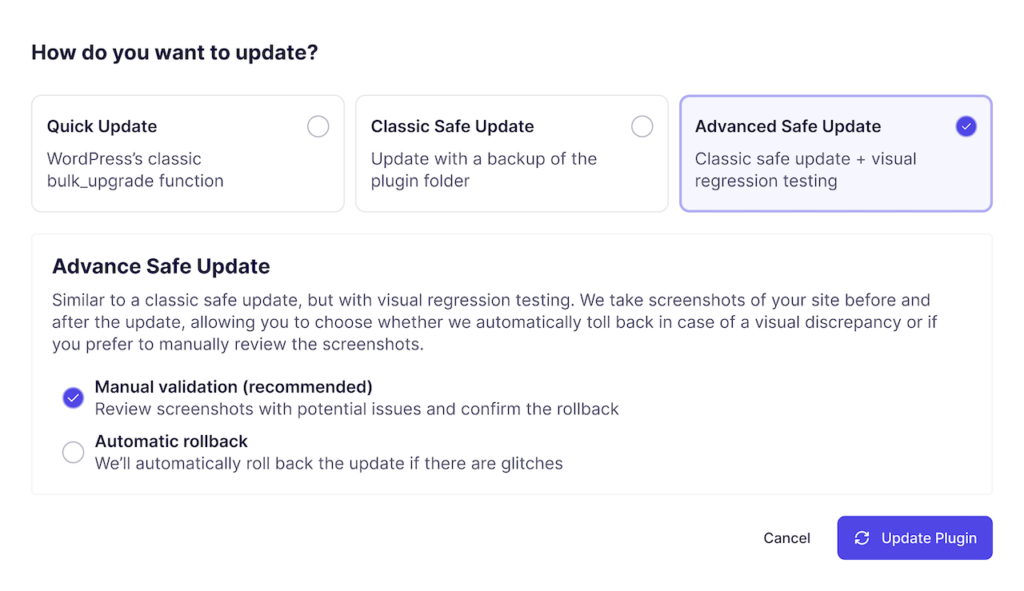
Running pre-update backups with visual regression is the agency answer to this class of event. It is also why your backup cadence cannot be “nightly” for any site you cannot afford to have broken for ten hours while you wait for the next scheduled snapshot.
GDPR, data residency, and where your backups legally live
Schrems II and why storage location matters
Schrems II is the 2020 CJEU ruling that invalidated the EU-US Privacy Shield and requires supplementary measures for personal data transferred outside the EU when the destination lacks equivalent protection. For WordPress agencies with EU clients, backing up to a US-headquartered provider without those measures is a compliance exposure. Even if the data sits on EU servers owned by that provider.
The defensible posture for an EU agency is a backup provider established in the EU, with storage in the EU, and contracts that do not route personal data through US processors. “GDPR compliant” as a marketing phrase is easy. The underlying controller-processor chain is what actually matters.
Right to erasure (Article 17) and backup retention
GDPR Article 17 gives data subjects the right to have personal data erased. This clashes immediately with immutable, long-retention backups.
The pragmatic, supervisory-authority-accepted position is that erasure applies to live systems promptly, while backup retention windows are documented, time-limited, and erased on their own cycle. Your care plan terms should reference the backup retention window explicitly. 50 days is a defensible balance between recovery and erasure obligations.
Backups at agency scale: a worked example
The 50-site playbook
Assume a portfolio of 50 sites: 30 brochure or content, 15 membership and 5 high-volume WooCommerce.
- Tiered frequency: daily for brochure and content, twice a day for membership, hourly for high-volume WooCommerce.
- Tiered retention: 50 days.
- Off-site target: single managed platform, EU storage, AES encrypted at rest, TLS in transit.
- Client reporting: monthly white-label PDF including backup success rate, and information about the backup storage location.
This is the shape of agency-first infrastructure, not a backup plugin per site.
What changes at 200+ sites
At 200 sites, the variable is not the backup, it is the team. Centralised credentials stop being a nice-to-have. Role-based team access becomes a legal requirement as you onboard junior technicians. 1-click admin access replaces shared credentials in Bitwarden. White-label client reporting stops being a differentiator and becomes a retention mechanism. Most agencies hit this inflection point between 120 and 180 sites.
The WP Umbrella approach to backup infrastructure
WP Umbrella is the strongest player in WordPress backup reliability because of architecture, not marketing. The platform uses streaming backups: no server-side archive creation, nothing left on your client’s server between runs, no memory ceiling to hit, no PHP timeout to trip.
In 2025, we did 8,500,000+ backups across 60,000+ sites. That reliability number is not a claim, it is an operating baseline.
On top of that architecture:
- Native AES-encrypted incremental backups, included, not paywalled.
- Daily, weekly, and monthly schedules, plus an hourly add-on for high-write sites.
- 50-day retention across all plans.
- One-click restore for files and database.
- GDPR-compliant EU storage based in France.
- Multi-site dashboard with role-based team access.
- Flat per-site pricing.
Bundled into the same flat per-site price are updates, uptime monitoring, vulnerability detection, and white-label reporting, so the backup stack is one line in a larger care-plan infrastructure, not a separate vendor.
Frequently Asked Questions
No. Core WordPress ships without a backup utility; the official documentation explicitly points operators to third-party plugins, host features, or manual database and file exports. WordPress.com (the hosted service) includes Jetpack-based backups on paid plans, but self-hosted WordPress.org installs must add that layer themselves. Treat “backups are built in” as a misconception that costs agencies client data every year.
Yes, if the backup contains personal data and the cloud account is not itself a GDPR-compliant processor you have a contract with. Google Drive and Dropbox hold the encryption keys on your behalf, which means a provider-side compromise or a lawful access request exposes your client’s data in clear text.
Cryptomator or rclone crypt remotes handle it outside WordPress. For agencies, a processor-grade managed backup destination is a cleaner answer than retrofitting encryption onto consumer cloud storage.
Exclude cache directories, other backup plugins’ output folders, and server-generated logs. They bloat archives, break restores, and leak stale data. The usual suspects are /wp-content/cache/, /wp-content/wflogs/, /wp-content/ai1wm-backups/, /wp-content/updraft/, and /wp-content/uploads/sucuri/.
These folders are excluded by default from WP Umbrella backup.
Yes. Pre-update backups are the restore point that converts a broken update into a five-minute rollback instead of a six-hour reconstruction.
As covered in the Really Simple Security section above, forced auto-updates can break 2FA or custom code paths with no warning. Using a safe update technology prevent these incidents from happening in the first place.
Conclusion
A WordPress backup is infrastructure, not a plugin. It has a frequency target, a recovery target, a storage topology, an encryption model, a retention policy, and a verification schedule. Get those six right and the attack surface, the plugin paywalls, and the host retention windows all become manageable line items instead of existential risks.
The WordPress agencies that will still be profitable in 2030 are the ones that priced this correctly into their care plans in 2026. The ones that treated backup as an afterthought will spend 2027 explaining lost data to clients.