
How to Backup WordPress Database: 4 Easy Ways
Learn 4 easy ways to backup WordPress database and keep your site safe from crashes. Use WP Umbrella plugin, phpMyAdmin, or SSH commands.


Error Establishing a Database Connection is the one message no WordPress website owner, freelancer, or agency wants to see. It means your WordPress database is down, and your site is in trouble.
The best way to avoid this nightmare is by regularly backing up your WordPress database so you can restore it easily anytime things go wrong.
But how exactly do you do that?
In this blog, we’ll walk you through four easy ways to backup a WordPress database.
The interesting thing about WordPress backups is that the failure seldom happens at the moment you create one. It happens later, when you need to restore under pressure and discover the backup is incomplete, stored poorly, or harder to recover than expected.
Learn WordPress puts it bluntly: a backup is not useful if the restore process does not work or if you do not know how to restore it. That is why the best backup method is not just the one that creates an export. It is the one you can restore confidently when you need it.
What Does a WordPress Database Backup Include?
A WordPress database backup contains the content and settings stored in your database. That usually includes your posts, pages, comments, users, site settings, and much of the configuration data used by your plugins and theme.
It does not include your media uploads, theme files, plugin files, or WordPress core files. That is why a database backup is useful, but it is not the same as a full-site backup. WordPress’ own documentation treats database and file backups as separate parts of a complete backup.
How to Backup WordPress Database?
There are several effective ways to backup your WordPress database. You can use a dedicated backup plugin like WP Umbrella, manually create a backup through phpMyAdmin (when you don’t have wp-admin access), or use SSH commands. Let’s explore each method in detail:
Also read: Best WordPress Backup Plugins
Method #1: WordPress DB Backup Using Plugins (Recommended)
Backup plugins offer the simplest and most reliable way to protect your WordPress database.
Plugins like WP Umbrella create a complete initial backup of your website and automatically perform incremental backups to save time and storage space.
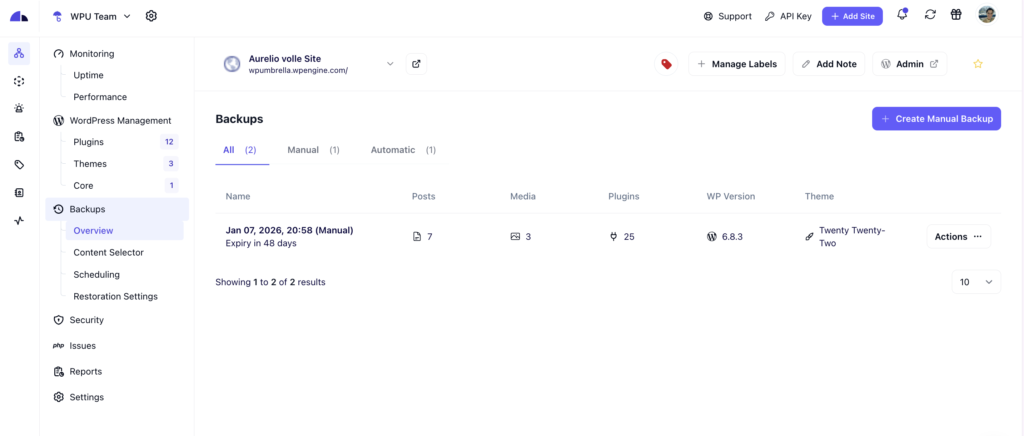
When you choose WP Umbrella for your WordPress database backups, you’ll get to:
- Restore your entire WordPress site, just the database, download full backups, or retrieve only the database files when needed.
- Ensure your data remains secure with WP Umbrella’s GDPR-compliant servers located across Europe.
- Set up automatic backups based on how often you update your website and database, ensuring you never lose important changes.
To get started, here’s how you can set up the WP Umbrella plugin to backup your website:
Sign up to create your WP Umbrella account.
Once logged in, you’ll see your unique API key displayed on the top of your dashboard. Copy this key; you’ll need it to connect your WordPress sites.
Install the WP Umbrella plugin on your WordPress site.
Connect your website by pasting the API key and clicking Save. If you want to add multiple websites, follow the last two steps, and all your websites will appear in one unified dashboard.
Here’s a comprehensive guide on getting started with WP Umbrella.
Pricing: WP Umbrella uses straightforward, pay-as-you-go pricing, starting at just €1.99 per month per website. You also get a 14-day free trial to test all the features, including uptime and performance monitoring, security, backups and restoration, and automated maintenance reports.
Backup Your WordPress Database
Get GDPR-compliant backups and easy restoration options for less than your monthly coffee budget.
Get Started for free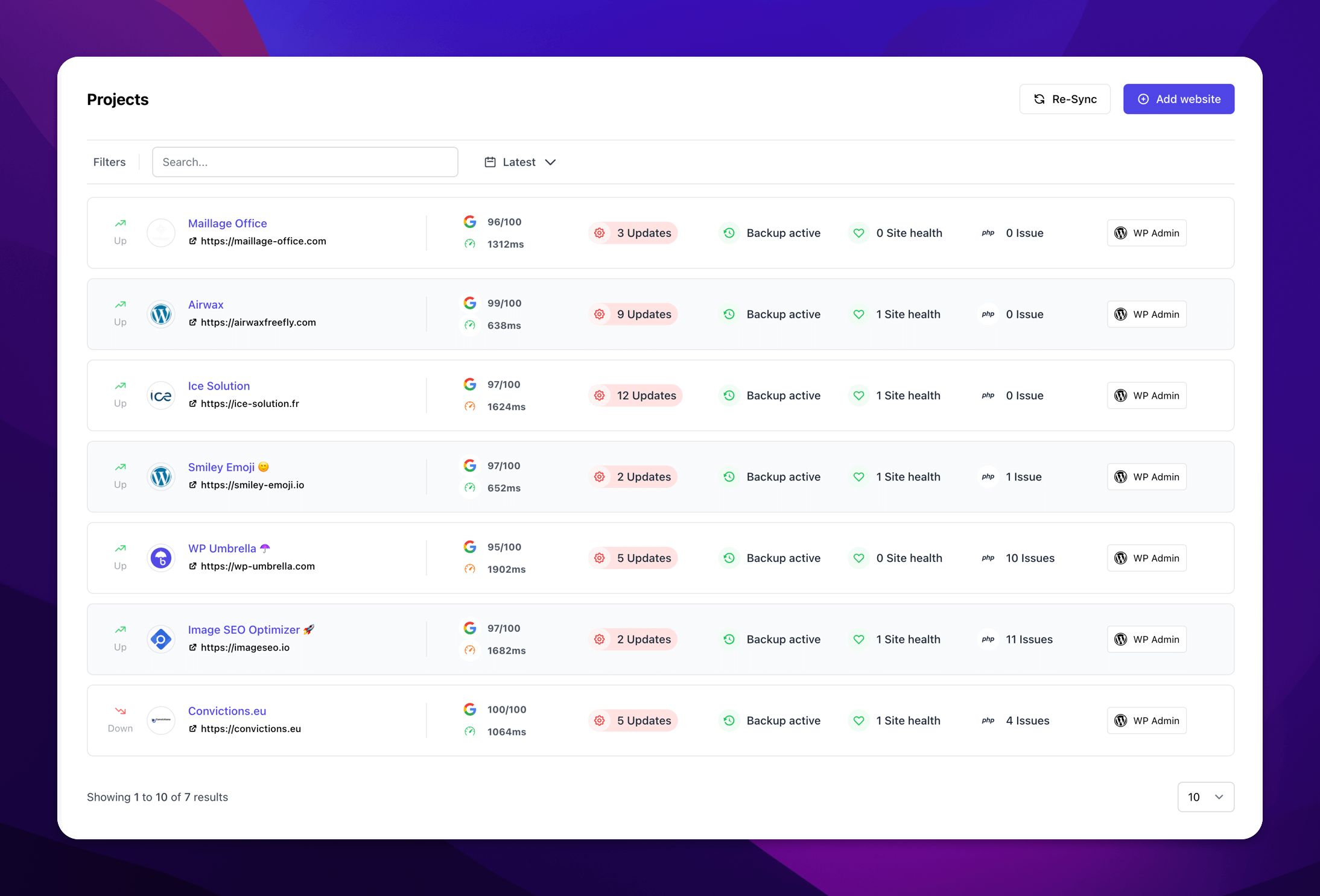
If you want to back up WordPress without a plugin, follow either method below.
Plugin-based backups remain a popular method for most site owners because the backup itself is not the hard part; restore is. WordPress support threads are full of cases where users had a backup file but ran into restore limits, unclear recovery steps, or plugin-specific constraints only after the site was already down.
Method #2: WordPress DB Backup with phpMyAdmin
Another way to create a database backup is to use phpMyAdmin.
phpMyAdmin is an open-source software that comes pre-installed on most WordPress hosting providers. It lets you manage your MySQL database from a web-based interface.
Launch the phpMyAdmin app to view your WordPress DB.

Select the database and click Export.

If your hosting provider doesn’t have phpMyAdmin, you can use another database management tool, like Adminer. The steps mostly remain the same.
Method #3: Back Up WordPress Database From cPanel
If your host uses cPanel, you may be able to download a MySQL database backup directly from there without opening phpMyAdmin. WordPress’ own documentation includes cPanel as a valid way to download a MySQL database backup.
Here’s how to do it:
- Log in to your hosting account and open cPanel.
- Go to the Files or Backup section.
- Open Backup or Backup Wizard, depending on your host.
- Look for Download a MySQL Database Backup.
- Click the name of the database you want to back up.
- Download the backup file to your local computer.
In many cases, cPanel will download the database as a compressed file, such as .gz.
This method is useful if you want a quick database export and your host already gives you easy access to backups through cPanel.
Method #4: Backup WordPress Database Using SSH/WP-CLI
If you’re well-versed with the command-line, SSH can be another way to export the database to an SQL folder.
Install WP-CLI and use SSH to connect your site server. Your credentials will likely be the same as your FTP credentials.
Go to the wp-config.php file, which will be in your site’s root directory. Run the command:
wp db export databasefilename.sqlUse the following code to download the database file and exit the server:
scp username@serveraddress:rootfolder/filename.sql localfolderAlso read: Mastering Search-Replace Command Using WP CLI

Pro Tip
Always follow the 3-2-1 backup rule. Keep 3 copies of your data, on 2 types of storage, with at least 1 copy offsite to fool-proof your site from hacks, crashes, and disasters!
How to Restore a WordPress Database Backup
Backing up your database is only half the job. You should also know how to restore it.
The exact steps depend on how the backup was created, but here are the most common options.
1. Restore with a plugin
If you used a backup plugin like WP Umbrella, the easiest option is usually to restore directly from the plugin dashboard. This is the fastest method for most users because it removes the need to manually import SQL files.
2. Restore with phpMyAdmin
If you exported your database through phpMyAdmin, you can restore it there too:
- Open phpMyAdmin in your hosting account.
- Select your WordPress database.
- Click Import.
- Choose the SQL backup file from your computer.
- Click Go to begin the import.
3. Restore with cPanel
On hosts that support it, you may also be able to restore the database through cPanel or by importing the SQL file through cPanel’s phpMyAdmin flow. cPanel’s documentation for WordPress migration also uses phpMyAdmin import for restoring a database backup.
4. Restore with WP-CLI
If you exported your database with WP-CLI, you can import it with:
wp db import database-backup.sqlWP-CLI officially supports wp db import for importing SQL files into the configured database.
As a general rule, WordPress documentation recommends restoring files first and then restoring or importing the database when doing a full-site recovery or migration.
A practical backup rule for WordPress is this: do not judge a backup strategy only by how easily it creates a file. Judge it by four things, whether it includes what you need, whether it is stored safely, whether you can download it independently of your host, and whether you can restore it without hitting server limits. Official WordPress guidance and support threads both point to the same lesson: speed of recovery matters, and restore is where weak backup setups get exposed.
Conclusion
There is no single best way to back up a WordPress database for every user.
If you want the easiest and most reliable option, use a backup plugin. If you need a manual method, phpMyAdmin and cPanel are both straightforward choices. If you are comfortable in the command line, WP-CLI gives you a fast and flexible way to export your database.
Whichever method you choose, the important part is consistency. A backup only helps if it exists before something goes wrong.
Frequently Asked Questions About Database Backup
A WordPress database is a digital filing cabinet that stores and organizes all the critical information your website needs. It keeps track of your posts, pages, user accounts (with encrypted passwords), comments, and site settings; it’s basically everything except the actual media files themselves.
This organized storage system allows multiple users to work on your site simultaneously without creating conflicts. Because your database contains all this vital information, regular backups are essential; if something goes wrong with your website, you’ll need this backup to restore your content and settings rather than starting from scratch.
The easiest and most effective way is to use a WordPress backup plugin like WP Umbrella. It will take a complete website backup and then create incremental backups per your specified schedule.

WP Umbrella allows you to schedule backups. Once you install the plugin, you can navigate to the site you want to backup and schedule backups hourly, daily, weekly, or monthly. The plugin also allows you to take manual backups.
WordPress database backups protect your site’s core information, including posts, pages, comments, user accounts, and settings. You’ll need a database backup when plugin updates crash your site, when you need to reverse mistakes like deleted content, when recovering from malware attacks that alter your pages, or when migrating to a new host.