
How to Manually Back Up WordPress Without a Plugin (2026)
Learn how to manually backup your WordPress website without using plugins. Follow our step-by-step guide to secure your files and database, giving you peace of mind and a safety net for your website.

There are several ways to back up a WordPress site: a backup plugin, your host’s built-in service, a managed platform, or doing it manually yourself. This guide is about the last one: backing up WordPress without a plugin, by hand, using SFTP for the files and phpMyAdmin for the database.
Manual backups give you full control and zero plugin dependencies. They’re a good fit when you want a pre-update safety net, a one-off snapshot before a migration, or a verifiable archive you don’t have to trust a plugin to produce correctly.
Where they fall short is recurring schedules across many sites, and they’re definitely not faster than a click. Expect to spend 15 to 60 minutes the first time you do it, depending on your site size and how comfortable you are with SFTP.
Below, you’ll find why someone would choose manual over a plugin, the full procedure for files and database, restore steps, and a verification checklist so you know your backup actually works.
What are WordPress Backups?
A WordPress backup is simply a complete copy of everything your website needs to run. It includes all WordPress core files, your plugins, themes, and the database where your content lives.
Think of it as taking a snapshot of your site at a specific moment. If hackers attack your site or your server crashes, you have this backup to restore everything instead of rebuilding everything from scratch. Your backup lets you get back online fast and keep your customers happy.
Full Website Backup vs. Partial Website Backup
There are two main types of WordPress backups. A full backup captures everything (core, themes, plugins, uploads, database) so you can restore the whole site from one archive, at the cost of more storage and longer transfer times. A partial backup captures just the files or just the database, which is faster and lighter, but recovery takes longer because you’re stitching pieces together from different sets.
For manual backups, full is almost always the right call: the storage cost is trivial compared to the restore-time cost of guessing what’s missing under pressure.
Why Regular Backups are Important
Regular WordPress backups are the only reliable safety net against data loss, security breaches, failed updates, and server crashes. Without a recent restorable copy of your files and database, any one of those events can take your site offline indefinitely.
Your website’s theme, files (like plugins), and database (including posts, users, comments, etc.) should all be backed up.
Backups are similar to saving essential documents on your Google Drive, Dropbox, or desktop.
In general, it’s always a good idea to store important items more than once and on multiple devices like an external hard drive, a thumb drive, or your computer. The same applies to your website. Here’s why you should back up your website:
Prevent Data Loss: Having backups means you’re protected when someone accidentally deletes your homepage or overwrites critical content. This is especially important when multiple team members have access to your site.
Security Breaches: When hackers break into your site, they often leave behind malicious code or delete content. A clean backup from before the attack lets you wipe away the hack without losing your site.
According to Patchstack’s State of WordPress Security in 2025, 33% of WordPress vulnerabilities disclosed in 2024 were not fixed in time for public disclosure. When a third of disclosed flaws ship without a vendor patch, every operator has at least one site running known-exploitable code with no fix available. The only realistic safety net is a recent, restorable backup.
Updates and Changes: Plugin and theme updates sometimes crash your site or break your design. With a backup, you can quickly roll back to the working version while you figure out what went wrong. It means less downtime and fewer panicked calls from clients.
Server Failures: If your hosting server crashes or your provider has issues, your site might disappear completely. Having your backup means you don’t depend on your host’s backup system (which might also fail). You can quickly move to a new server and restore your site, often within hours instead of days.
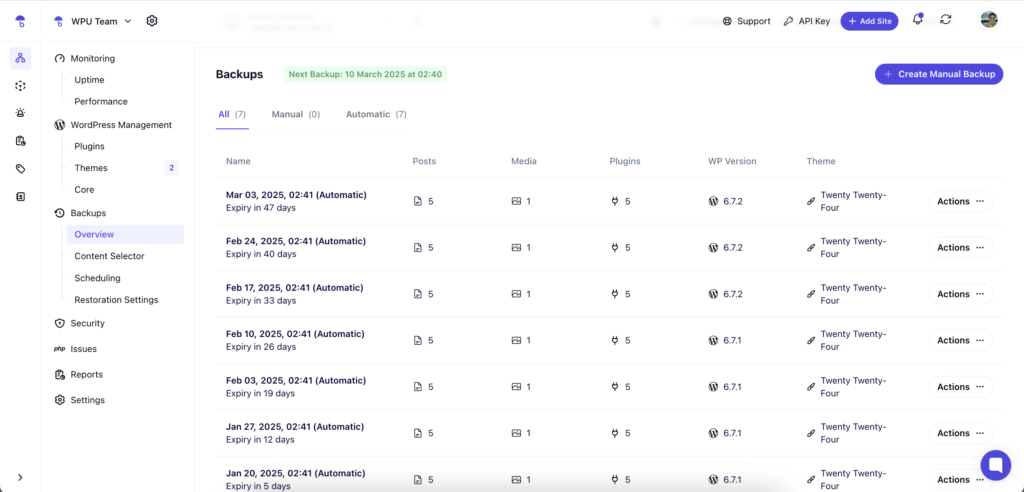
Get Daily, GDPR-Compliant Backups with WP Umbrella
Install WP Umbrella on your websites in a minute and discover a new way to manage multiple WordPress sites.
Get Started for free
Why Not Use a Backup Plugin?
Backup plugins are the easiest path for most WordPress operators, and for good reason: install, configure, schedule, done.
So why would you skip the plugin and back up manually instead? Five operator-grounded reasons.
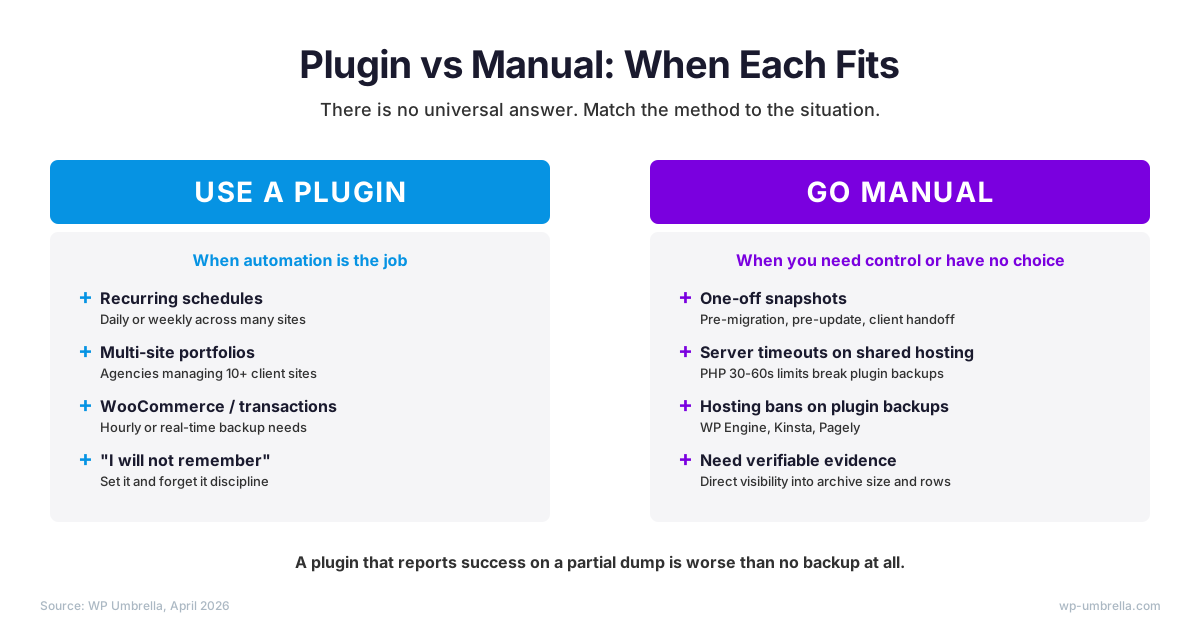
- Plugin compatibility breaks at the worst time. Backup plugins frequently fail after WordPress core, PHP, or unrelated-plugin updates. The exact moment your backup is most valuable, right after a risky update, is the moment the plugin is most likely to be broken.
- Server timeouts on large sites. Shared hosting commonly enforces 30 to 60 second PHP execution limits. Backup plugins running mysqldump or zipping
wp-contentroutinely hit these limits, producing partial archives that look successful but aren’t restorable. Manual SFTP and SSH backups don’t have this constraint. - Hosting bans on third-party backup plugins. Managed WordPress hosts like WP Engine, Kinsta, and Pagely restrict or outright disable third-party backup plugins because they hammer server I/O. If you’re on a host that bans plugin backups, manual or WP-CLI is the only path.
- “Successful” backups that aren’t. A plugin that reports success but produced a partial database dump is worse than no backup, because it gives false confidence. Manual exports give you direct visibility into file size and row counts before you trust the archive.
- One-off scenarios where a plugin is overkill. A pre-migration snapshot, a single safety net before a major update, freezing a site before client handoff. Manual is faster than installing and configuring a plugin you’ll uninstall an hour later.
When is manual the wrong call?
Recurring schedules across multi-site portfolios, WooCommerce stores with hourly transaction data, or anyone who won’t actually remember to do it. If that’s you, a backup plugin or a managed platform is the better path. See our complete guide to WordPress backups for an overview of all the options.
And if you need recurring backups across multiple sites with verifiable restoration, that’s what platforms like WP Umbrella exist for.
How to Backup Your Website Without a Plugin
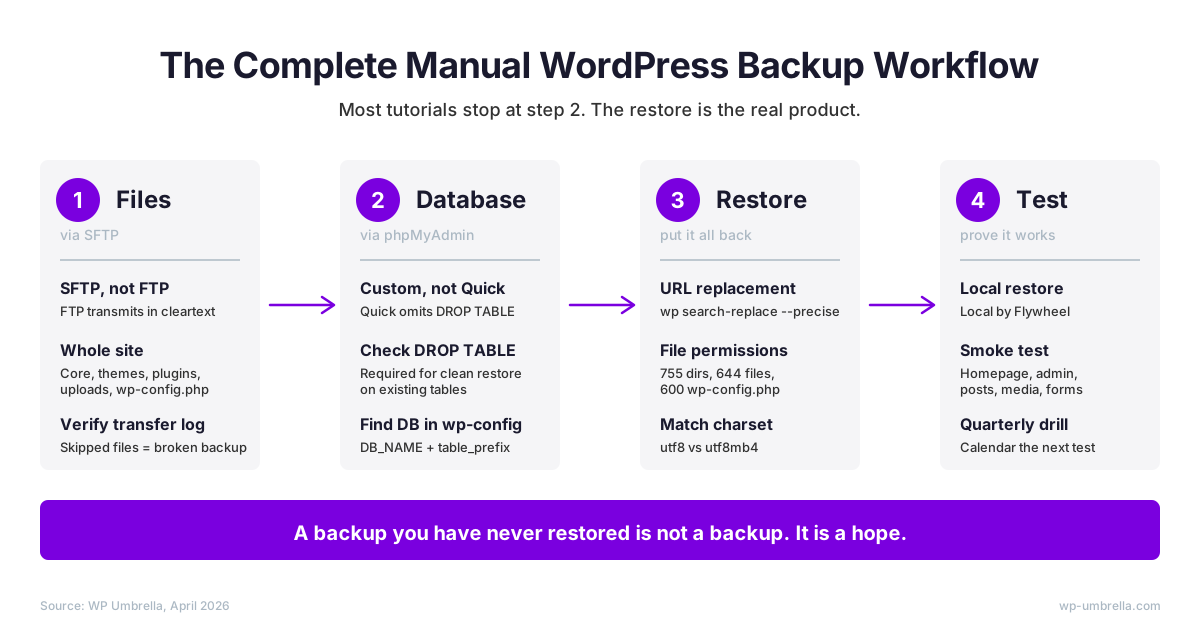
The easiest way to perform a backup on a WordPress site is to use a managed platform or a backup plugin. But for the special-needs and one-off scenarios above, a manual approach gives you control that no plugin will. Keeping regular backups of your website is essential. It is possible to perform this procedure manually if you are not interested in installing a dedicated plugin or do not find one that matches your needs.
This is how you back up your entire WordPress website without a plugin.
Step 1: Backup Your WordPress Files (Using SFTP)
Your WordPress site comprises many files: WordPress core installation files, plugins, themes, media uploads, custom code, and wp-config.php (the root configuration file holding your database credentials and security keys).
Day-to-day work usually only touches plugins, themes, and uploads. Back up the whole site anyway: a partial backup forces you to figure out what’s missing under restore pressure, which is exactly when you don’t want to be guessing.

Use SFTP, not FTP.
Plain FTP transmits your credentials in cleartext, which means anyone on the network between you and your server can read your username and password. SFTP encrypts the connection. Most hosting providers in 2026 support SFTP on port 22 by default; if your host only offers FTP, ask them to enable SFTP or move hosts.
Here are the steps to back up your WordPress site files:
- Download and install the FileZilla client (free and open-source, available for macOS, Windows, and Linux).
- In FileZilla’s Site Manager, create a new site. Set Protocol to SFTP – SSH File Transfer Protocol, Port to 22, and enter your hosting credentials.
- Connect to your server. The remote panel shows your site’s directory tree.
- Navigate to your WordPress root (commonly
public_html/,www/, orhtdocs/depending on the host). It’s the folder containingwp-config.php,wp-content/, andwp-includes/. - Right-click the root folder and select Download. FileZilla copies all your files to your local machine. For sites with large media libraries, this can take 30 minutes to a few hours.
- Once the transfer completes, check FileZilla’s transfer log for any failed files. A backup with skipped files isn’t a complete backup. Re-transfer anything that failed.
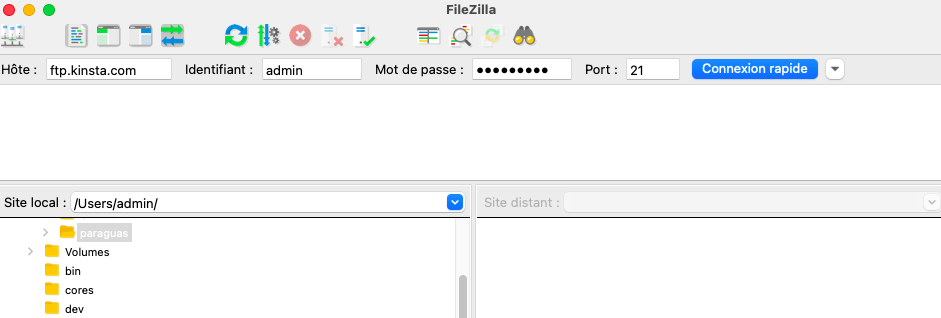
You can usually find your SFTP credentials in your hosting control panel under “SFTP Accounts” or “SSH Access.” If you can’t locate them, your host’s support team can confirm the host, port, username, and authentication method.
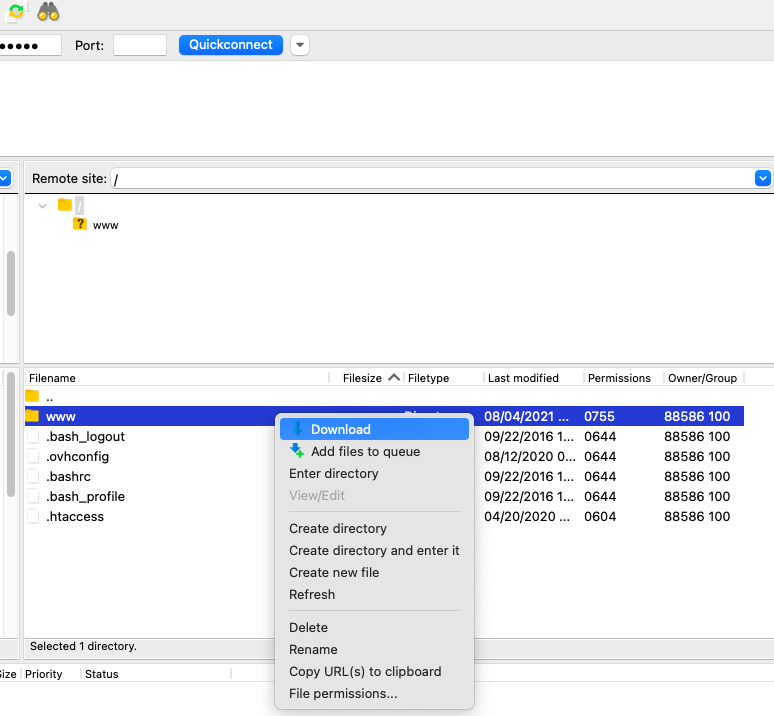
Once the download is verified, you have your file backup. That’s half the job done, so now for the database.
Step 2: Backup Your WordPress Database
It’s not enough to simply back up your site files. WordPress stores all your posts, pages, comments, users, settings, plugin configurations, and most of what makes your site your site in a MySQL database. Backing up only your files would result in an empty website: no posts, no pages, no media library entries.
Here’s how to do it correctly with phpMyAdmin, the web-based MySQL administration tool included in most hosting control panels.
Pre-step: find the right database. On shared hosting, your hosting account often has multiple databases. Pulling the wrong one is the most common manual-backup mistake. Open wp-config.php (you already have it from Step 1) in any text editor and look for these lines:
define( 'DB_NAME', 'your_database_name_here' );
define( 'DB_USER', 'your_database_user' );
define( 'DB_PASSWORD', 'your_database_password' )
define( 'DB_HOST', 'localhost' );
$table_prefix = 'wp_';
Note the DB_NAME value: that’s the database you need to export. Note DB_USER, DB_PASSWORD, and DB_HOST too; you’ll need them for restore. The $table_prefix line tells you which tables in that database belong to this WordPress install (relevant if multiple WordPress sites share one database).
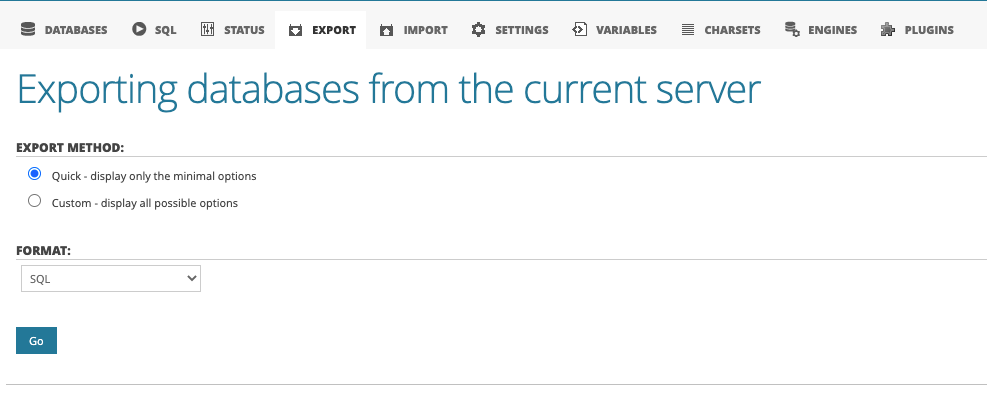
Export with phpMyAdmin (Custom, not Quick). Log into your hosting control panel and open phpMyAdmin. Then:
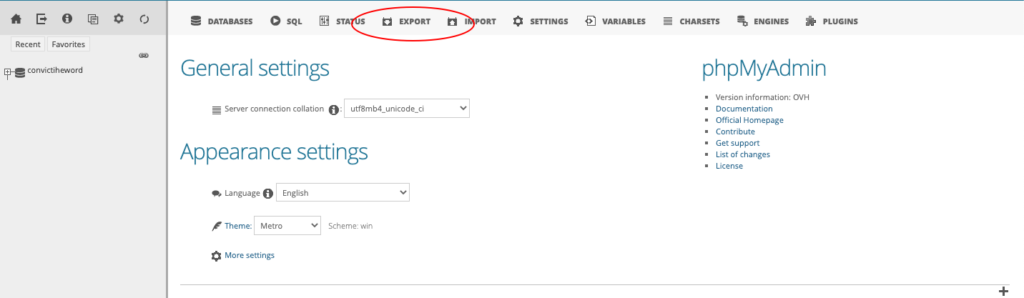
- In the left sidebar, click the database name matching
DB_NAMEfromwp-config.php. Make sure it’s the right one. - Click the Export tab at the top.
- Under “Export method,” select Custom – display all possible options. The default “Quick” option omits a critical setting and produces an export that fails to restore on top of an existing database.
- Under “Tables,” confirm all tables matching your
$table_prefixare selected. - Under “Output,” keep “Save output to a file” and enable compression (zip or gzip is recommended for large databases).
- Under “Format,” select SQL.
- Under “Object creation options,” check Add DROP TABLE / VIEW / PROCEDURE / FUNCTION / EVENT / TRIGGER statement. This is the key setting most tutorials skip.
- Leave the “Data creation options” defaults (INSERT statements, hexadecimal for BLOB).
- Click Go. The file downloads to your machine.
Why DROP TABLE matters. When you later restore this export on top of a database that already has tables, the import will first delete the existing tables before recreating them. Without DROP TABLE, the restore fails with “table already exists” errors, or worse, half-merges old and new data.
Common operator mistakes:
- Using “Quick” export and assuming it’s restorable on a database with existing tables.
- Selecting the wrong database when shared hosting hosts multiple WordPress installs in one MySQL server. Always cross-check
DB_NAME. - Forgetting that this exports the database only. Files (themes, plugins, uploads,
wp-config.php) are still required for a complete backup. - Charset or collation drift. If the source database is
utf8mb4and the target isutf8, special characters break on restore. Confirm matching charset under phpMyAdmin’s Operations tab before importing.
If your database is larger than 500 MB, phpMyAdmin will struggle. The official phpMyAdmin documentation recommends straight MySQL or MariaDB commands instead. See the WP-CLI section below. For a deeper reference, the WordPress.org Advanced Administration Handbook on database backups covers the options in detail.
Step 3: Restore From Your Backup
A backup you can’t actually restore isn’t really a backup. Here’s how to put your files and database back, plus the gotchas that catch most operators on their first restore.
Restore the files via SFTP. Connect to the target server with FileZilla (same SFTP settings as Step 1). Navigate to the WordPress root directory. Drag and drop your local backup folder into the remote root. Confirm any overwrites. For a fresh server, this can take a while; FileZilla’s transfer log tells you when every file is in place.
Restore the database via phpMyAdmin. In your target hosting’s phpMyAdmin, select the destination database from the left sidebar. Click the Import tab. Choose your .sql (or .sql.gz) file. Under “Format,” confirm SQL. Click Go. The restore runs, dropping any existing tables and recreating them from your export. This is why the DROP TABLE setting from Step 2 mattered.
Update wp-config.php on the new server. If you’re restoring to a different host, edit wp-config.php and update DB_NAME, DB_USER, DB_PASSWORD, and DB_HOST to match the new database. On shared hosting, DB_HOST is rarely just localhost. Check the hosting panel for the exact value.
The five gotchas that catch everyone:
- URL/domain replacement when restoring to staging or a new domain. WordPress stores your site URL in the database, often inside serialized PHP arrays that break if you naively SQL-update them. The safe path is WP-CLI:
wp search-replace 'old.com' 'new.com' --all-tables --precise --dry-run- Inspect the dry-run output, then run again without
--dry-run. The--preciseflag handles serialized data correctly. - Charset/collation mismatch (utf8 vs utf8mb4). If your source and target databases use different charsets, special characters corrupt on restore. Either match the charsets in phpMyAdmin’s Operations tab before importing, or open your
.sqlfile and search/replaceutf8mb4withutf8(or vice versa) to match. - File permissions wrong after SFTP upload. Directories should be 755, files 644, and
wp-config.php600 or 640. Via SSH:find /path/to/wp -type d -exec chmod 755 {} \; find /path/to/wp -type f -exec chmod 644 {} \; chmod 600 /path/to/wp/wp-config.php - Pretty permalinks broken or
.htaccessmissing. After restore, log into wp-admin, go to Settings → Permalinks, and click Save Changes without editing anything. WordPress regenerates.htaccess. - Cache and opcache serving stale content. Flush your page cache (host cache panel, WP Rocket, or W3 Total Cache “purge all”). Clear browser cache. If you use Cloudflare or another CDN, purge it too. Via WP-CLI:
wp cache flush.
If the site loads, the admin works, and the homepage doesn’t show a database error, you’re nearly done. Now test the backup properly.
proceed carefully. Ensure compatibility between your WordPress version, PHP version, and the backup you’re restoring. After restoration, thoroughly test your site to confirm everything works properly.
How Often Should You Perform Manual Backups?
Frequency tracks change rate. WooCommerce stores or any site processing transactions need hourly or real-time backups; frequently updated content sites should run daily or weekly; brochure sites and archived pages can manage with monthly.
How long does a manual backup actually take? For a small blog (under 1 GB), expect 15 to 30 minutes end to end. For a content-heavy site with a large media library or a WooCommerce store with thousands of products, an hour or more is realistic. The SFTP download is the bottleneck, not phpMyAdmin.
Best Practices for Backing up a WordPress Website
Set Up Regular Backups
Make backups happen on a schedule that matches your site’s update frequency. If you post new content daily, back up daily. If you rarely update, weekly is fine. Manual backups are only useful if they actually happen, so calendar them or move to an automated solution.
Store Backups Securely
Keep backups off the same server that hosts the live site, behind credentials separate from your hosting login. The point is to avoid a single point of failure: a compromise of your hosting account shouldn’t take the backup with it.
Encrypt Your Backup Files
Backup files contain a complete copy of your site, including any sensitive customer data in your database. Encrypt them during storage and transfer. For local archives, VeraCrypt or gpg (built into most Linux distributions and macOS) handle this well. For cloud storage, use a provider that supports server-side encryption by default.
Apply the 3-2-1 Rule
The 3-2-1 rule is the simplest backup discipline that survives real failure modes: three copies of your site, on two different storage media, with one copy off-site. The “off-site” requirement is the part that catches most operators. A backup sitting in /home/user/backups on the same server that hosts your live site doesn’t count as off-site, because a single hosting incident (account suspension, ransomware, data center fire) takes them both.
A realistic 3-2-1 setup for a WordPress operator:
- 3 copies: the production site + a nightly backup on the hosting server + a weekly archive on your laptop
- 2 media: server filesystem + cloud object storage (Backblaze B2, Wasabi, or AWS S3)
- 1 off-site: a monthly cold archive in a different cloud account or on an external drive at a separate physical location
This last copy is the one that survives when your hosting account itself disappears.
Test Your Backups Regularly
Step 4 covers the verification flow. The discipline that matters most: a calendared quarterly restore drill. Untested backups fail silently, and you only find out on the day a real restore matters.
Know Your Restoration Process
Walk through the restore steps in Step 3 once before you actually need them. Two compatibility traps catch most operators: WordPress version drift (restoring a 6.4 backup onto 6.6 is fine; the reverse can break) and PHP version drift (a backup from PHP 7.4 may fail on PHP 8.2 if a plugin uses removed functions). Confirm both match the target server before you import.
WP-CLI / SSH Method (For Developers)
If you have SSH access to your server (most quality hosting plans include it), WP-CLI (the official WordPress command-line interface) is dramatically faster and more reliable than phpMyAdmin for the database side. Code blocks below assume you’ve connected via SSH and changed into your WordPress root directory. Verify WP-CLI is installed with wp --info; if not, your host’s documentation will cover installation.
Database export with DROP TABLE (matches the phpMyAdmin Custom flow above):
wp db export --add-drop-table db-backup-$(date +%Y-%m-%d).sqlCompressed database export:
wp db export - | gzip > db-backup-$(date +%Y-%m-%d).sql.gzFile backup with sensible exclusions:
tar --create --gzip \
  --exclude='wp-content/cache' \
  --exclude='wp-content/uploads/cache' \
  --exclude='wp-content/debug.log' \
  --exclude='*.log' \
  --file=files-backup-$(date +%Y-%m-%d).tar.gz \
  /var/www/html
Combined backup script (save as /usr/local/bin/wp-backup.sh, then chmod 700):
#!/bin/bash
SITE_PATH="/var/www/html"
BACKUP_DIR="/var/backups/wp"
DATE=$(date +%Y-%m-%d-%H%M)
cd "$SITE_PATH" || exit 1
wp db export "$BACKUP_DIR/db-$DATE.sql" --add-drop-table
tar --create --gzip \
  --exclude='wp-content/cache' \
  --exclude='*.log' \
  --file="$BACKUP_DIR/files-$DATE.tar.gz" \
  "$SITE_PATH"
Daily cron job at 3 AM (crontab -e):
0 3 * * * /usr/local/bin/wp-backup.sh >> /var/log/wp-backup.log 2>&1A crontab gotcha worth knowing: the % character has special meaning in crontab files. Wrapping the date logic inside a script (as above) sidesteps the issue. If you write $(date +%Y-%m-%d) directly in a crontab line, escape it as \%Y-\%m-\%d.
For larger sites (over 2 GB), swap tar+gzip for pigz (parallel gzip) or use rsync for incremental transfers. The full reference for wp db export is on the WordPress.org developer handbook.
FAQ: Manual WordPress Backups
WordPress backup includes both your files and your database. Files cover WordPress core, themes, plugins, media uploads, and wp-config.php. The database holds your posts, pages, users, comments, and settings. Skipping either half leaves you with a backup you can’t actually restore.
For a small blog, expect 15 to 30 minutes for a manual backup. Larger sites (content-heavy publications, WooCommerce stores with big product catalogs) can take an hour or more, mostly because of SFTP download time.
Backing up WordPress isn’t difficult, but doing it manually requires comfort with SFTP and phpMyAdmin. Most operators get through their first manual backup in 30 to 60 minutes once they have their hosting credentials in hand. If you want it automated and verified across multiple sites, a managed platform handles it without the manual steps.
There are four common alternatives to manual backups. A backup plugin like WP Umbrella or UpdraftPlus automates the process from inside wp-admin. WP-CLI gives you scriptable command-line backups if you have SSH access. Your hosting provider’s built-in backup service is often included in your plan. Managed platforms bundle backups with monitoring and updates across multiple sites.
Yes, and in some cases manual is the only path. Managed WordPress hosts often restrict third-party backup plugins for performance reasons. SFTP and SSH access are usually available, so the procedure in this guide works. Check with your host’s support if you can’t locate SFTP credentials in the dashboard.
Conclusion: Always Keep Several Backups of your Website
Regular backups are essential to maintaining site availability and protecting your content. By backing up your files and database manually, you have a full copy of your site available if something goes wrong, and in life, you’re always better safe than sorry.
The trade-off is that manual backups only work if you actually do them. If you’re running care plans on multiple sites, or your storefront processes orders every hour, the manual approach stops being realistic and starts being a risk. That’s where a managed platform fits: incremental encrypted backups on a schedule, with one-click restore and verification built in. If that sounds like what you need, WP Umbrella’s backup feature covers it.
Whichever route you take, keep multiple backup copies in different locations. One copy on the same server you’re trying to protect isn’t a backup; it’s a coincidence waiting to fail at the worst time.