
The Best WordPress Security Plugin Alternative for Agencies (2026)
Managing security across dozens or hundreds of WordPress sites is different from protecting a single website. This guide covers the six principles agencies should look for in a WordPress security solution and how WP Umbrella effectively combines end-to-end security with backups, updates, uptime, performance, and other maintenance tasks in one platform.


Managing WordPress security for one website is very different from managing it for 50 or 500. Agencies need to protect many sites, keep track of risks, and make sure security fits into the rest of their maintenance work.
The right WordPress security solution for them should make this easier. It should help agencies protect their entire portfolio without adding more tools, more dashboards, or more work.
Why traditional WordPress security plugins don’t work for agencies?
Most well-known WordPress security plugins, such as Wordfence, Sucuri, and Solid Security, are designed with a single site in mind. You install the plugin, configure it, and monitor it – one site at a time.
For a single site owner, that approach works just fine. But for agencies managing tens or hundreds of client websites, it quickly becomes difficult to scale. Every new client means another plugin to install, configure, and maintain individually.
That also creates operational challenges. There’s no central view of security across your entire portfolio, so a critical vulnerability on one client’s site can go unnoticed while you’re focused on another. And when a client asks what you’re doing to keep their site secure, the answer is often buried inside a plugin dashboard rather than presented in a maintenance report you can easily share.
None of this makes these plugins bad.
They’re simply designed for single-site workflows, while in practice, WordPress security is often managed by agencies and professionals responsible for large portfolios of websites.
What should agencies look for in a WordPress security solution?
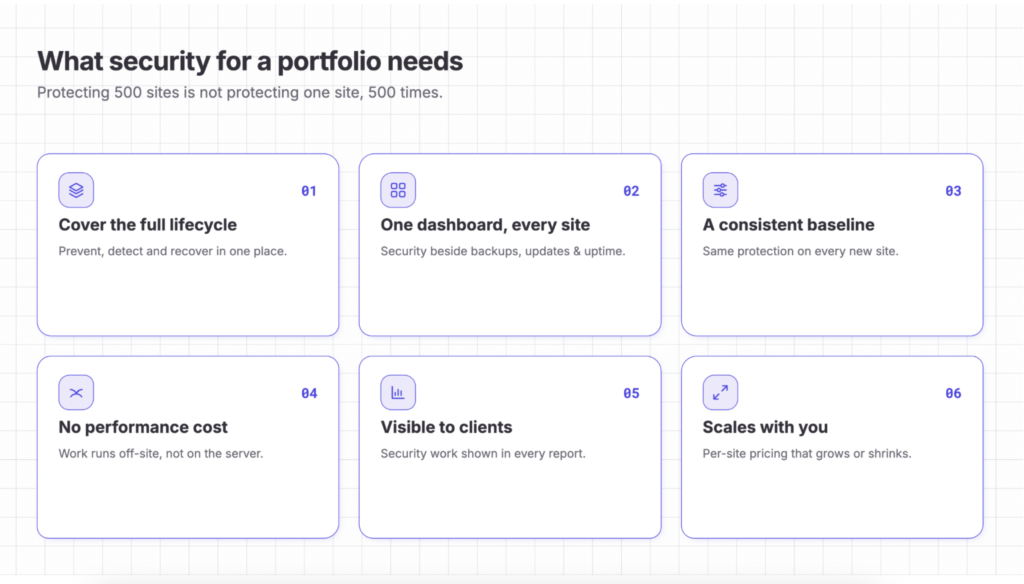
A WordPress security solution built for agencies should be based on six principles.
1. Cover the entire WordPress security lifecycle
This is one of the most important and most overlooked principles.
A complete WordPress security solution should help you before, during, and after an attack. That means it should:
- Prevent attacks before they happen.
- Detect suspicious activity as early as possible.
- Help you recover quickly if a site is compromised.

The problem is that many security solutions focus on just one part of this lifecycle. Some specialize in prevention with firewalls and hardening. Others focus on detection through monitoring and activity logs. Others are built mainly for recovery with malware scanning and cleanup.
As a result, agencies often need several tools to cover the full security lifecycle. This adds cost, complexity, and more plugins that can affect site performance.
2. Manage your entire portfolio in one place
When you manage multiple WordPress sites, you shouldn’t have to log into every client site just to understand what’s going on. A good solution should give you one place to see your full portfolio, every security risk, your alerts, and the actions that need your attention.
But security should not be a separate job either. Backups, updates, uptime, performance, and security are all part of WordPress maintenance. They should work together, so you can spot a problem and take action without switching between different tools.
Having the best vulnerability monitoring means little if you don’t run the update that fixes the problem. And the best malware scanner is not enough if you don’t have a clean backup to restore.
Security works best when it’s part of the bigger WordPress maintenance workflow.
3. Set a consistent security baseline across all your sites
When you manage a large portfolio, every new client site should start with the same basic level of protection.
That baseline shouldn’t depend on who built the website, when it was added to your portfolio, or whether someone remembered to turn on the right settings.
Standardizing your security measures makes your portfolio easier to manage. Instead of starting from scratch with every site, you can apply the same basic protection everywhere and then make changes when needed for exceptional cases.
4. Protect sites without slowing them down
The right WordPress security solution should provide strong protection with as little impact on site performance as possible.
This depends a lot on how the security tool works.
Many security plugins do their work directly on the WordPress site. They may scan files for malware or process large amounts of security data on the same server that runs the website. This uses CPU and memory and can affect performance, especially on busy sites or lower-powered hosting.
A good security solution should be designed to keep this work as light as possible and never become another reason why client sites are slow.
5. Make security visible and valuable to clients
Security is easy for clients to overlook because most of its value comes from preventing problems that never happen.
Your client may never know that you found a vulnerability, fixed a security issue, or stopped an attack. If you don’t show this work in your reports, security can look like an extra cost instead of part of the value you provide.
The right security solution should make this work easy to show.
Security checks, vulnerabilities, hardening changes, and other improvements should be easy to include in your client reports. This helps clients understand what you’re doing to protect their websites and why your maintenance service matters.
6. Scale security with your WordPress portfolio
Agencies grow and change every month. New clients come in, others leave, and not every website needs the same level of protection.
Your security solution should make it easy to adjust as your portfolio changes.
Per-site pricing lets you protect the websites that need it without paying for large bundles that don’t match the size of your portfolio. It also means your security costs can grow or shrink with your business.
How WP Umbrella puts these WordPress security principles into practice?
These six principles describe what agencies should expect from a WordPress security solution.
But finding all of them in one place is not always easy. Many security tools focus on one part of security. Others treat security as a separate task from the rest of WordPress maintenance.
WP Umbrella fills in that gap. As an all-in-one WordPress management platform, it brings security into the same workflow you already use to manage your WordPress maintenance tasks and then it splits it into two layers.
- The first is a security base included with every WP Umbrella subscription. It gives every connected website the same foundational security checks and protection.
- The second is the Security add-on. It adds active protection, threat detection, and recovery tools for sites and clients that require tighter security measures.
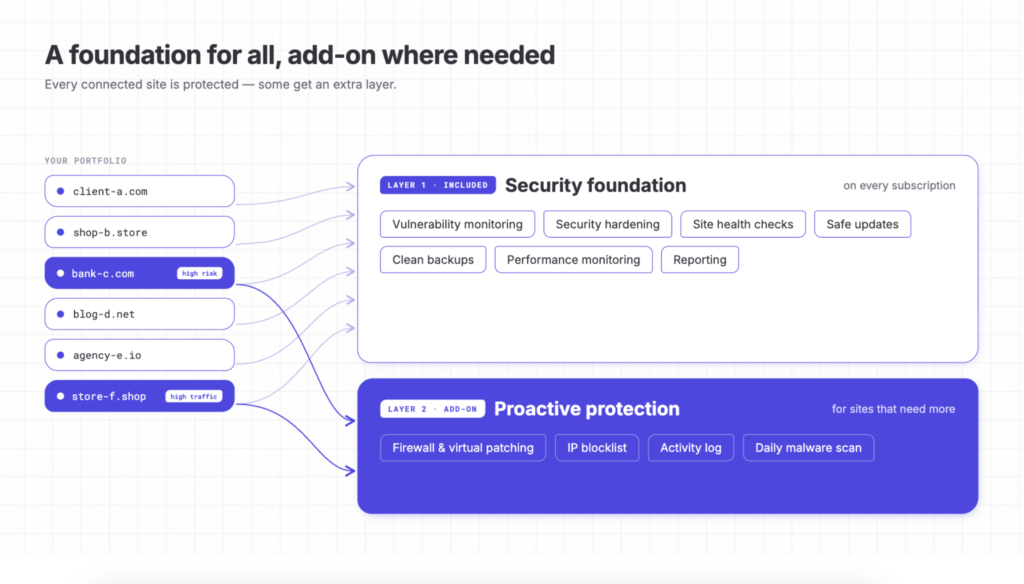
Together, these two layers help agencies manage security across their entire portfolio without adding another disconnected tool to their workflow. Let’s break down what each layer does.
LAYER 1: The security foundation for every WordPress site
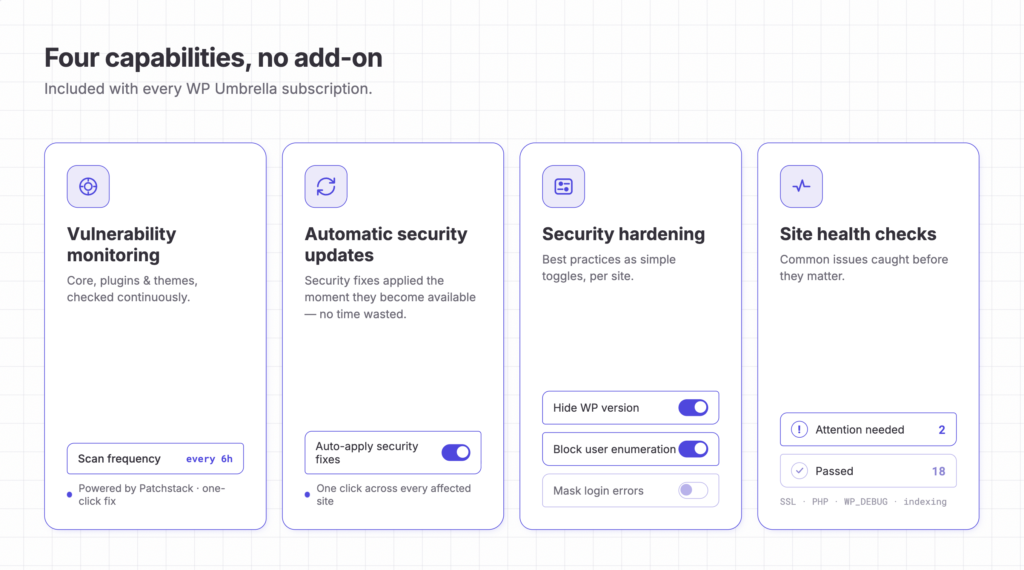
WP Umbrella includes four core security capabilities with every subscription, with no add-on required.
1. Monitor WordPress Vulnerabilities Across Your Portfolio
You can’t fix a security problem you don’t know about. Plugins and themes can become vulnerable at any time, even if they were safe when you first installed them.
A good vulnerability monitoring system should keep checking your sites and tell you when something needs your attention.
WP Umbrella checks every site in your portfolio every six hours for known vulnerabilities affecting WordPress core, plugins, and themes. You can also run a manual scan whenever you want instead of waiting for the next automatic check.
These checks are powered by Patchstack, a leading WordPress vulnerability database that tracks security issues across the WordPress ecosystem.
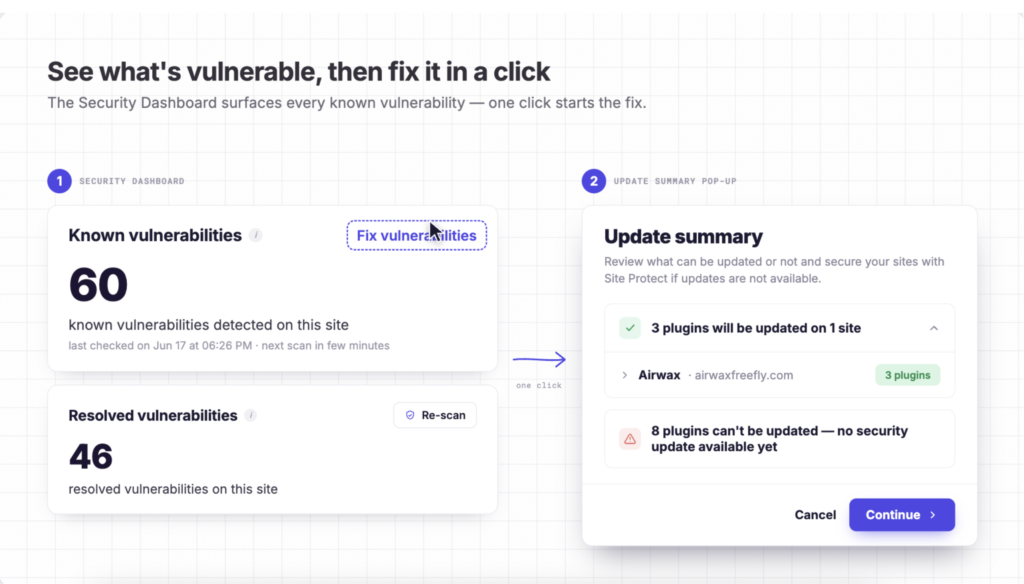
When a vulnerability is found, you can see which plugin or theme is affected, how serious the problem is, and which version fixes it.
2. Automatic security updates independent from your regular update schedule
Once the fix becomes available, you can apply the update straight from WP Umbrella’s dashboard, with one click, across every affected website. But you can also take this one step further and automate WordPress security updates entirely.
With this option enabled, security fixes are installed as soon as they become available, without waiting for your regular WordPress update schedule. This helps you stay one step ahead of new threats while reducing the work needed to keep your portfolio secure.

3. Apply WordPress Security Hardening From One Place
Many attacks rely on common WordPress weaknesses that can be reduced with a few simple security measures. But when you manage a large portfolio, there are many small settings to check. Doing this manually on every site takes time and security knowledge.
WP Umbrella makes these security best practices easier to apply from one central place.
You can:
- Hide your WordPress version
- Block user enumeration
- Mask login error messages
- Disable the theme and plugin file editor
- Add security headers
- Rate-limit login attempts
- Block known malicious IPs at login
- Disable XML-RPC
- Harden your .htaccess

You can apply these settings with simple toggle buttons, site by site or all at once. This gives you control over the security baseline for each website without having to configure everything from scratch.
4. Keep Your WordPress Security Health in Check
Clients don’t care whether a security issue is big or small. They expect you to catch problems before they become serious. But small issues can easily slip through the cracks when you’re managing a large portfolio.
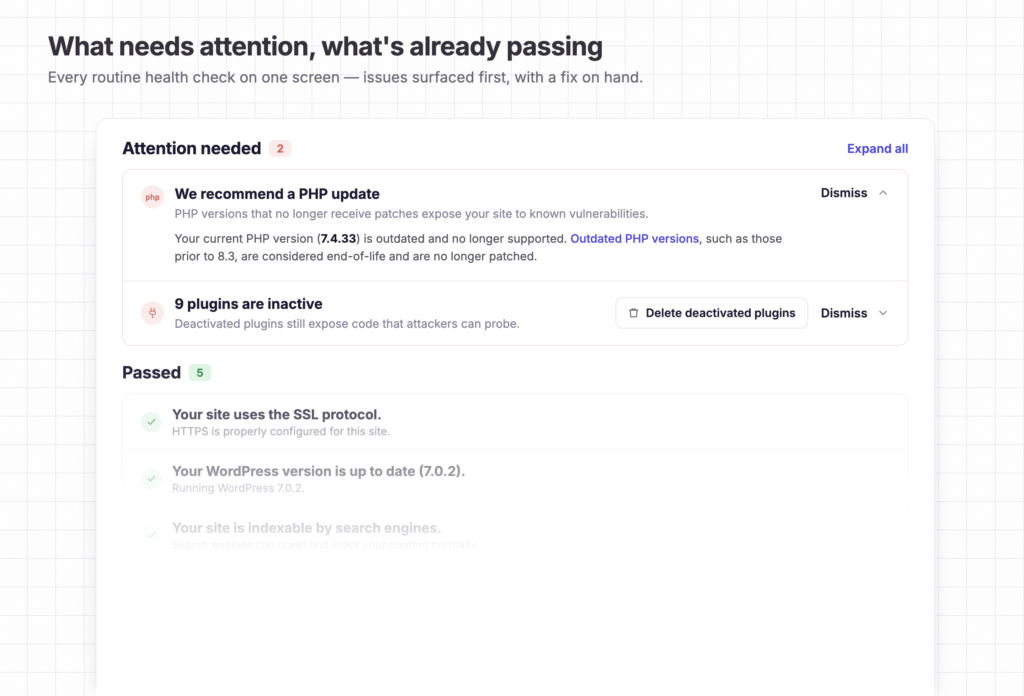
WP Umbrella’s Site Health Assistant checks for common issues across your websites, including:
- SSL configuration.
- WordPress and PHP versions.
- Search engine visibility.
- WP_DEBUG.
- Inactive plugins and themes.
Results are split into Attention Needed and Passed, so your dashboard stays focused on the things that need your attention and have clear fixes ready to go. This way nothing slips through, no matter how minor.
LAYER 2: Proactive WordPress security protection
The security foundation gives every site a strong starting point. But some clients require more active protection.
The WP Umbrella Security add-on adds four extra layers that help you block attacks, stop known threats, spot suspicious activity, and find malware.
1. Stop Attacks With a Firewall and Virtual Patching
Sometimes a security flaw is found before the developer has released a fix. You may also need to wait before updating a plugin or theme.
WP Umbrella’s integrated technology – virtual patching, powered by Patchstack – helps protect your site during this gap.
The firewall blocks attacks that try to use the known security flaw without changing the plugin or theme itself. This gives you time to apply the official update when it becomes safe to do so.
The firewall also blocks other common attack methods, such as attempts to access sensitive files or run PHP code in places where it shouldn’t run.
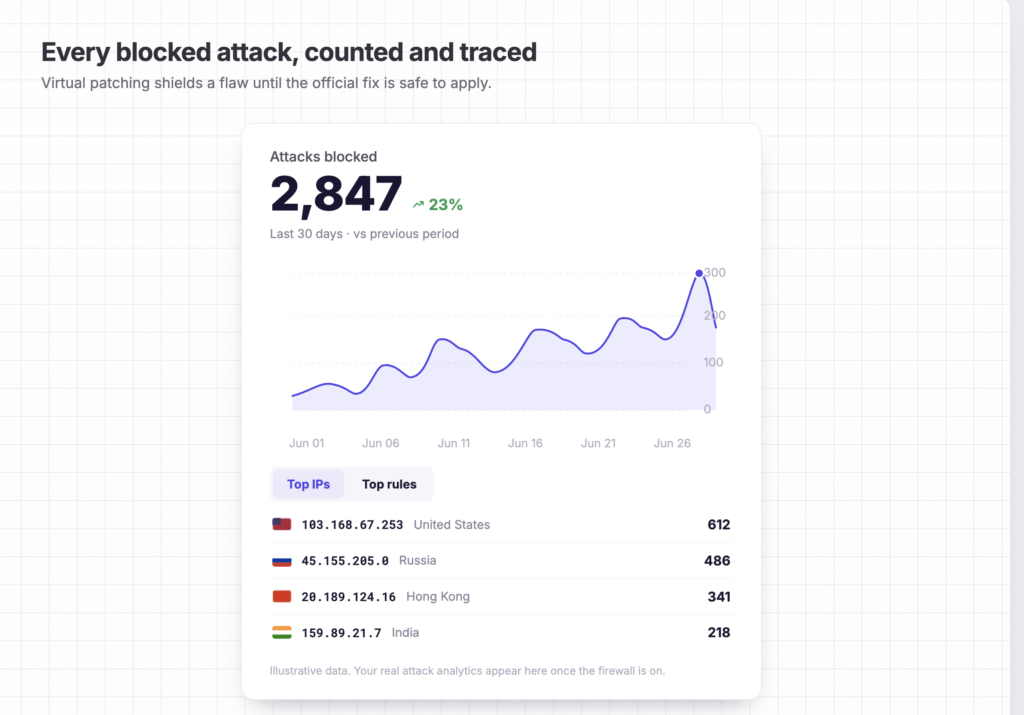
You can also see what the firewall has blocked. The Insights view shows attacks blocked in the last 30 days, the IP addresses behind them, and the rules that stopped them. This gives you a clear view of the protection running on your sites and useful information to share with clients.
The firewall is designed to have no negative impact on site performance and works alongside network and server-level firewalls provided by your hosting infrastructure.
2. Block Known Attackers Before They Reach Your Site
Hackers often attack more than one website. If an IP address is trying to break into one site, it may try to attack another.
WP Umbrella watches login attacks across every site on the platform and continuously builds a shared blocklist of malicious IP addresses. Once an IP is flagged anywhere on the network, it’s blocked on your site before it gets a chance to attack it, protecting every other site from the same threat.
3. Know When Something Suspicious Happens
Stopping attacks is only part of security. You also need to know when something unusual happens on a website.
The built in Activity Log checks for eight types of suspicious activity, including:
- Brute-force login attempts.
- New admin accounts.
- Sign-ins from new locations.
- File changes.
- Critical settings changes.
- Mass content deletion.
- Hidden administrator accounts.
- .htaccess changes.
When something needs your attention, you can see what happened, who was involved, the IP address, and when it happened.
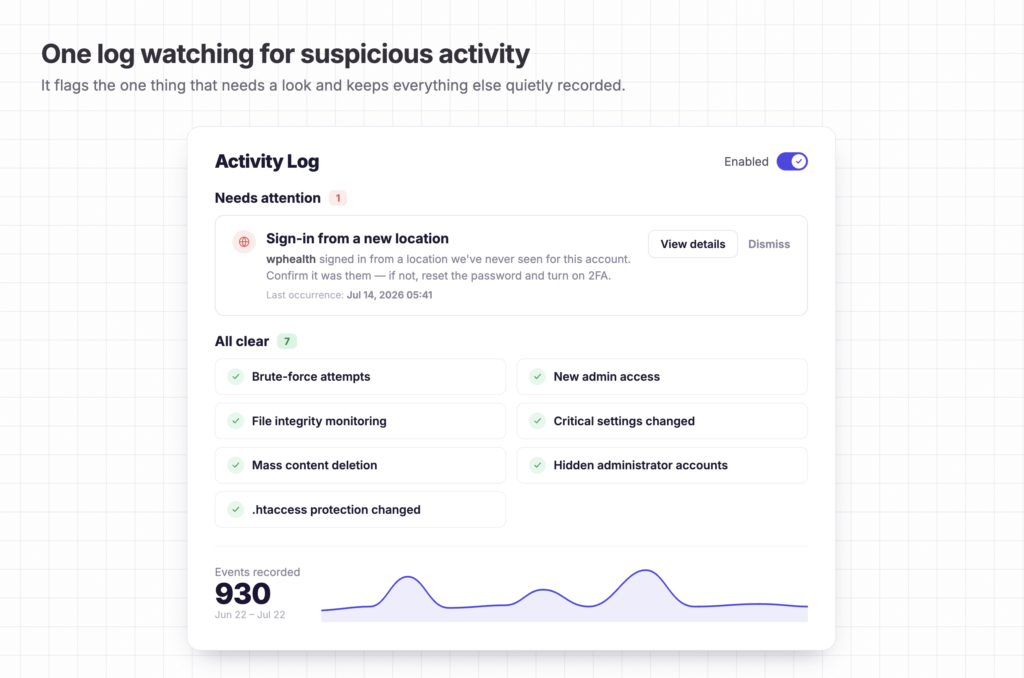
You also get the information you need to understand the problem and decide what to do next. You can search the full activity log at any time to see what has happened across your sites.
4. Scan for Malware Everyday, With Zero Load on Your Sites
Even with good protection, some attacks may still get through.
That’s why WP Umbrella’s Malware Scanner checks your sites for malware every day, entirely from its own infrastructure. Nothing runs on your server, so scanning adds zero load to your sites.
The scan goes deep: WordPress core, free and paid plugin and theme files (including ones that never came from the official store), your wp-content and uploads folders, scheduled tasks, and supply chain changes.
It catches more than known threats, it’s built to find hidden malware and code no vulnerability database has seen yet.
Anything it flags appears in your dashboard with the date it was found. If you check a file and know it’s safe, you can dismiss it so it doesn’t keep showing up as a threat. If the scanner finds a real infection and you need to recover your site, clean backups are ready to restore with just one click straight from the WP Umbrella dashboard.
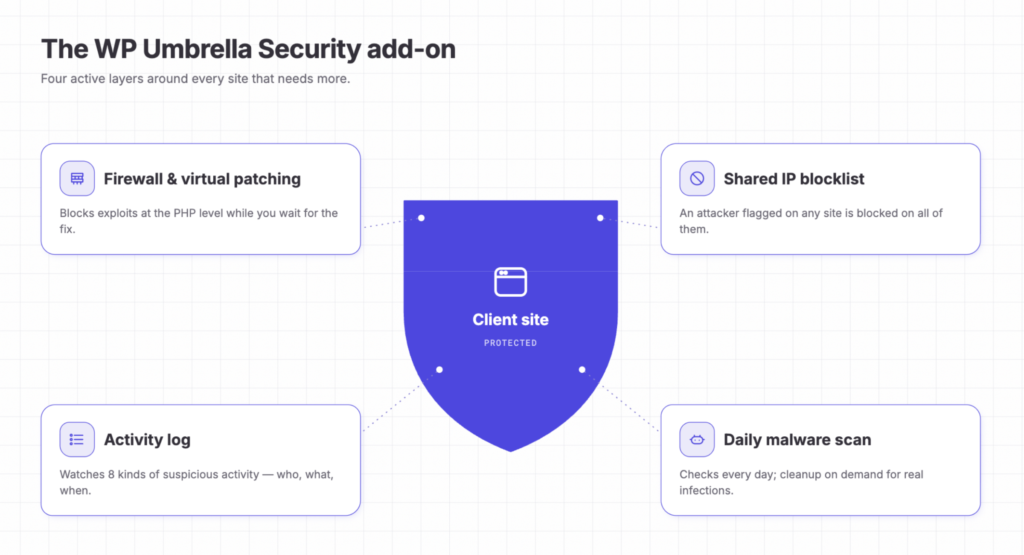
Together, these four capabilities help protect your sites before, during, and after an attack. The firewall and blocklist help stop threats. The activity log helps you spot problems early. And the malware scanner helps you find and clean up infections that get through.
WP Umbrella vs. traditional WordPress security plugins
Here’s how WP Umbrella holds up against the six principles above, compared to running a traditional security plugin on every site:
| Factor | Traditional security plugins | WP Umbrella |
|---|---|---|
| Security lifecycle | Usually covers one stage: prevention, detection, or recovery | Covers security end-to-end: prevention, detection, and recovery together |
| Portfolio view | A separate dashboard per site, or a separate paid console | One dashboard, every site. Tied in with backups, updates, uptime and performance monitoring. |
| Performance | Scanning and firewall logic run inside WordPress, on every site, adding to CPU and memory load | Scans run entirely off your servers, zero load. Firewall runs at the PHP level, no measurable impact |
| Client reporting | Manual, site by site | Built into your automated maintenance reports |
| Pricing | Per site, or in bundles that don’t scale and adapt as your portfolio changes | 2€ per site, per month. +2€ security add-on on the sites that need it. |
WP Umbrella easily replaces Wordfence, Sucuri, Solid Security, and similar WordPress security plugins. What it doesn’t replace is your hosting provider’s network-level firewall or a CDN like Cloudflare, those stay part of your infrastructure, and WP Umbrella’s firewall works alongside them rather than instead of them.
To Sum Up: Choosing the Right WordPress Security Solution for Your Agency
When you’re managing one WordPress site, adding another security plugin may not feel like a big deal. When you’re managing 100, it is.
The real challenge becomes building a security setup that you can actually work with across your whole portfolio. It should protect sites through the full security lifecycle, give you one place to manage everything, and apply a consistent level of protection across your sites. It should also stay light on performance, make your security work visible to clients, and scale as your portfolio grows.
That’s why WP Umbrella brings security into the same place you already use for backups, updates, uptime, and performance. Every site gets a security foundation, while the Security add-on gives you more active protection where you need it.
That way, you can protect your entire portfolio in a way that’s comprehensive, scalable, and easy to show to clients.
Protect Your Portfolio. Manage Everything in One Place.
Try WP Umbrella and get security, backups, updates, performance, reporting and more into one platform built for agencies.
Get started for free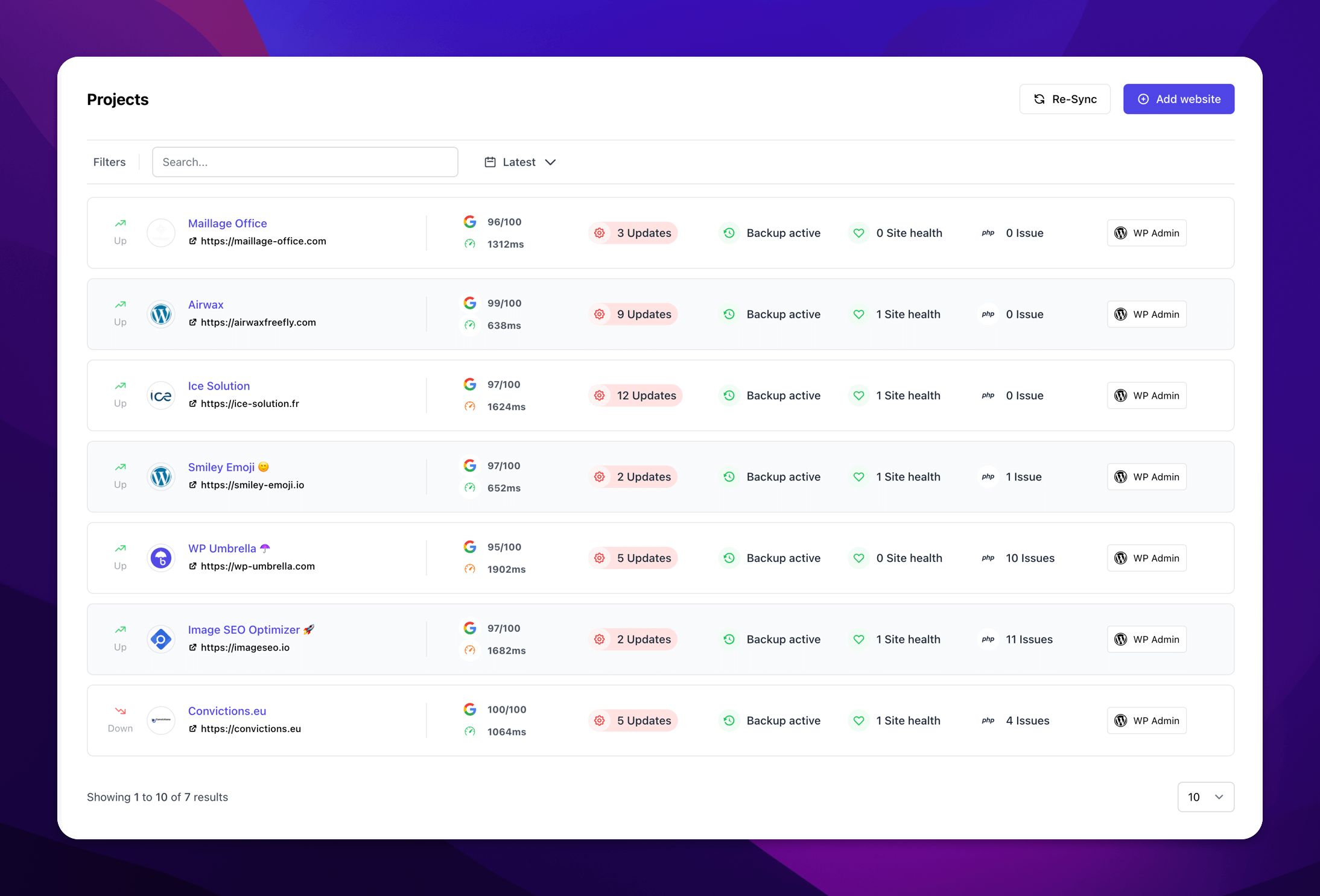
FAQ
No. The Security add-on replaces in-WordPress security plugins with a more complete suite: firewall, hardening, activity log, and daily malware scanning, managed from one dashboard, without the performance cost. See “WP Umbrella vs. traditional WordPress security plugins” above for the full comparison.
Yes. Because the Security add-on is enabled per site, you can turn it on for one or two client sites first, confirm it’s working the way you expect, then roll it out across the rest of your portfolio and retire the old plugin site by site.
A temporary fix that blocks a known exploit at runtime, without changing your code, while you wait for the official update. Full explanation available in section 3.0, “The Complete WordPress Security Guide”.
When you need to recover your site, clean backups are ready to restore with just one click, straight from your WP Umbrella dashboard. Malware cleanup is also available on demand. Contact support and the team handles the removal with you.
2€ per site, per month. Enable it in bulk from the main dashboard, or per site from the Security tab.
No. It’s designed to have zero negative impact on performance.