
How To Harden WordPress Security Without Plugin

Vulnerabilities and security breaches are almost always related to human misbehaves. So the best way to improve your website security is to be watchful about a few things! Here’s how to harden WordPress security without using a plugin.
TL;DR
To harden WordPress security without plugins is mostly about preventing human mistakes and reducing your attack surface. Keep your site updated, remove what you don’t use, monitor PHP errors, choose secure hosting, enforce strong passwords, install SSL, limit login attempts, block PHP execution in untrusted folders, disable file editing from the dashboard, update salts, and protect wp-config.php.
10 Steps to harden WordPress security without plugins
Step 1: Keep your website up to date & remove unnecessary plugins & themes
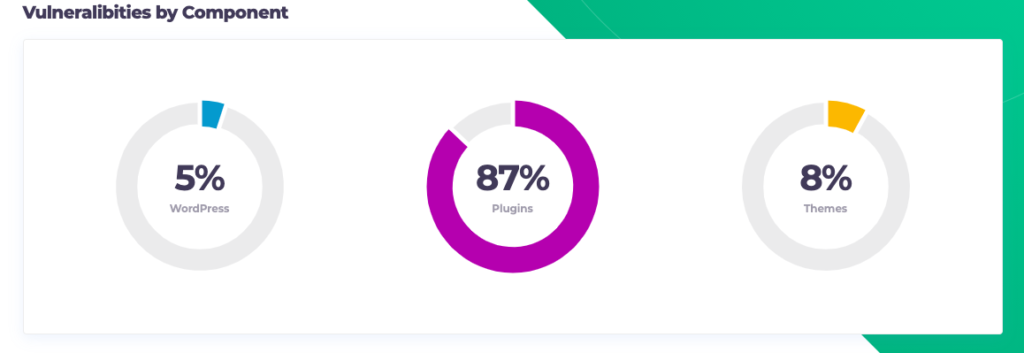
According to the WPScan database, 95% of WordPress vulnerabilities are actually coming from themes and plugins.
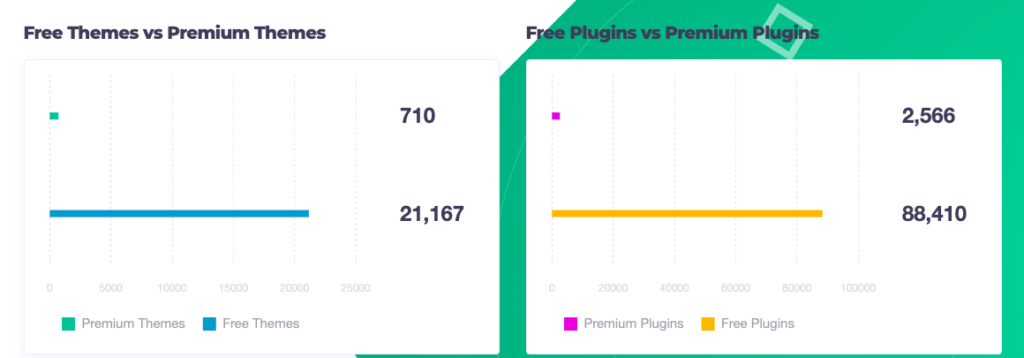
And 95% of this 95% come from free themes and plugins.
The best way to protect your website from hackers is to keep your plugins and theme up to date. You should also remove all the unnecessary plugins installed on your website.
Step 2: Monitor & fix PHP errors
This tip might be more tricky to implement if you are not comfortable with the PHP language.
Plugins and themes can generate a lot of PHP errors.
Most of them are harmless, but some might jeopardize your website and lead to downtime.
To know which plugins generate PHP Errors, you need to access the WordPress Error Log.
The easiest way to do this is to install WP Umbrella.

Go to the PHP Monitoring tab and enable the advanced view. From here you can access all the errors and related information necessary to troubleshoot them and make your WordPress website more secure.

Some people think that a not updated plugin will generate security flaws like it’s growing in it. Of course, that’s not how it works. Every plugin, theme, or even WordPress core itself has some sort of security holes, but until it’s discovered it’s not a problem. The problem exists when they are discovered and not fixed. Luckily, the WordPress community is full of white hat hackers who will disclose the issues. Most of the time, when you see that a plugin/theme flaw has been found, it has already been patched.
Step 3: Carefully select your hosting provider
Needless to say that selecting a secure hosting should also be one of your top priorities.
Before looking into security plugins, you should make sure that your WordPress hosting has significant security measures. Here are some of the security measures a good WordPress hosting provider should provide you with:
- Two-factor authentication;
- GeoIP blocking;
- Hardware firewalls;
- Encrypted SFTP and SSH connections;
- Automatic backups;
Kinsta, our hosting provider, offers all these services.
Step 4: Set strong & unique password for every website & service
Another way to harden WordPress security without a plugin is by using different passwords for different websites. Not all sites are secure. If you use the same password from everywhere and a hacker manages to get it, he will have access to all your accounts.
Choose a different password for each site you use. The easiest thing to do is to use a secured password generator like the Norton password generator.
Step 5: Use strong passwords
If your website has multiple users, each user should maintain a strong password and change it regularly. You should force your team to reset passwords from time to time. This is of utmost importance when it comes to WordPress security.
Step 6: Install SSL certificate
Secure socket layer (SSL) provides an encrypted connection between a server and a user, so that data can be sent securely between them.
In addition to being a wise security practice, Google requires that websites use SSL. A website running on HTTP instead of HTTPS is generally penalized by the browser by showing “Not secure” instead of the pleasant green lock. This will destroy the trust of your visitors and your brand.
Previously, installing an SSL certificate was quite difficult. Thanks to Really Simple SSL you can now add SSL to WordPress in less than 5 minutes.
Step 7: Limit login attempts to WP admin
It’s no accident that bank websites give users only three attempts to enter their username and password correctly. Once that’s done, your accounts are locked out for a short period of time.
By doing this, brute force attacks can be reduced hackers can be more effectively hindered.
Login attempts are unlimited by default in WordPress. You can increase your website’s security by limiting login attempts so hackers can’t try thousands of combinations to gain access.
This small snippet of code can be manually inserted into the wp-content > Themes > functions.php file to provide limited login protection.
function check_attempted_login( $user, $username, $password ) {

    if ( get_transient( ‘attempted_login’ ) ) {

        $datas = get_transient( ‘attempted_login’ );

        if ( $datas[‘tried’] >= 3 ) {

            $until = get_option( ‘_transient_timeout_’ . ‘attempted_login’ );

            $time = time_to_go( $until );

            return new WP_Error( ‘too_many_tried’,  sprintf( __( ‘ERROR: You have reached authentication limit, you will be able to try again in %1$s.’ ) , $time ) );

        }

    }

    return $user;

}

add_filter( ‘authenticate’, ‘check_attempted_login’, 30, 3 );

function login_failed( $username ) {

    if ( get_transient( ‘attempted_login’ ) ) {

        $datas = get_transient( ‘attempted_login’ );

        $datas[‘tried’]++;

        if ( $datas[‘tried’] <= 3 )

            set_transient( ‘attempted_login’, $datas , 300 );

    } else {

        $datas = array(

            ‘tried’     => 1

        );

        set_transient( ‘attempted_login’, $datas , 300 );

    }

}

add_action( ‘wp_login_failed’, ‘login_failed’, 10, 1 );

function time_to_go($timestamp)

{

    // converting the mysql timestamp to php time

    $periods = array(

        “second”,

        “minute”,

        “hour”,

        “day”,

        “week”,

        “month”,

        “year”

    );

    $lengths = array(

        “60”,

        “60”,

        “24”,

        “7”,

        “4.35”,

        “12”

    );

    $current_timestamp = time();

    $difference = abs($current_timestamp – $timestamp);

    for ($i = 0; $difference >= $lengths[$i] && $i < count($lengths) – 1; $i ++) {

        $difference /= $lengths[$i];

    }

    $difference = round($difference);

    if (isset($difference)) {

        if ($difference != 1)

            $periods[$i] .= “s”;

            $output = “$difference $periods[$i]”;
Warning
Please make sure you have a complete backup of your website before doing this. Should anything go wrong, you can quickly restore your site. Your WordPress website can be backed up easily thanks to WP Umbrella!
Step 8: Block PHP execution in untrusted folders
This is a tough cookie, so we’ll try to keep things as simple as possible.
You should first understand that PHP is a scripting language used for web development. Functions in PHP are blocks of code that can be executed in a program to perform a certain function.
The second thing you need to understand is that a WordPress website is composed of files and folders. It is important to note, however, that only certain files and folders use PHP functions. It is possible for hackers to create new folders on your website, or copy and paste their PHP functions into existing folders. This would be detrimental to your website. Without the proper tool, you could spend weeks without realizing that your website is corrupted.
You can prevent such a hack by blocking PHP functions from unknown folders, or just disabling PHP executions where they are not supposed to happen.
To do so, look for the .htaccess file on your FTP and open it. If it does not exist, you can create it with your HTML editor. Don’t forget to save it as .htaccess.
Add these line of code to the file:
<Files *.php>
deny from all
</Files>
Step 9: Disable WordPress file editor
You can edit WordPress theme and plugin files directly from the admin area with WordPress’ built-in code editor.
The theme editor can be found under Appearance » Theme Editor. A list of the files related to your current active theme will be displayed there.
In the same way, the plugin editor can be found at Plugins » Plugin Editor. It will automatically show you the first plugin installed on your site in alphabetical order.
If a hacker gains access to your WordPress admin area, they can access all your data using the built-in editor.
Additionally, hackers can use your WordPress site to distribute malware or launch denial-of-service attacks.
It is recommended that you completely remove the built-in file editors from WordPress to improve its security.
To remove the WordPress theme editor, you need to edit the wp-config.php file.
Add this line of code:
define( ‘DISALLOW_FILE_EDIT’, true );Just above the line saying /* That’s all, stop editing! Happy publishing. */
Be sure to save your changes before closing the editor.
Step 10: Change security keys and salts
To encrypt usernames and passwords, WordPress uses salts or security keys. The strings are used to hash your login credentials. Consequently, your credentials cannot be stolen or used to log in to your website since they can’t be distinguished from random characters.
The terms WordPress salts and WordPress security keys both refer to the same 8 strings. A salt is corresponding to each of the 4 security keys. The 4 WordPress security keys are:
- AUTH_KEY
- SECURE_AUTH_KEY
- LOGGED_IN_KEY
- NONCE_KEY
In the WordPress security system, keys and salts are random strings, which makes them both strong and unique. Nevertheless, they may still need to be altered on occasion.
For example, when you remove malware, you should change the salt keys afterward.
It is also a wise security practice to update the WordPress salt keys from time to time, just like you would your passwords. Hackers have a harder time breaking through your website’s security when credentials are changed regularly.

Tips
Always make a backup of your website before altering security keys and salts.
Changing security keys and salts is an easy process:
- Use the WordPress secret key generator to generate new keys and salts.
- Replace the old authentication keys and salts in the wp-config.php file with the new ones.
Step 11: Secure the wp-config.php file
The wp-config.php file is the most valuable for hackers. It contains all your credentials. It’s the heart of your website, and that’s why you need to harden its security.
The best way to secure the wp-config.php file is to deny its access.
To do so, add the following code at the top of your .htaccess file:
<files wp-config.php>
order allow,deny
deny from all
</files>Related: List of 30+ WordPress security best practices to keep your website safe.
Conclusion
None of these steps mentioned above are complex on their own, but they work together to shrink your site’s attack surface and make your environment predictable and significantly harder to compromise. Whether you manage one site or a portfolio, this is the foundation of a secure WordPress setup. And if you want visibility into errors, updates, uptime, or backups, tools like WP Umbrella help you spot problems before they escalate, without replacing the basics you set up here.
Up next, read the best security plugin for WordPress.
FAQs about hardening WordPress security without plugin
The most effective way is to keep WordPress, themes, and plugins updated; remove anything unused; enforce strong passwords; secure hosting; install SSL; limit login attempts; block PHP execution in untrusted folders; disable the file editor; and lock down wp-config.php. These steps prevent most real-world WordPress breaches.
Yes. According to Patchstack, over 90% of known WordPress vulnerabilities originate from themes or plugins, especially free or outdated ones. The vulnerability becomes a risk only after it is discovered and unpatched, which is why timely updates matter.
Add this rule at the top of your .htaccess file:
<files wp-config.php>
order allow, deny
deny from all
</files>
It blocks direct access to your configuration file, which contains your database credentials and salts.
Mostly yes. The only code-level changes relate to limiting login attempts, disabling the file editor, and blocking PHP execution. Everything else, including updates, passwords, hosting, SSL, can be done without coding.
Updating closes disclosed vulnerabilities, which prevents the majority of automated attacks. It’s not enough on its own, but it removes the single biggest source of known exploits. Combine updates with strong passwords, secure hosting, and limiting PHP execution for better protection.