
WordPress Backup and Restore: A Complete Guide for Agencies Managing Client Sites

If a WordPress site is down right now, the priority is not “doing a backup.” It is finding the most recent clean, complete, and restorable backup and restoring the site in the safest way possible. A usable WordPress backup usually needs both the database and the site files. If either piece is missing, the restore may fail or come back incomplete.
Most WordPress backup and restore guides focus on the backup step. The restore part gets treated as a button you click later. That is usually where the trouble starts.
A backup can exist and still fail you. It may be missing the database or uploads. It may be too old or the wrong copy entirely. In a hacked-site scenario, it may contain the compromised state you are trying to get rid of. Google’s own guidance tells site owners to restore from a clean backup after a compromise.
That is why WordPress backup and restore is not just a setup task. Once you manage client sites, it becomes a process. You need to know what gets backed up, how often it runs, where copies live, who is allowed to restore production, and how you confirm the site is working after recovery.
This guide covers the practical side of backup and restore for WordPress. It looks at what a full backup includes, how to restore a WordPress site from backup without making things worse, where the common backup methods fall short, and what agencies should standardize across a client portfolio.
What WordPress backup and restore includes
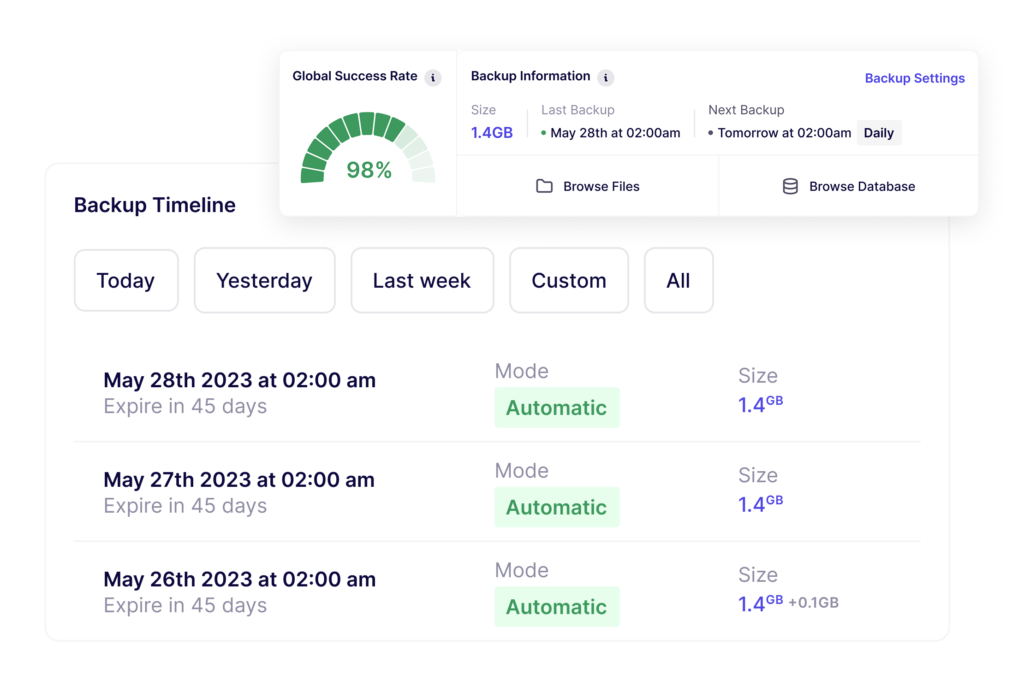
A full WordPress backup has two parts: the database and the files. And you need both to restore a typical WordPress site fully.
What a WordPress database backup contains
The database holds the dynamic side of the site: posts, pages, comments, users, settings, and a lot of plugin data. If the database is corrupted or missing, the site may load partially, display old content, or fail outright. WordPress notes that the database contains every post, comment, and link, and recommends backing it up regularly and always before an upgrade.
Related: How to Backup WordPress Database
What a WordPress file backup contains
The files side includes WordPress core files, themes, plugins, uploads, wp-config.php, and other server-side files tied to how the site runs. WordPress separates these from the database because backing up one does not automatically back up the other.
That distinction is critical because “backup and restore WordPress site” is often treated as a single action. It is not. You are dealing with two moving parts that need to line up.
How to restore a WordPress site from backup
When a restore is urgent, people tend to jump straight into the first backup they can find. That is understandable. It is also how bad situations get worse.
A safer restore process starts with one question: what are you trying to recover from?
If the site broke after an update, a full restore may be unnecessary. And, if the problem is isolated to one plugin or one theme, a rollback or targeted file restore may be enough.
Choose the right restore point
The latest backup is attractive because it seems closest to the current state. That logic fails if the problem entered the site before the backup was created. Malware, spam injections, corrupted data, and bad code changes do not always announce themselves immediately.
A better approach is to work backward from the last known good state. When did the site definitely work? What changed after that? Was the issue caused by content, code, infrastructure, or an attack? Without those answers, restore becomes guesswork.
Check whether you need files, a database, or both
Some restores are heavier than they need to be. If a plugin update broke the frontend but the database is fine, a full rollback may cause avoidable data loss. If the database is corrupted, restoring only the files will not fix the problem. WordPress documentation treats the database and files as separate backup elements for this very reason.
Validate the restored site properly
A homepage loading is not sufficient. After a restore, the real checks are usually deeper: forms, checkout, login, user roles, scheduled jobs, images, recent content, and plugin-specific functionality. E-commerce stores and membership sites need even closer attention because a technically “successful” restore can still leave gaps in orders, subscriptions, or customer activity.
WordPress backup methods: plugin, host, and manual
Most WordPress backup and restore setups fall into three buckets. All of them can work, but none of them is foolproof.
WordPress backup plugins
WordPress backup and restoration plugins are the default choice for many site owners because they are easy to set up and automate the job. That convenience is crucial because if a backup system is too awkward to maintain, it tends to be forgotten.
That said, plugin-based backups are not automatically reliable. They run inside the same broader environment that can already be under strain. On more customized sites, backup plugins may also struggle to capture everything cleanly. For a single site, a plugin may be enough. For an agency, the real question is not whether a plugin can create backups but whether the restore process is consistent across a portfolio.
Where WP Umbrella Changes the Backup and Restore Workflow
For an agency, the issue usually is whether the team can run backups, restores, checks, and client communication the same way across dozens of sites. That is where WP Umbrella fits more naturally than a typical plugin.
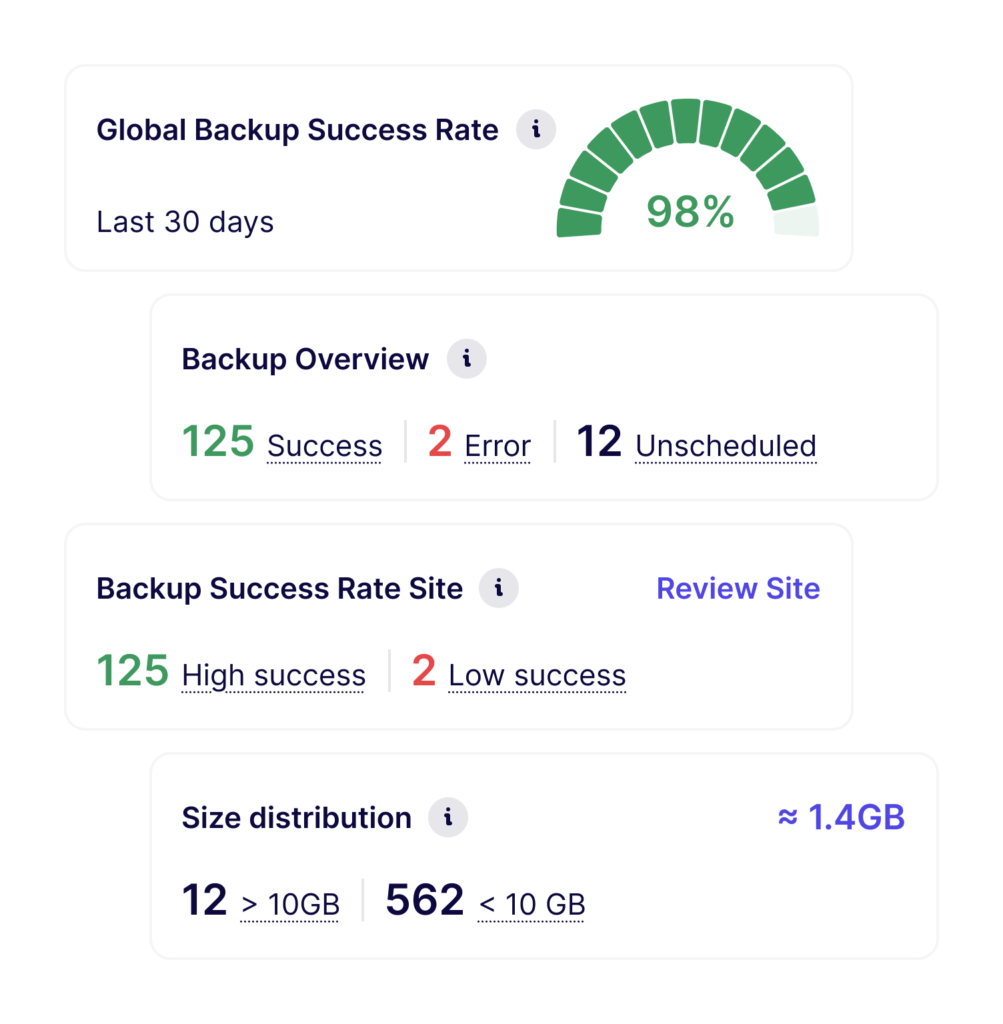
WP Umbrella is built as a centralized platform for agencies managing multiple WordPress sites. Its backup and restoration capabilities include automated backups, encrypted storage, 1-click restore, 1-click download, configurable backup frequencies, hourly backups as an add-on, and 50-day retention on WP Umbrella-owned EU infrastructure.
That changes the backup conversation in two ways.
First, it reduces fragmentation. Agencies do not need to rely on a different backup experience for every host or every site. Second, it makes backup and restore part of a broader operational system. The same platform also includes centralized dashboard access, uptime and performance monitoring, security and vulnerability scanning, team permissions, activity logs, alerts, and client-facing maintenance reporting.
The value is not just that a backup exists. The value is that the agency has a more consistent way to protect sites, recover them, and prove that work to clients.
Hosting-level WordPress backups
Many hosts offer automatic backups and restore points. That is useful, and in many cases, it is the fastest path back when a site breaks. WordPress itself notes that most hosts back up the entire server, though requesting a copy from host backups can take time, and agencies still need to know how to back up and restore their own sites.
Host backups also vary a lot. Some are flexible. Some are not. The drawback is less about quality and more about fragmentation. Agencies rarely keep every client on the same host. A host-level restore process may be fine on one account and completely different on the next. That creates operational drift.
The hidden constraint: backup reliability on low-cost hosting
One problem with plugin-based WordPress backups is that they often run inside the same constrained environment they are trying to protect. On lower-cost shared hosting, backup jobs may be competing with hard limits on CPU, memory, disk I/O, and active processes. GoDaddy, Bluehost, and SiteGround all document resource limits of this kind, and WordPress notes that timeout errors are especially common on shared hosting when the server cannot handle the workload.
That does not mean backup plugins are useless. It means agencies should be realistic about where they are most likely to fail. Off-site storage helps avoid filling local disk space, but it does not remove the resource cost of generating the backup in the first place. On constrained hosting, a more reliable setup may involve a combination of host-level backups, smaller database backups, and less frequent full-file archives. On more robust managed platforms, backup infrastructure is often handled at the hosting layer. Kinsta, for example, includes automatic daily backups and offers additional hourly backup options.
Manual WordPress backup and restore
Manual WordPress backup and restore often means copying site files through SFTP or a file manager and exporting the database through phpMyAdmin or an equivalent tool. This route remains relevant because it gives you a fallback when plugins or dashboard tools are unavailable.
Manual methods do offer control, but they are also easier to get wrong. For instance, files and databases can end up out of sync, or someone has the backups but not the credentials. This process is just tedious, which is another way of saying it breaks down under pressure.
Related: How To Backup WordPress Site Without Plugin
How often should you back up a WordPress site?
There is no one-size-fits-all answer here. WordPress says backup frequency depends on how often the site changes and how you would feel if that recent data were lost. Its general guidance is weekly backups for smaller sites and daily backups for high-activity sites. That is a sensible starting point, not a universal rule.
A brochure site that changes twice a month does not need the same backup frequency as a WooCommerce store, membership site, learning platform, or booking site. The better way to decide backup frequency is to ask one question: how much recent data can this client afford to lose?
That answer tends to be clearer than any generic “best practice.”
WordPress backup best practices for agencies
Standardize backup ownership
Someone needs to own the answer to basic questions. Is the main backup system plugin-based, host-based, or centralized elsewhere? Is there a secondary copy? Who can restore production? Who approves a restore if the site holds orders or member data? If those answers depend on which team member happens to be online, the process is fragile.
Match backup frequency to site type
This should be tied to business risk. Stores, publishers, forums, and booking sites generally need tighter recovery points than low-change marketing sites. Treating them the same is rarely the right operational choice.
Keep copies in more than one place
WordPress recommends keeping at least three to five recent backups in different locations so a lost or corrupted copy does not leave you stranded. That advice still holds. One copy on the production environment is not much of a safety net. One host-level restore point is better than nothing, but it is still a narrow plan.
Test restores, not just backups
This is probably the biggest gap in real agency workflows. Backup success gets treated as proof of restore success. It is not. A restore test does not need to happen every week across every site, but if no restore is ever tested, the backup policy is based on trust rather than evidence.
Document the restore path
This is dull work, which is exactly why it is important. Where are the copies stored? Which credentials are needed? What is the restore order? What should be checked after recovery? What gets communicated to the client? Answer these questions to create a grand SOP to reduce improvisation when your site breaks.
Conclusion
Most WordPress backup articles stop too early. They tell you how to create a backup and assume the hard part is done. Usually, it is not.
The hard part is the “restore readiness”. That is where a lot of backup setups fail. It is also where WP Umbrella has a clearer point of difference than a generic plugin can offer. The product is not just about generating backups. It is about giving agencies a more consistent, more defensible way to protect, restore, and manage client sites at scale.
Next, read what are the different types of backups.
FAQs about WordPress backup and restore
A full WordPress backup includes both the database and the site files. These separate parts of the site are needed for a typical full restore.
A sound WordPress restore process starts by choosing the right restore point, deciding whether you need files, database, or both, restoring in the correct order, and then validating the site beyond the homepage. WordPress documentation recommends restoring files first and importing the database after.
Not automatically. Make sure the backup is clean and does not contain hacked content before restoring it.
They can be useful, but they often create fragmented workflows because each host handles backup access, restores, and retention differently. Speedy recovery of sites still depends on understanding your own backup and restore process.
WP Umbrella’s backup and recovery features are designed for agencies managing multiple sites. It includes automated backups, encrypted storage, one-click restore, one-click download, configurable backup frequencies, hourly backups as an add-on, 50-day retention, and EU-based infrastructure, all inside a broader centralized workflow with permissions, logs, alerts, and reporting.