
5 Things to Look for in a WordPress Backup Solution
Discover the five questions every agency and freelancer should ask before choosing a WordPress backup tool, from restore speed and secure storage to backup verification and scalability.


If you’re managing multiple client sites, choosing a reliable backup tool is one of the most important decisions you’ll make for your business. It’s like a skydiver choosing a parachute they trust. It’s not exciting – but it’s the thing that saves your life when something goes wrong.
WordPress sites break, get hacked, or lose data by accident. When you manage many sites, that’s just part of the job. If your backup works, it’s an easy fix. But if it doesn’t, you’re faced with a hard talk with a client and, sometimes, an inevitable reputation damage.
In this article, we’ll cover the five things you should look for to determine if a backup solution is truly reliable. Most tools do okay on the first few. But many fail at the last one – and that’s the one that matters most.
TL;DR
- Choose a backup tool that lets you restore sites quickly, uses reliable backup methods, stores your data securely and transparently, scales across multiple websites, and verifies that backups actually work. At the end of the day, a backup is only as good as your ability to restore it when you need it most.
1. Can you easily set up and manage backups across your entire portfolio?
Every modern backup plugin runs on a schedule – monthly, weekly, daily, hourly. That part is easy.
But does it still feel easy when you manage 40, 50, or 100s sites?
That’s where the difference starts to show. Some tools are designed with a single site in mind. But when you’re backing up many sites every day, they become less user friendly and less efficient.
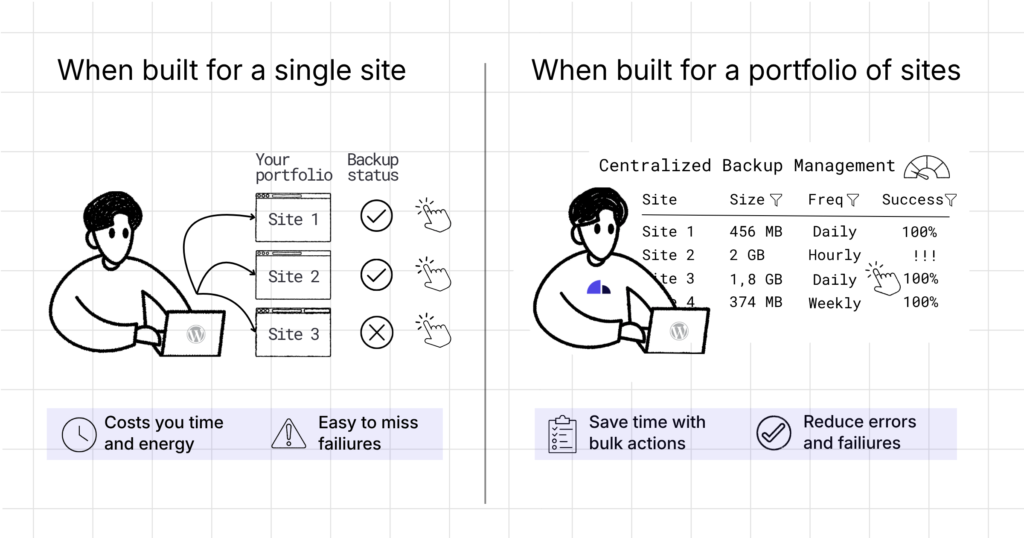
If you’re managing multiple WordPress sites, here are three simple things to look for:
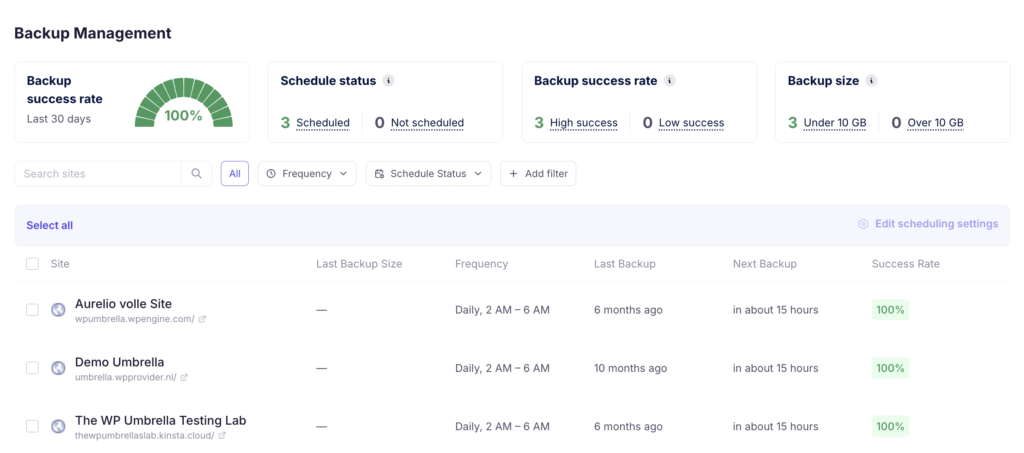
- One screen for everything – you should see all your sites and their backup status in one glance, without clicking into each site separately.
- Easy filtering – when you need to check or change something you should be able to filter your portfolio by backup schedule, frequency, or status to spot problems quickly.
- Bulk editing – if you want to change backup settings on many sites, you should do it once – not 30 times.
WP Umbrella’s Backup Management view (see photo below) is built for this. One screen for your whole portfolio, clear backup status for every site, filters to find issues fast, and bulk editing in one action.
A professional backup tool should match how WordPress agencies actually work day to day. Yes, the main goal is to automate the process – but it’s even better if it takes backups off your mental load entirely.
2. Where does your client data go, and how is it stored?
This is the one most agency owners skip – until a client (or a data compliance auditor) asks where their data lives.
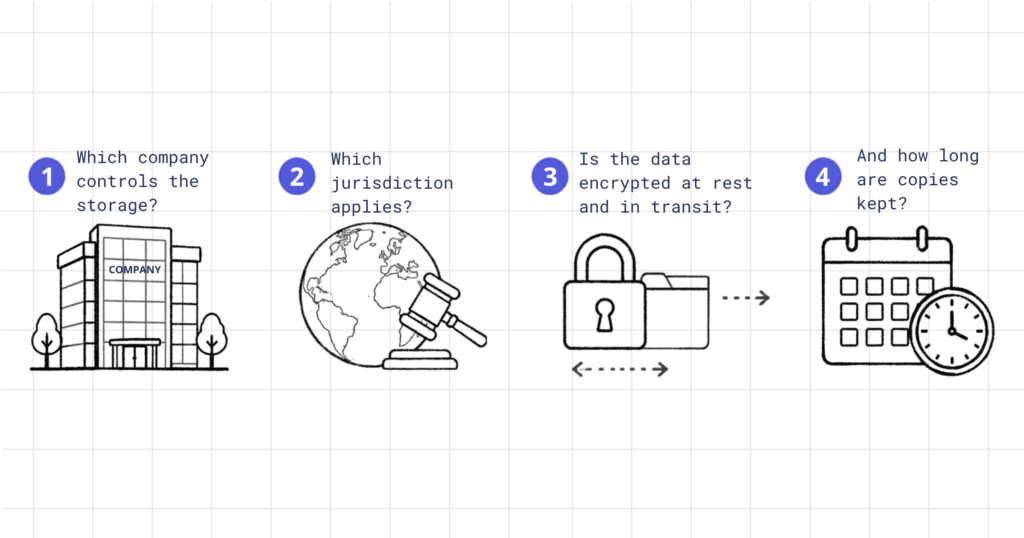
When a backup runs, the archive moves from the client’s server to somewhere else. That somewhere matters. You should be able to answer four compliance questions in plain English:
- Which company controls the storage?
- Which jurisdiction applies?
- Is the data encrypted at rest and in transit?
- And how long are copies kept?
If the vendor’s documentation don’t make this easy to find – that’s a signal.
Some popular plugins route data through third-party storage in jurisdictions with weaker data protection rules. Some are run by companies in regions where customer data has been handled inconsistently. Most don’t just disclose this information. You have to ask explicitly in order to find out.
WP Umbrella has been clear about this from the start. Backups are encrypted, stored on private servers in the European Union (France), and operate under strict GDPR. Retention is 50 days. The infrastructure isn’t outsourced, and the storage location isn’t ambiguous.
For agencies serving any client with compliance obligations, this stops being a nice-to-have and it becomes a serious procurement requirement.
3. Are your backups fast and easy to restore?
A backup is only as good as the restore.
Yes, of course… But many WordPress agencies evaluate backup plugins based on how easily they create backups.
The actual test is what happens when a client site breaks and you have 10 minutes to fix it before the client notices.
Some plugins make you download the backup archive, upload it back through the WordPress admin, and run a restore wizard. Some make you open a support ticket with the plugin vendor. Some only let you restore if you also pay for a separate “premium” tier. Some require coordinating with the host.
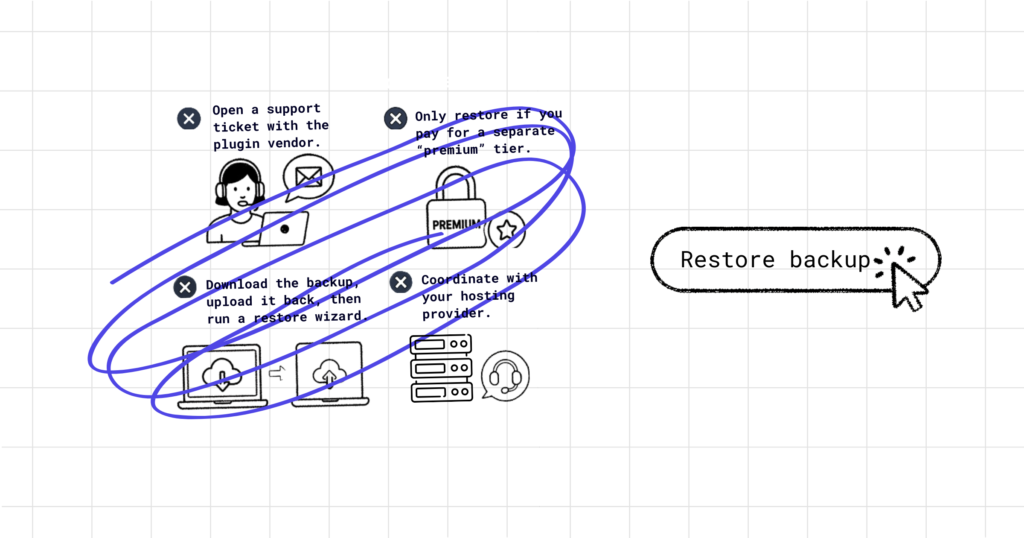
None of those should be your path.
The backup restore should be one click from the same dashboard where the backup was created. No ticket, no hosting call, no mix and match tricks.
If a plugin treats restore as an afterthought, that’s because the plugin was built around the backup step (the easy part) and not the restore step (the part that actually pays).
In WP Umbrella, restoration is a single click from the dashboard. No ticket necessary for getting the job done. That principle is the most underrated rule in WordPress backup decisions.
4. What backup methodology is the tool using?
This is the technical detail that separates backup plugins that work well at scale from ones that break as sites get bigger.
In WordPress backup solutions, there are two main ways to do backups:
- Batch backups (ZIP method) puts the whole website into one ZIP file on the server first. Then it uploads that file somewhere else. To do this, the server needs enough:
- RAM to hold compression buffers
- Free disk space to store the half-built archive
- PHP execution time, which is the maximum time a script is allowed to run before the host stops it (usually 30–300 seconds on shared hosting).
- Streaming backups (chunk method) does NOT build a ZIP file on the server. Instead, it sends files out in small pieces. This way, there is no big ZIP file, no heavy memory use, and much lower chance of timeout failure.
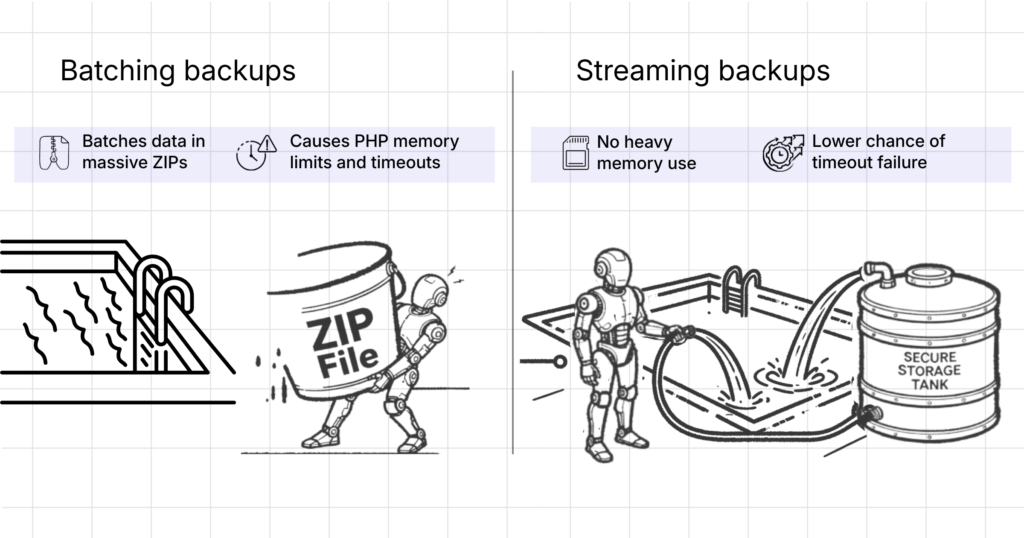
The problem with the batch method is that on shared hosting or big sites (like WooCommerce stores or sites with 5GB+ media) the backup process often fails. The reason could be that the server runs out of memory or time, the ZIP file breaks or is only partially written, or the archive ends up corrupted or incomplete.
Once a site crosses 20 GB, batched backups almost always fail. The same inefficiency happens with multisite, where the problem is just multiplied by the number of sub-sites. The log either reports success (because the worker died right after writing the success line) or reports an error vague enough that nobody investigates.
If you manage WooCommerce stores, membership platforms, or media-heavy content sites, look for backup plugins that use streaming methodology. Such tools are WP Umbrella, BlogVault, and ManageWP.
This technical detail can make all the difference between backups that complete and backups that fail silently.
5. Can you verify if your backups are full and functional?
This is where most backup solutions take a short cut. They can be free or very low-cost – but if you can’t verify they do the job you expect them to do, what’s the point of having them at all.
When you’re choosing your backup solution, look for:
- Integrity verification (checksums on every backup),
- Automated restore tests run by the vendor,
- Incremental architecture (so a single corrupt block doesn’t poison the whole archive), and
- Clear warnings when something goes wrong.
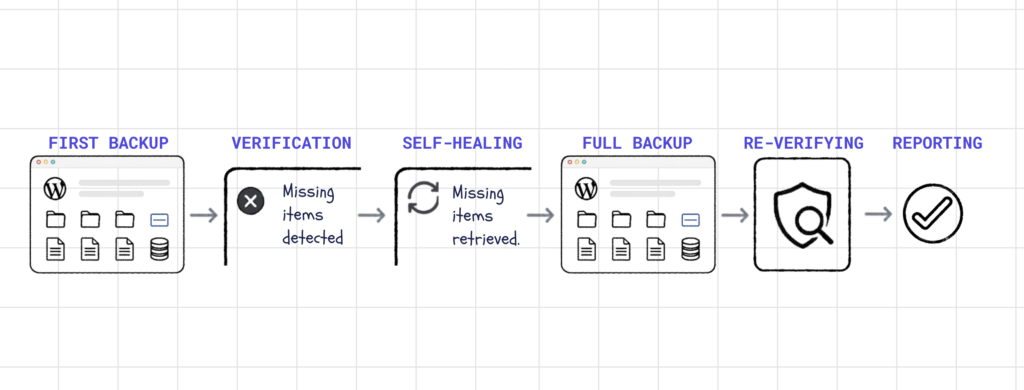
At WP Umbrella, every backup is verified against your live site. If the system detects that files or folders are missing from the archive, it relaunches the backup automatically to fetch what’s missing. On top of the automated inspection, users can also manually test their backups whenever they want.
Bonus: Are your backups integrated into your maintenance workflow?
A backup is just one piece of a WordPress maintenance workflow. On top of backups you need updates, monitoring, security, client reporting, access management…
Running each through a separate tool means seven dashboards, seven billing relationships, seven different places things can break, and a constant tax on your mental load.
WordPress agencies that prioritize efficiency, put backups inside the same platform that handles the rest of their WordPress maintenance tasks. This way, a backup failure shows up in the same place where you’re already watching uptime, plugin updates, and PHP errors.
WP Umbrella was built around this idea. Backups, safe updates with rollback, uptime and performance monitoring, security, and white-label client reporting all run in the same system at a simple per-site price.

What Years of Running Backups Have Taught Us
At WP Umbrella, we’ve been working on backup reliability for years. We know first-hand that the success line in a backup log isn’t evidence the backup completed. It’s just evidence the worker survived long enough to write the success line.
Real verification has to happen at the archive level, not the log level.
That’s why the strongest predictor of restore success isn’t backup frequency or storage destination. It’s whether the backup architecture can avoid the failure points in the first place.
“Backup is one of the hardest problems in IT, and one of the most underestimated. It looks like a feature, but it’s actually infrastructure: storage architecture, transfer reliability, incremental logic, restore guarantees, edge cases at scale, etc. Very little of the work is “code” in the way developers usually think about it. That’s probably why so many WordPress backup plugins quietly fail in the ways that matter most: silent corruption, half-finished archives, restores that don’t actually restore. Our backup engine is the piece of WP Umbrella I’m most proud of.”
Aurelio Volle, CEO & Co-Founder @ WP Umbrella
The Right Backup Tool at a Glance
First, make sure you can restore your site easily. A backup is only helpful if you can bring your site back fast when something breaks.
Next, look at how backups are made. Tools that send data in small pieces are usually safer and work better, especially for big websites.
Then check where your data is stored and how it is protected. You should always know where your backups go and who can access them.
Also think about how easy it is to manage many sites at once. If you have lots of websites, the tool should save you time, not add more work.
Finally, make sure the tool checks your backups and warns you if something is wrong. A good tool doesn’t just save data – it also proves the backup is working.
A simple rule: if a tool makes it hard to restore your site, it’s not a good backup tool.
If you want to see what backup infrastructure built around these criteria looks like in production, start a 14-day free trial of WP Umbrella. No credit card required. Connect your first sites, watch the first backup run, try a restore. That’s the only test that matters.
Ready to boost your productivity, impress your clients and grow your WordPress agency?
Install WP Umbrella on your websites in a minute and discover a new way to manage multiple WordPress sites.
Get Started for free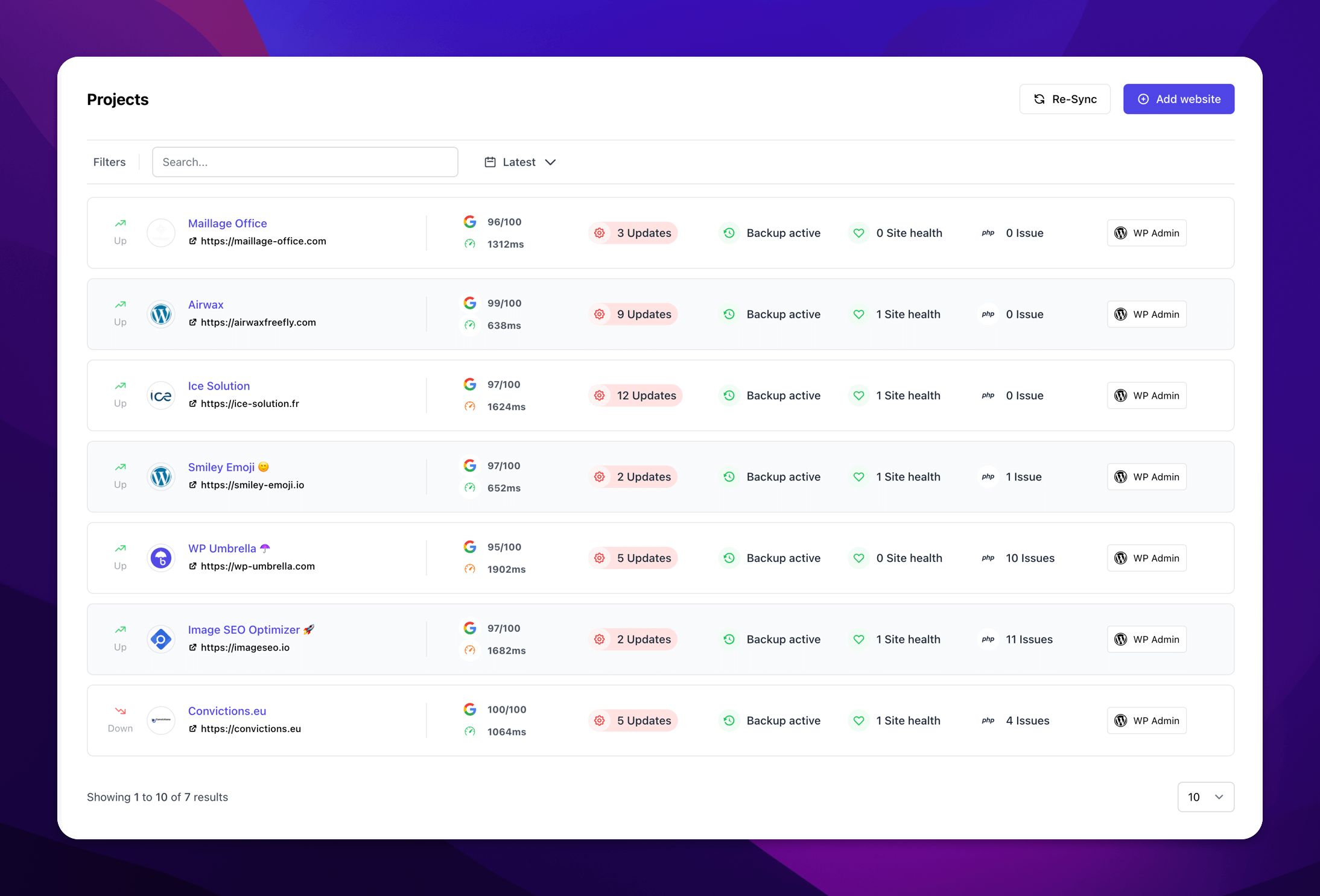
Frequently asked questions about backup plugins
Not really. Hosting backups are often stored in the same place as your website, so one problem can affect both.
In WordPress backup solutions, there are two main ways to do backups: Batch backups (ZIP method) make one big file, which can break on large sites. Streaming backups (chunk method) send small pieces of data, which is safer and more reliable.
Incremental backup is when only new or changed parts of your site are saved after the first backup. This makes backups faster and more efficient.
Use tools that auto-test backups, check for missing data, and warn you if something goes wrong. WP Umbrella has this technology built in.
They should be stored away from your website server so one problem doesn’t affect both your copies. They should also be stored in locations compliant with data protection regulations.
Because backup can be incomplete even though your plugin reports a successful completion of the process. You should frequently check if your backups are full or functional. Or use tools like WP Umbrella that do that check automatically.