
How to Fix HTTP 500 Internal Server Error in WordPress – Complete Guide
Struggling with the HTTP 500 internal server error on your WordPress site? We’ve got you covered! Learn how to identify and fix this common server-side issue.


Your WordPress site just went down with an HTTP error 500, and the only thing the server is telling you is that something went wrong. The 500 internal server error is deliberately vague. The server hit a condition it couldn’t handle, and it’s not going to tell you what that condition was.
The upside is that 500 errors are usually diagnosable once you start checking the right places in order. In this guide, we’ll explore what the HTTP 500 error means, its common triggers, and step-by-step methods to resolve it and restore your WordPress site quickly.
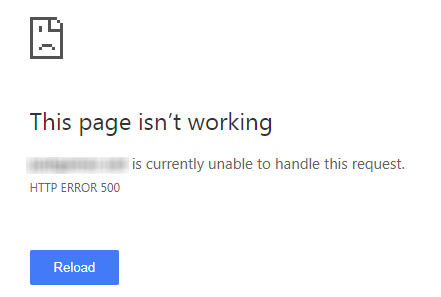
What the HTTP 500 Error on WordPress Means
The HTTP 500 status code is a server-side response. It tells the browser: “Something failed on my end, but I can’t be more specific.” Mozilla’s developer documentation describes it as a generic catch-all; the server returns a 500 when it can’t find a more specific 5xx code to use.

The 500 error is a server-side issue
” The HyperText Transfer Protocol (HTTP) 500 Internal Server Error response code indicates that the server encountered an unexpected condition that prevented it from fulfilling the request. This error response is a generic “catch-all” response. Usually, this indicates the server cannot find a better 5xx error code to response. “
Source : Mozilla Dev Blog
In WordPress, the error can appear across your entire site, on a single page, only in the admin dashboard, or only on the front end. Where it shows up narrows down the cause.
Common Causes of the HTTP 500 Error in WordPress
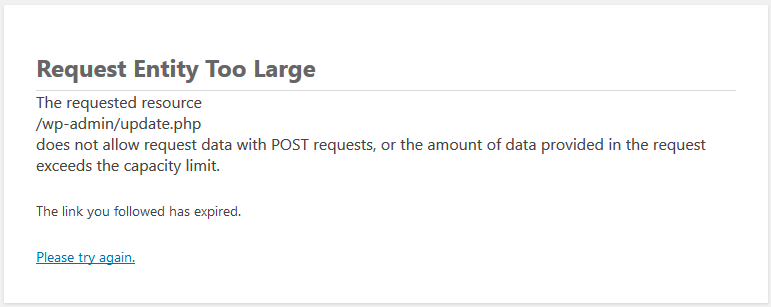
In some cases, database corruption or broader server/database failures can also surface as a 500 error, though a failed database connection more often shows its own specific error message.Before diving into solutions, it’s helpful to know what usually triggers this error. Common causes include:
- New Plugin or Theme Installations: Incompatible plugins or themes can cause server conflicts.
- Corrupt .htaccess File: A corrupted or misconfigured .htaccess file can interrupt server operations.
- PHP Memory Limit: If your WordPress site exceeds the PHP memory limit set by your hosting provider, it may trigger a 500 error.
- Server Configuration Changes: Modifying PHP versions or other server settings can create incompatibilities.
- File permissions changed unexpectedly
- The PHP version on the server isn’t compatible with your code or the server itself hit a resource limit

Use WP Umbrella Safe Update Feature to Avoid Error 500
Most 500 errors happen right after a plugin or theme update. WP Umbrella’s Safe Update feature backs up the plugin folder before each update, checks the site’s status code after, and automatically rolls back if something breaks. The advanced version takes before-and-after screenshots and compares them pixel by pixel, so layout-breaking changes get caught and reverted before your client sees them.
Before Fixing HTTP Error 500 on WordPress, Check Your Server Error Logs
A lot of people skip the logs and start toggling plugins blindly. That usually wastes time. Your server’s error log often contains the exact PHP error behind the 500 response, which can point you straight to the right fix instead of guessing.
How to find your error logs:
Most hosting providers expose error logs through cPanel (Error Log under the Metrics section), Plesk, or a custom dashboard. If you’re not sure where yours are, search your host’s knowledge base for “error log” or ask their support team.
You’re looking for the most recent entries, specifically any PHP fatal errors or warnings timestamped around when the 500 error started appearing. Common patterns you’ll see:
- Fatal error: Allowed memory size of X bytes exhausted → Jump to Method 4
- Fatal error: Cannot redeclare function… or a plugin/theme file path → Jump to Method 1
- syntax error, unexpected… in a theme or plugin file → Jump to Method 1
- .htaccess: Invalid command → Jump to Method 3
If your host doesn’t give you easy log access, or the logs aren’t telling you much, enable WordPress debugging next.
Fixing HTTP Error 500 on WordPress
Fixing this issue can be challenging since the 500 error never points to a clear cause. However, here’s our troubleshooting checklist:
Method 1: Manually Remove plugins and themes
If the error started right after you installed or updated a plugin or theme, that’s where to look first. But even if nothing changed on your end recently, a plugin could have auto-updated or hit a conflict with a PHP or WordPress version change you didn’t initiate.
How to manually remove a plugin or theme if my website is down?
Easier said than done because your site is down and you can’t access the WordPress Admin Dashboard so how do you do that?
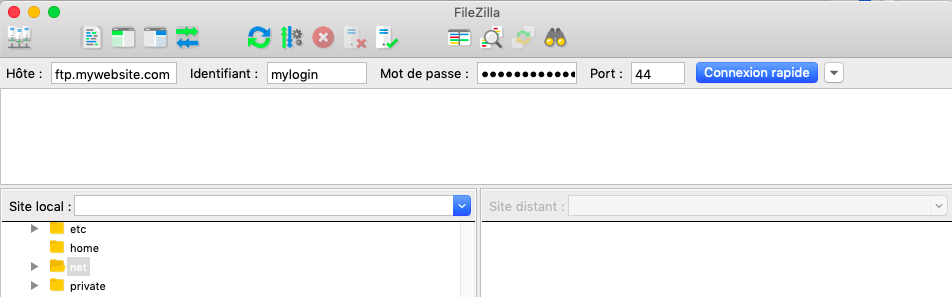
You first need an FTP Client. I personally use Filezilla. The software if free and safe.
To use Filezilla and connect to your website, you will need to enter your FTP address, username, and password.
If you don’t know your credential, then check the first emails your hosting company sent you when you signed up. It usually contains your FTP username and password. If you don’t find it, reach out to your hosting support.
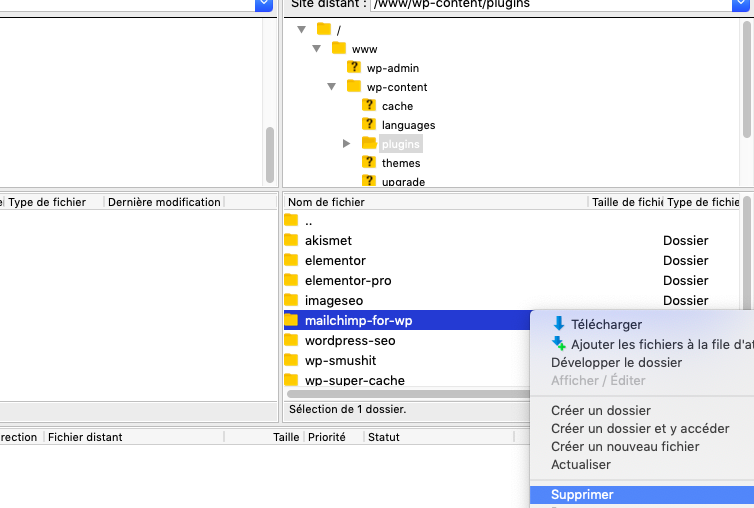
Once you are connected, you need to go to /www/wp-content/plugins/ folder.
Then click right on your plugin, and click on delete. Erase one plugin, go back to your browser web, and open a private navigation window.
If the site comes back, the issue is a plugin. Rename the folder back to plugins. This will leave all plugins deactivated. Then go to wp-admin and reactivate them one by one to isolate the problem.
For themes, navigate to /wp-content/themes/ and rename your active theme’s folder. WordPress will fall back to a default theme (like Twenty Twenty-Four). If that fixes it, the theme is the issue.
Method 2: Restore Corrupted .htaccess File
Sometimes, plugins and themes can also corrupt your .htaccess file, causing the 500 Internal Server Error.
In order to restore your .htaccess file your need to access your WordPress Root directory with your FTP Client (see above). Connect to your site via FTP and navigate to the root directory (where wp-config.php lives).
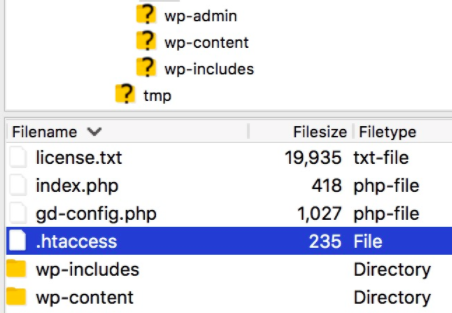
- Download a backup copy of your current .htaccess file
- Delete the .htaccess file on the server (or rename it to .htaccess_backup)
- Create a new .htaccess file with the default WordPress rewrite rules:
# BEGIN WordPress

RewriteEngine On
RewriteBase /
RewriteRule ^index\.php$ - [L]
RewriteCond %{REQUEST_FILENAME} !-f
RewriteCond %{REQUEST_FILENAME} !-d
RewriteRule . /index.php [L]

# END WordPress
Save the file upload it, and reload your website to see if the issue is fixed. If it is not, then navigate to the next step. If this resolves the issue and you’re running WooCommerce, a caching plugin, or a security plugin, go to Settings → Permalinks in wp-admin and click “Save Changes.” This regenerates the .htaccess rules those plugins need.
This step applies to WordPress sites running on Apache or LiteSpeed, where .htaccess handles rewrite rules. If your server runs Nginx, this file isn’t part of the request handling chain.
Method 3: Increase PHP Memory Limit
Another way of fixing the 500 internal server error is by increasing the PHP Memory Limit in WordPress.
If the error log shows memory exhaustion or the site fails during heavier processes like large imports or page builders, increasing WordPress’s memory allocation may help.
To increase your PHP Memory Limit in WordPress you need to edit the function.php file by adding these 3 lines of code:
@ini_set(‘upload_max_size’ , ’64M’);
@ini_set(‘post_max_size’, ’64M’);
@ini_set(‘max_execution_time’, ‘300’);
Function.php is also located in WordPress Root Directory.
You can access and edit the file with your FTP client in the same way as the .htaccess file (see above).
Note: Some hosting providers enforce their own memory limits at the server level, which overrides what you set in wp-config.php. If increasing the limit here doesn’t help, contact your host to ask what the server-level PHP memory limit is and whether it can be raised.
If you’re on shared hosting and you’re consistently hitting memory limits, that’s a signal you may need a higher-tier plan or a host with more generous resource allocations.
Method 4: Enable WordPress Debug Mode
If you can’t access server logs directly, WordPress has its own error reporting. You’ll need FTP access or your hosting file manager to edit wp-config.php in your site’s root directory.
Find this line:
define('WP_DEBUG', false);Replace it with:
define('WP_DEBUG', true);

define('WP_DEBUG_LOG', true);

define('WP_DEBUG_DISPLAY', false);
This writes PHP errors to a log file at wp-content/debug.log without displaying them to your visitors.
After saving, reload the page that was throwing the 500 error. Then check wp-content/debug.log via FTP. The most recent entries will usually point directly to the file and line number causing the failure.
Important: Turn debug mode off (WP_DEBUG back to false) once you’ve identified the issue. Leaving it on in production is a security risk.
Method 5: Check File Permissions
Wrong file permissions don’t get suspected as often, but they cause HTTP error 500 in WordPress. It tends to happen after migrations, hosting environment changes, or when a plugin modifies permissions in ways it shouldn’t. The commonly expected WordPress file permissions look like this:
- Folders: 755 (owner can read/write/execute; group and others can read/execute)
- Files: 644 (owner can read/write; group and others can read only)
- wp-config.php: often hardened to 440 or 400, depending on the server setup
You can check and fix permissions via FTP (most FTP clients let you right-click a file and view/change permissions) or via SSH if you have terminal access:
find /path/to/wordpress/ -type d -exec chmod 755 {} \;
find /path/to/wordpress/ -type f -exec chmod 644 {} \;
Replace /path/to/wordpress/ with your actual WordPress installation path. If you’re not comfortable running commands on the server, ask your hosting support to verify and reset file permissions for you.
Method 6: Re-upload WordPress Core Files
If you’ve gotten this far without a fix, a corrupted WordPress core file is worth investigating. This process replaces the system files without touching your content, plugins, or themes.
- Download a fresh copy of WordPress from wordpress.org
- Extract the ZIP file on your computer.
- Via FTP, upload the wp-admin and wp-includes folders from the fresh download to your server, overwriting the existing ones.
Do not overwrite wp-content (that’s your themes, plugins, and uploads) or wp-config.php (that’s your site configuration).
In most cases, this won’t touch your content or settings because you’re only replacing core directories, not wp-content or wp-config.php. Take a backup first anyway.
Method 7: Check Your PHP Version
WordPress has minimum PHP version requirements, and plugins often have their own. If your host recently upgraded PHP or you changed it manually, incompatibilities can cause 500 errors.
Most hosting control panels (cPanel, Plesk, hPanel) let you check and switch PHP versions.
Look for “PHP Version,” “PHP Selector,” or “MultiPHP Manager.”
If you recently upgraded PHP and the error started right after, try switching back to the previous version to confirm the cause. Then check which plugin or theme isn’t compatible with the newer version, your debug log (Method 1) will usually name the specific file.
WordPress is moving steadily toward newer PHP versions. As of current core guidance, PHP 8.3 is the recommended version, and WordPress 7.0 (scheduled for April 2026) is dropping support for PHP 7.2 and 7.3 entirely, making 7.4 the new minimum. If your site is on an older PHP release, test the upgrade in staging before changing anything on production.
Method 8: Repair the WordPress Database
Database corruption is less common as a 500 error cause, but it does happen, particularly if the error only shows up on certain pages or in specific parts of the admin panel.
WordPress has a built-in repair tool. Add this line to wp-config.php:
define('WP_ALLOW_REPAIR', true);Then visit: https://yoursite.com/wp-admin/maint/repair.php
You’ll see options to repair and optimize database tables. Run the repair.
Important: Remove the WP_ALLOW_REPAIR line from wp-config.php immediately after. This page is accessible without login, so leaving it enabled is a security risk.
If the built-in tool doesn’t fix it, you can access phpMyAdmin through your hosting panel and run a repair on individual tables there.
If Nothing Works: Contact Your Hosting Provider
If you’ve worked through everything above and the 500 internal server error is still there, the problem is probably at the server configuration level. When you contact your host, tell them:
- When the error started
- What you’ve already tried
- Whether you see anything specific in the error logs
Good hosting support teams can check server-level logs (Apache/Nginx error logs, PHP-FPM logs) that you may not have access to, and they can identify resource limits, module issues, or configuration problems that aren’t visible from the WordPress side.
How WP Umbrella Helps You Avoid 500 Errors
If you just spent the last hour working through this guide, most of that time went to figuring out what broke. That’s the part WP Umbrella is built to eliminate.
Safe Updates with automatic rollback. Most WordPress 500 errors trace back to a plugin or theme update. WP Umbrella’s Safe Update backs up the plugin folder before each update, checks the site’s HTTP status after, and rolls back automatically if something breaks. The advanced mode adds visual regression testing (before-and-after screenshots compared pixel by pixel) so you catch layout-breaking changes, not just crashes.
Automated backups with one-click restore. If you’d had a working backup when the 500 error hit, you could have restored the site in minutes instead of troubleshooting through eight methods. WP Umbrella runs automated backups on your schedule and lets you restore files, database, or both with one click.
Uptime and performance monitoring. A 500 error that goes unnoticed for hours costs you traffic, rankings, and client trust. WP Umbrella monitors uptime continuously and alerts you the moment a site goes down, by email or Slack, so you’re responding before anyone else notices.
PHP error tracking. Many 500 errors start as PHP warnings that pile up before they become fatal. WP Umbrella surfaces PHP errors in your dashboard so you can catch problems while they’re still small.
Security and vulnerability scanning. Outdated plugins with known vulnerabilities are a common source of server-level failures. WP Umbrella scans for vulnerabilities every 6 hours using Patchstack’s database and surfaces issues before they escalate.
How to Prevent 500 Errors on WordPress
Once the site is stable again, the goal is to make the next 500 error less likely — or at least faster to recover from.
Keep regular backups. A recent backup would have turned this entire troubleshooting process into a five-minute restore. Automated daily backups, stored off-server, are the minimum worth running.
Don’t bulk-update plugins without checking changelogs. If you manage multiple WordPress sites, use a staging or safe-update workflow to catch conflicts before they hit production. WP Umbrella’s safe update feature does this automatically, it checks for errors after each update and rolls back if something breaks.
Monitor your sites proactively. A 500 error that goes unnoticed for hours costs you traffic, conversions, and search rankings. Uptime monitoring tools alert you the moment something goes down so you can respond before users start bouncing.
Every inactive plugin and unused theme is dead code sitting on your server. It’s a potential for conflicts, security holes, and resource drain. If it’s not active and essential, remove it entirely.
Watch your PHP error logs. A lot of 500 errors don’t come out of nowhere. There are usually PHP warnings and deprecation notices piling up in the logs before things actually break. Checking them periodically catches problems while they’re still small.
Resolving The 500 Internal Server Error on WordPress: Final Thoughts
This problem is really annoying because it affects every page of your website, so you need to fix it quickly. Yet, the 500 Server Error code is vague and not helping much.
If the tips I provided you in this article don’t work, reach out to your hosting provider ASAP.
Also, keep in mind that you are always better safe than sorry and one of the best not to trigger 500 internal server errors is to monitor WordPress PHP error logs and get rid of the plugins that are not strictly essential to your website!
FAQs about fixing 500 internal server error on WordPress
Keep automated backups running so you can restore quickly when something breaks. Use a safe update workflow that tests plugin updates and rolls back automatically if an error is detected. Monitor uptime so you catch 500 errors immediately instead of discovering them hours later. Remove inactive plugins and themes, and check your PHP error logs regularly for warnings that signal problems before they become fatal.
It depends on the cause. If your error log shows “Allowed memory size exhausted,” then yes, adding define('WP_MEMORY_LIMIT', '256M') to wp-config.php can resolve it. However, some hosting providers enforce server-level memory limits that override this setting. If the 500 error is caused by a plugin conflict, corrupted files, or wrong permissions, increasing memory won’t help.
Plugin and theme conflicts are the most frequent cause, which usually happens right after an update introduces a fatal PHP error or an incompatibility with your current WordPress version or PHP version. A corrupted .htaccess file is the second most common cause, followed by PHP memory exhaustion. Checking your server error logs or enabling WP_DEBUG often reveals which of these is responsible.
The HTTP 500 error is a server-side response meaning something failed on the server, but the server can’t identify a more specific cause. In WordPress, it’s usually triggered by a fatal PHP error from a plugin or theme conflict, a corrupted .htaccess file, exhausted PHP memory, wrong file permissions, or an incompatible PHP version.
WordPress requires PHP 7.4 as a minimum, but the recommended version is PHP 8.3. WordPress 7.0, scheduled for April 2026, drops support for PHP 7.2 and 7.3 entirely. Running an outdated PHP version increases the risk of 500 errors from plugin incompatibilities and deprecated functions. Always test PHP version changes in a staging environment before applying them to production.